Build a Simple Mini Game with OpenAI Codex

Hello creators, welcome back to A2SET’s AI Tutorial.
Have you ever wanted to build your own small game, but felt that coding was too difficult to start?
Even a simple mini game needs more parts than it looks.
You need a player character, movement controls, obstacles, score tracking, collision detection, a game over state, and a restart button.
If you also want a nice design, mobile support, sound effects, and a little bit of challenge, the project can quickly feel overwhelming for beginners.
This is where OpenAI Codex can be useful.
Codex can help create project files, write code, explain problems, fix errors, and improve the project step by step based on your natural language instructions.
In this tutorial, we will use Codex to build a simple browser-based mini game.
The game is called Space Dodger.
The player controls a sci-fi jet-style spaceship, dodges falling meteors, earns score over time, and tries to survive as long as possible. Later, we will upgrade the game with four-direction movement, varied meteor designs, and a special circular burst pattern of small deadly meteors.
The goal of this tutorial is not to build a complex commercial game.
The goal is to understand how to use Codex to turn a small game idea into a playable browser project using HTML, CSS, and JavaScript.
Image caption: OpenAI Codex can help turn a simple game idea into a playable browser-based mini game.
What We Are Building
We will build a small web game using only HTML, CSS, and JavaScript.
We will not use a game engine.
We will not use Unity or Unreal Engine.
We will not use external libraries.
The game will run directly in the browser.
The first version will be simple.
The player controls a spaceship near the bottom of the screen. Meteors fall from the top. The score increases while the player survives. If a meteor touches the spaceship, the game ends. After game over, the player can restart.
Then we will improve the game.
We will upgrade the spaceship into a cooler sci-fi jet fighter. We will allow the player to move in four directions with the arrow keys. We will make the meteors more varied, and we will add an occasional circular burst pattern of small deadly meteors to make the game more exciting.
This is a good beginner project because the rules are easy to understand, but the game still includes real game logic.
Suggested image: A simple wireframe of the Space Dodger game. A spaceship is placed near the bottom, meteors fall from the top, and the score is shown at the top.
Step 1: Open Codex and Set Up the Agent Sandbox
First, open the Codex app.
On the first screen, you may see a large message such as “What should we work on?”
Above the prompt input area, you may also see:
Set up Agent sandbox to continue
Click Set up.
This step prepares the local environment so Codex can work safely inside a selected project folder.
The sandbox is important because Codex should not have unrestricted access to your entire computer. According to OpenAI’s sandbox documentation, the sandbox acts as a boundary so Codex can work autonomously while staying inside a constrained environment.
If you see a Windows permission prompt or security message, review it and continue.
For this beginner tutorial, keep the permission setting as Default permissions.
This is enough for creating a simple mini game project.
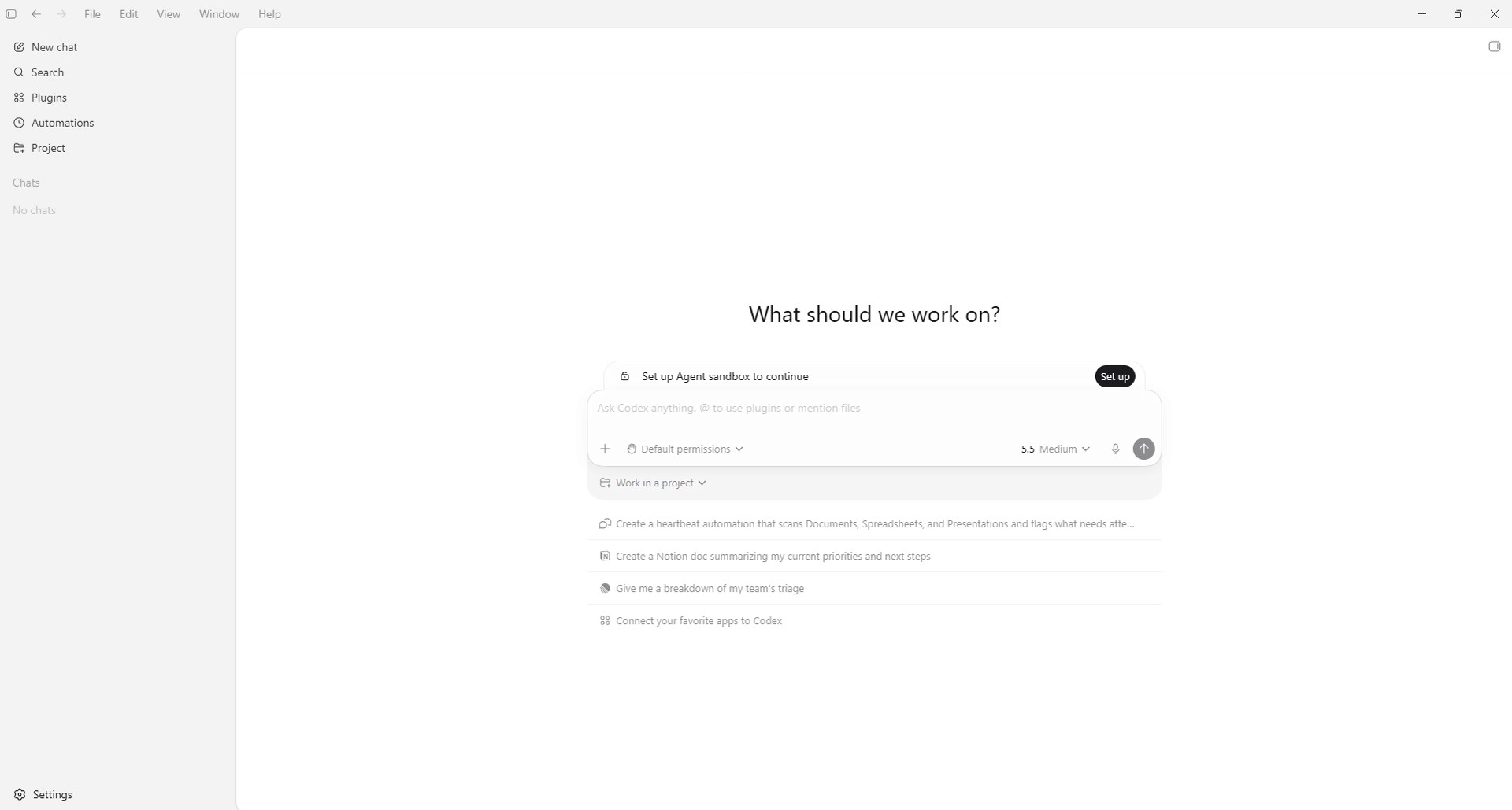
Image caption: Before starting the mini game project, set up the Agent sandbox so Codex can work safely inside the selected project environment.
Step 2: Create a Mini Game Project Folder
Now create a project folder for the game.
The easiest way is to create it manually in Windows first.
Go to your desktop.
Right-click on an empty area.
Choose New → Folder.
Name the folder:
Space_Dodger_Game
This folder will contain the game files that Codex creates later.
The main files will be:
index.html
style.css
script.js
Creating the folder yourself makes it easier to know exactly where Codex is writing files.

Image caption: Create a clean project folder first so Codex can generate all mini game files in one place.
Step 3: Connect the Folder in Codex
Return to the Codex app.
Below the prompt input box, click Work in a project.
A small dropdown will appear with two options:
Start from scratch
Use an existing folder
For this tutorial, choose Use an existing folder.
Then select the Space_Dodger_Game folder you created on your desktop.
Once the folder is connected, Codex can create and edit files inside that project folder.
You can also use Start from scratch, but for beginners, Use an existing folder is easier because you can clearly see where the files are created.

Image caption: In Codex, click Work in a project and choose Use an existing folder to connect your mini game project folder.
Step 4: Enter the First Codex Prompt
Once the project folder is connected, paste your first prompt into the Codex input box.
For this tutorial, all prompts that you enter into Codex will be written in English.
This helps Codex keep file names, function names, and code comments more consistent.
Prompt to use:
After pasting the prompt, send it to Codex.
Codex may explain its plan first, or it may directly create the files.
If Codex only explains the plan but does not create files, send this follow-up prompt:
Prompt to use:
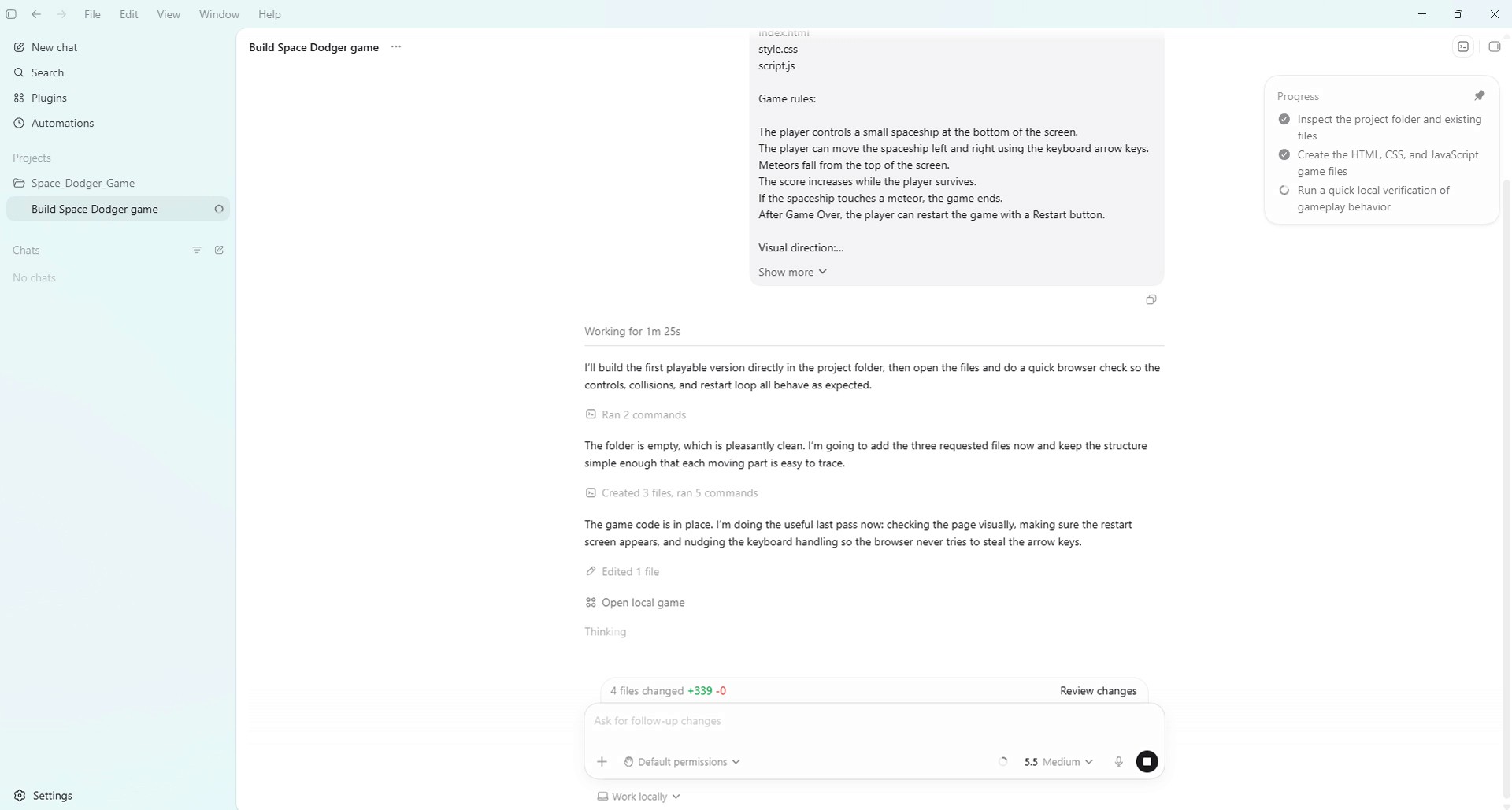
Image caption: Paste the first English prompt into Codex so it can create the initial HTML, CSS, and JavaScript game files.
Step 5: Check the Generated Files
When Codex finishes, check the project folder.
You should see these files:
index.html
style.css
script.js
You can check them in the Codex project file list or open the Space_Dodger_Game folder in Windows Explorer.
At this stage, the game does not need to be perfect.
The first goal is simply to create a playable version.
Step 6: Run the Game in a Browser
Now test the game.
Open the Space_Dodger_Game folder in Windows Explorer.
Double-click index.html.
The game should open in your browser.
Check the basic gameplay.
Can you see the spaceship?
Can the spaceship move left and right?
Do meteors fall from the top?
Does the score increase?
Does the Game Over screen appear after collision?
Does the Restart button work?
If the game does not run correctly, open the browser developer tools.
In most browsers, you can press F12 and open the Console tab.
If you see a red error message, copy it and send it to Codex.
Prompt to use:
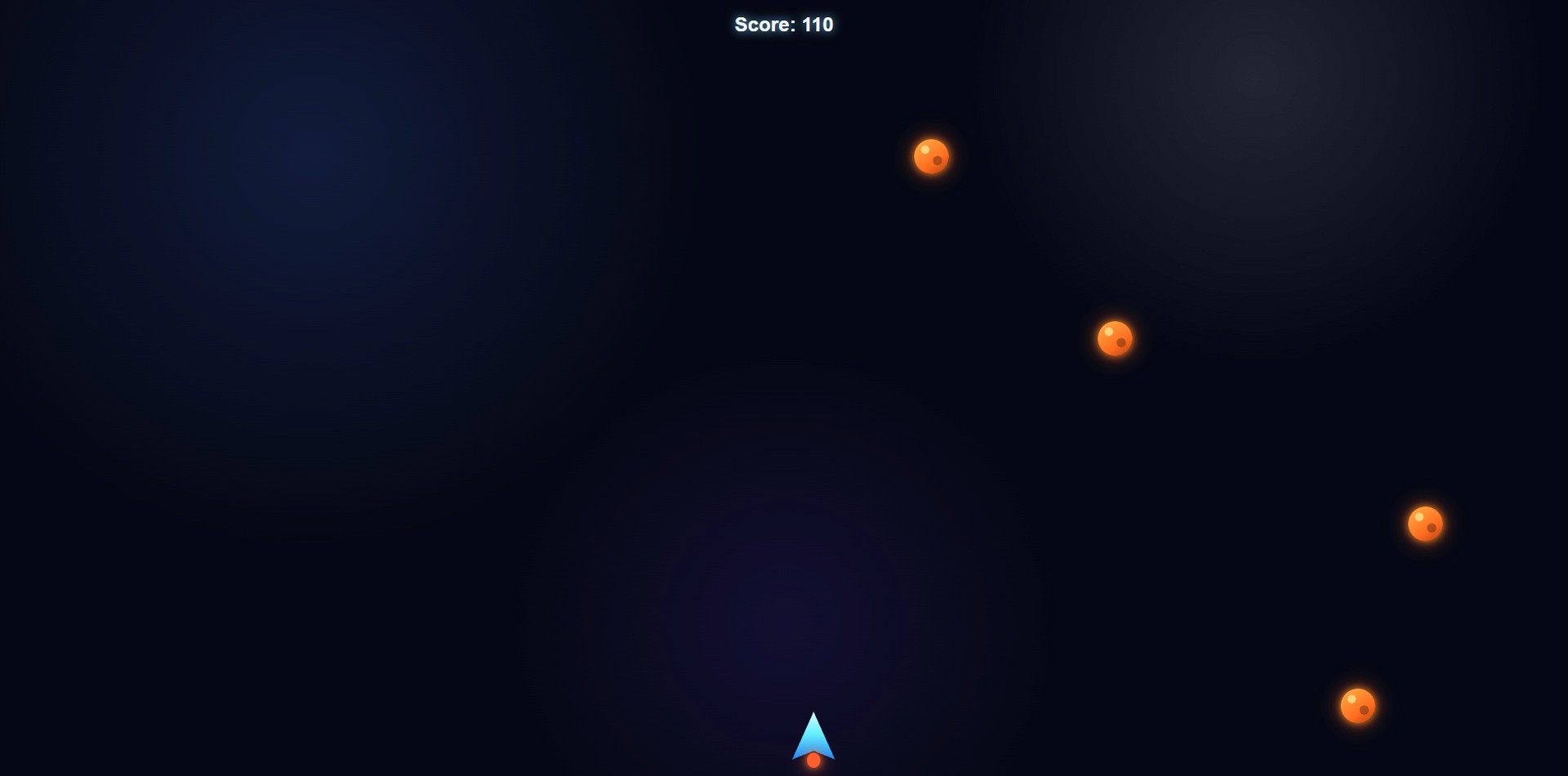
Image caption: Open index.html in a browser and test whether the first playable version of the game works correctly.
Step 7: Adjust the Difficulty
The first generated version may be too easy or too difficult.
Maybe the meteors fall too quickly.
Maybe the player moves too fast.
Maybe the score increases too slowly.
Give Codex specific feedback.
Prompt to use:
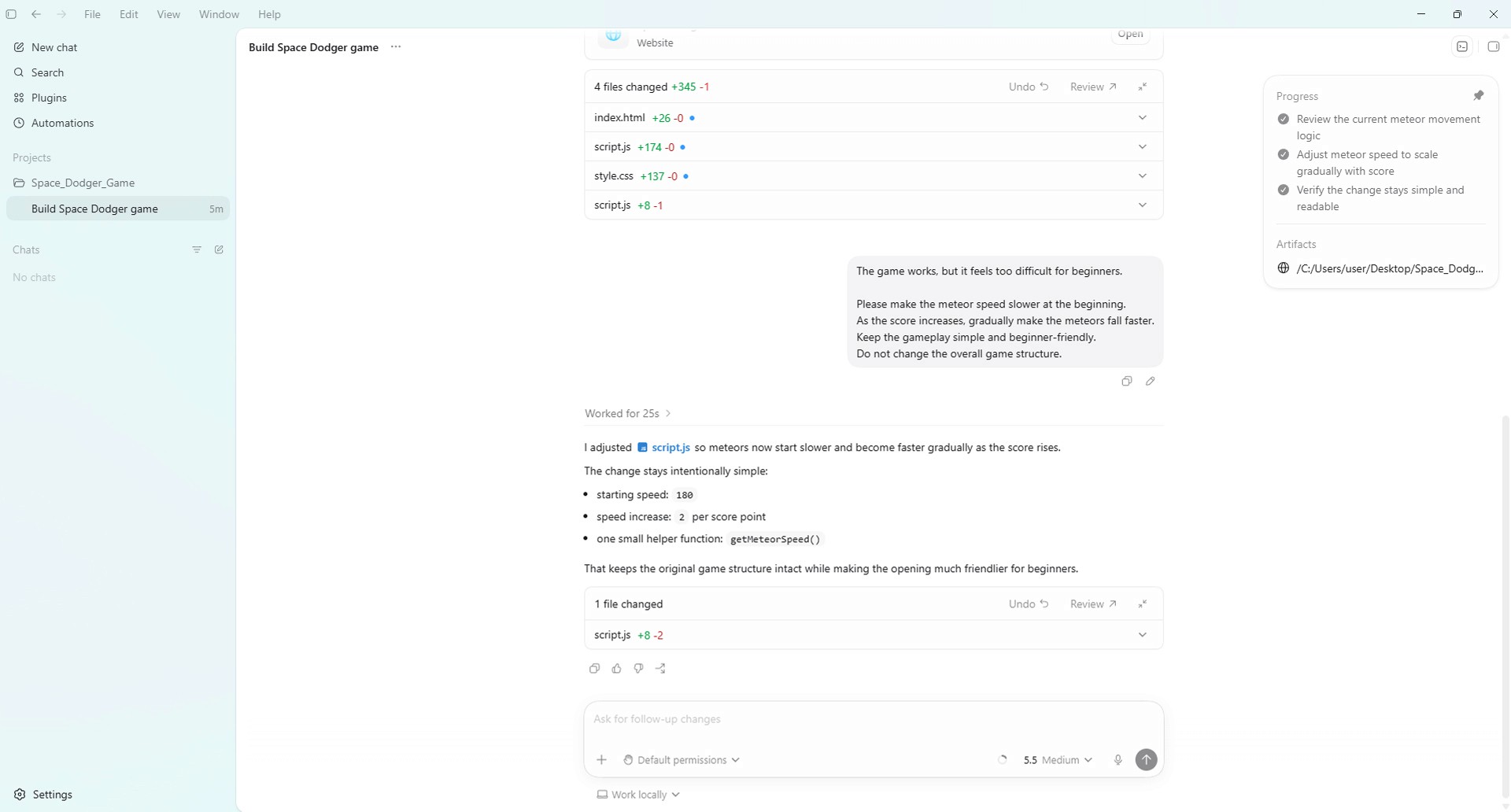
Image caption: After the first test, use Codex to adjust the game difficulty in small, controlled steps.
Step 8: Improve the Visual Design
Once the basic game works, improve the visual style.
A mini game feels much better when the atmosphere is clear.
For this project, the visual direction is a polished arcade-style space game.
Prompt to use:
This prompt is much better than simply saying “make it pretty.”
It gives Codex a clear direction for the design.
Step 9: Upgrade Movement, Spaceship Design, and Meteor Patterns
Now we will upgrade the game from a simple dodging game into a more dynamic arcade experience.
In the first version, the spaceship only moved left and right.
In this step, we will allow the player to move in four directions using the keyboard arrow keys: left, right, up, and down.
We will also replace the simple spaceship design with a cooler sci-fi jet fighter style.
The falling meteors will become more visually varied, with different sizes, colors, shapes, rotations, and glow effects.
Finally, we will add a special danger pattern.
Occasionally, a burst of small deadly meteors will appear in a circular spread pattern. If the player touches any of these small meteors, the game ends.
This makes the game more exciting without needing a complex game engine.
Prompt to use:
After Codex updates the game, test it again in the browser.
Check whether the four arrow keys work correctly.
Make sure the spaceship cannot leave the game screen.
Check whether the spaceship looks more like a futuristic sci-fi jet fighter.
Check whether the meteors have varied shapes and designs.
Check whether the circular burst pattern appears occasionally.
Make sure the special small meteors trigger Game Over when they touch the player.
If the circular burst pattern appears too often and makes the game too difficult, use this follow-up prompt:
Prompt to use:
If the spaceship still looks too simple, use this prompt:
Prompt to use:
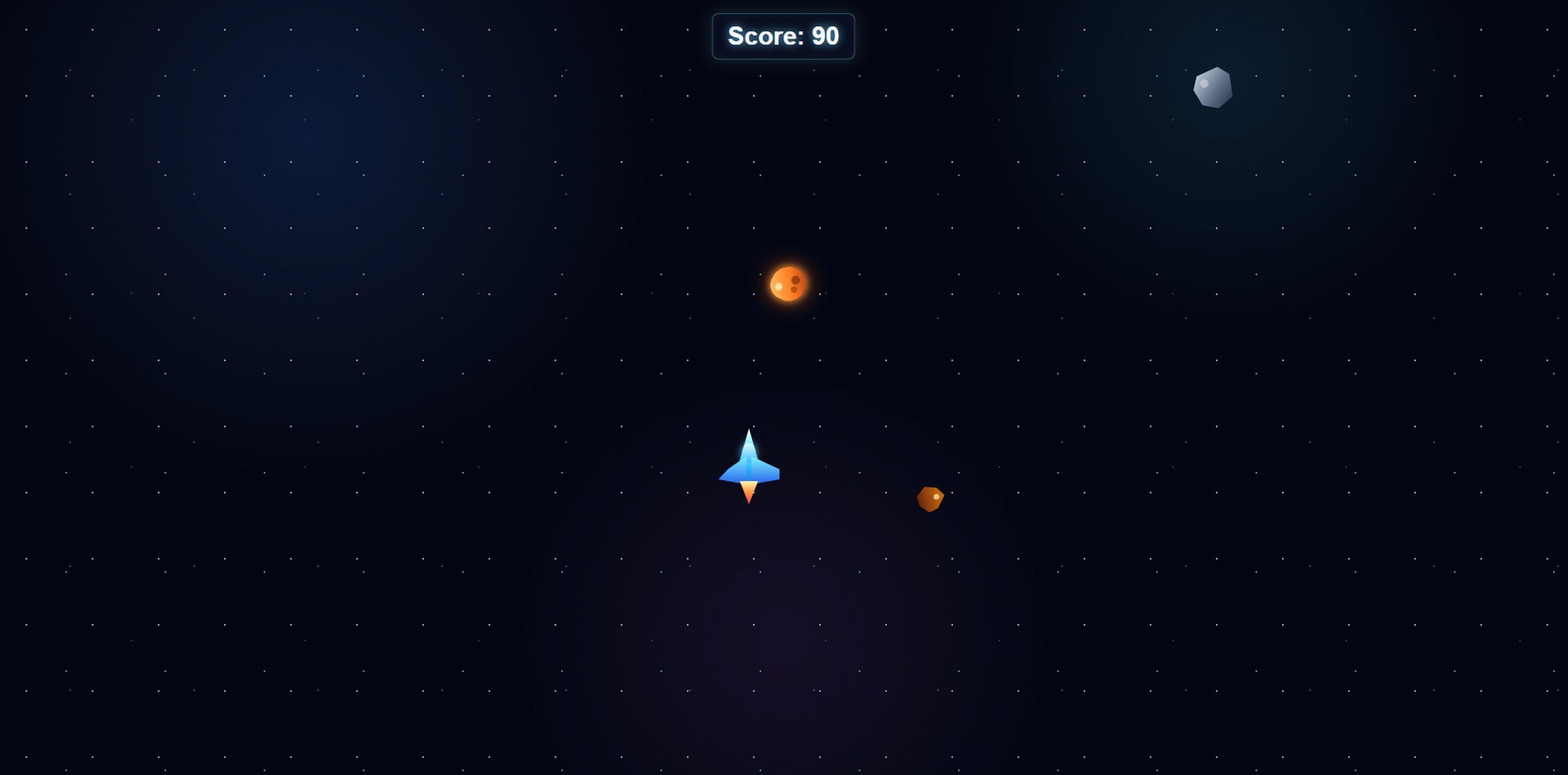
Image caption: The upgraded version adds four-direction movement, a sci-fi jet-style spaceship, varied meteor designs, and an occasional circular burst pattern for more dynamic gameplay.
Step 10: Add Mobile Controls
After upgrading the desktop gameplay, add mobile controls.
On a phone, players do not have keyboard arrow keys.
So we need touch buttons.
For this version, we should add four mobile controls: Up, Down, Left, and Right.
Prompt to use:
After Codex adds mobile controls, test the game on a smartphone or use your browser’s mobile preview mode.
Check whether the buttons are large enough.
Check whether the game screen is not cut off.
Check whether the spaceship moves correctly in all four directions.
Step 11: Add Simple Sound Effects
Now add simple sound effects.
For a beginner project, it is easier not to use external audio files.
Instead, ask Codex to create simple sounds with the Web Audio API.
Prompt to use:
Please add simple sound effects using the Web Audio API.
Do not use external audio files.
Add a short movement sound when the player moves.
Add a hit sound when the game is over.
Add a subtle warning sound when the circular burst pattern appears.
Add a small Sound On / Off toggle button.
Keep the code beginner-friendly.
Make sure the game still works even if the browser blocks audio until the user interacts with the page.
This makes the game feel more interactive.
It also avoids the need to download or license audio files.
Step 12: Clean Up the Code
Once the game works, ask Codex to clean up the code.
This is important for beginners.
A game may work, but if the code becomes messy, it will be hard to improve later.
Prompt to use:
This request helps make the JavaScript easier to read.
The game loop is one of the most important ideas in game development.
The game continuously updates the player position, meteor positions, score, collision state, and game over logic.
Optional: Publish the Game with Netlify Drop
Once the game is complete, you can share it online.
A simple HTML, CSS, and JavaScript game can be hosted as a static website.
One easy option is Netlify Drop.
Netlify Drop lets users drag and drop a project folder and publish it at a temporary URL.
To publish:
Open the Space_Dodger_Game folder.
Make sure it contains index.html, style.css, and script.js.
Open Netlify Drop in your browser.
Drag and drop the Space_Dodger_Game folder into the upload area.
Wait for the upload to finish.
Open the generated link and test the game.
Before sharing the link publicly, make sure the folder does not contain private files, API keys, passwords, or personal information.
Why This Workflow Is Useful
This workflow is useful because it breaks game development into small steps.
Instead of asking Codex to create a complete polished game in one request, we build the game gradually.
First, we create the project folder.
Then we create the basic playable version.
Then we test it.
Then we adjust difficulty.
Then we improve the design.
Then we upgrade gameplay with four-direction movement, varied meteors, and a special danger pattern.
Then we add mobile controls, sound effects, code cleanup, and final testing.
This step-by-step process makes the project easier to control.
It also teaches you how to work with Codex more effectively.
You can use the same workflow for other small projects, such as a clicker game, quiz game, card matching game, typing game, reaction test, mini calculator, or random picker tool.
The key is to start small and improve one part at a time.
Common Issues and Simple Fixes
If the game does not run, open the browser console and give the error message to Codex.
If the spaceship does not move, ask Codex to check keyboard event handling.
If the spaceship leaves the screen, ask Codex to improve boundary detection.
If the meteor burst pattern is too difficult, ask Codex to reduce its frequency.
If the meteors look too similar, ask Codex to create more visual variation using CSS and JavaScript.
If mobile buttons do not work, ask Codex to check touchstart and touchend events.
If sound does not play, remember that browsers often block audio until the user interacts with the page.
If the code becomes too complex, ask Codex to keep the behavior but simplify and organize the code.
Responsible Use Notes
Codex can help you build fast, but you should still review the result.
Do not publish code blindly.
Test the game in a browser first.
Do not include API keys, passwords, tokens, or personal data in a public game folder.
If you use external images, fonts, sound effects, or music, check the license.
For this tutorial, the game is safer because we use CSS shapes, JavaScript-generated objects, and Web Audio API sounds instead of copyrighted assets.
Also, if you do not understand part of the generated code, ask Codex to explain it before publishing.
AI coding tools are helpful, but the final responsibility for the project belongs to the creator.
Conclusion
In this tutorial, we used OpenAI Codex to build a simple browser mini game called Space Dodger.
We created a project folder, connected it in Codex, generated HTML, CSS, and JavaScript files, tested the first version, adjusted difficulty, improved the visual design, upgraded the gameplay, added mobile controls, added sound effects, cleaned up the code, and created a final testing checklist.
The final version includes a sci-fi jet-style spaceship, four-direction movement, varied meteor designs, and an occasional circular burst pattern of small deadly meteors.
Codex is not a replacement for learning programming.
But it can be a powerful coding partner when you want to turn a small idea into a working prototype.
Start with a simple version.
Test it.
Ask for one improvement at a time.
Review the code.
Then keep building.
That is how Codex becomes more than a code generator. It becomes a practical creative development partner.
We will return in the next A2SET tutorial with more practical AI workflows for creators, developers, designers, and small teams.
Quick FAQ
Can Codex really build a game?
Yes. Codex can help create simple browser-based games using HTML, CSS, and JavaScript. For larger games, you still need stronger programming knowledge and testing.
Do I need to know coding?
You can follow the basic workflow without deep coding knowledge, but learning basic HTML, CSS, and JavaScript will help you understand and improve the result.
Where do I start a project in Codex?
Click Work in a project, then choose Start from scratch or Use an existing folder. In this tutorial, we use Use an existing folder and connect the Space_Dodger_Game folder.
Why use English prompts?
English prompts often work well for code generation because file names, function names, comments, and programming terms are usually written in English.
Can I ask Codex to create everything at once?
You can, but it is better to work step by step. Create the first playable version, test it, then improve movement, design, patterns, mobile controls, and sound.
Can I publish the game online?
Yes. A simple static game with HTML, CSS, and JavaScript can be hosted with a static hosting service such as Netlify Drop.
Should I publish Codex-generated code immediately?
No. Always test the game, review the code, and make sure there are no private files or secrets in the project folder.