Build Your Own Website in Just 1 Minute with Cursor AI


Title
If You Can Type, You Can Do It! The Ultimate Guide to Installing Cursor AI and Building "My Own AI Website"
Introduction
Hello! This is a very special AI tutorial prepared for those who don't know the first thing about coding.
If you thought, "Isn't coding just typing a bunch of English passwords on a black screen?", we will completely shatter that prejudice today. As of 2026, using the world's #1 code editor loved by developers, 'Cursor AI', you don't need to memorize complex syntax. You just need to instruct it in natural, everyday language, saying "Make it like this."
🎯 Today's Goal
This isn't just a simple practice exercise! We will build "My Own Latest AI Trend Showcase Website" in just 10 minutes. This site will display the core facts of the 4 key AI visual materials (Cursor, Veo 3.1, ElevenLabs, NotebookLM) we analyzed in previous sessions at a glance.
I will guide you step-by-step on exactly which files to download and which buttons to click, so please follow along slowly!
Step 1: Downloading and Installing Cursor AI for Absolute Beginners
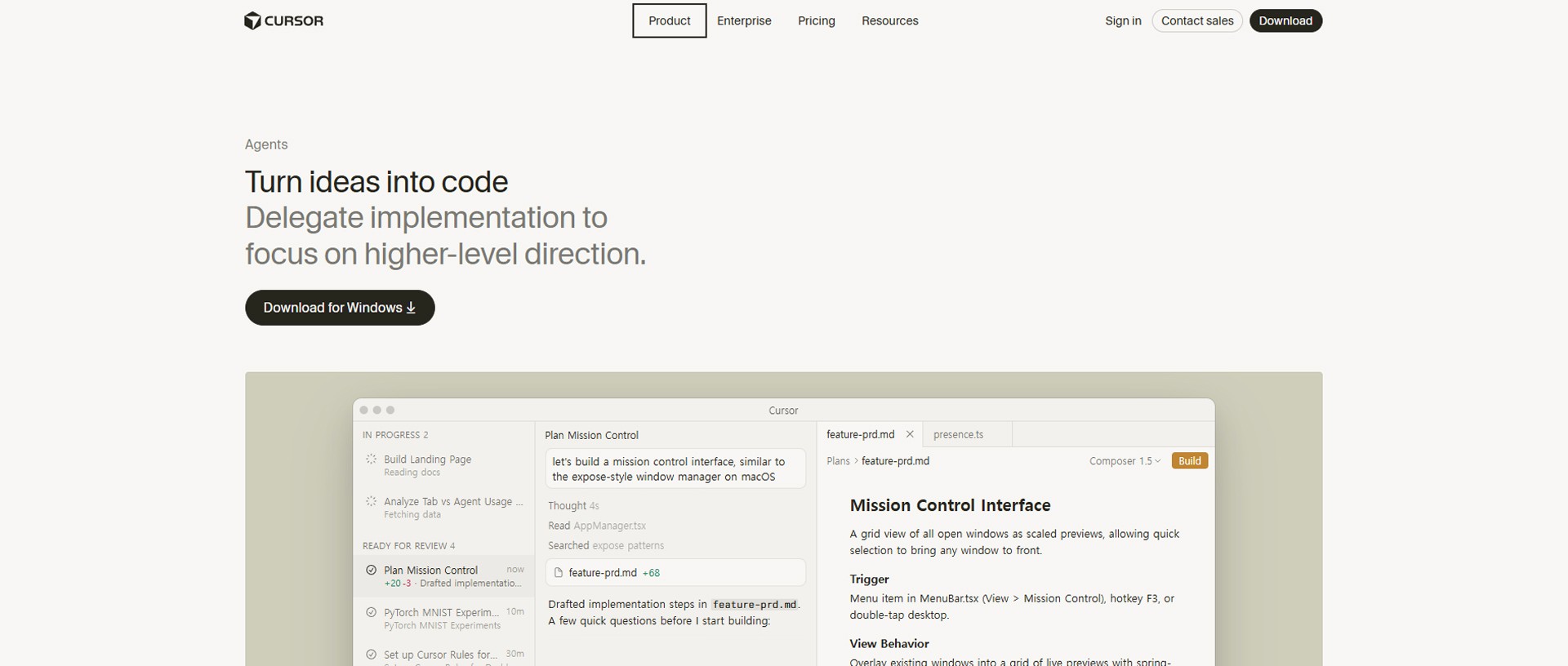
First, we need to install Cursor, your AI coding partner, on your computer.
Open your internet browser: Open Chrome or Safari and type https://www.google.com/search?q=cursor.com into the address bar to visit the site.
Download the file: Click the large 'Download' button right in the middle of the homepage.
Windows users: Clicking the button will automatically download an executable file like
Cursor Setup.exe.Mac users: A
.zipor.dmgfile tailored to your chip (Intel or Apple Silicon) will be downloaded.
Install: Double-click the downloaded file. Without any complex settings, just keep clicking "Next" to complete the installation like you would with any other program.
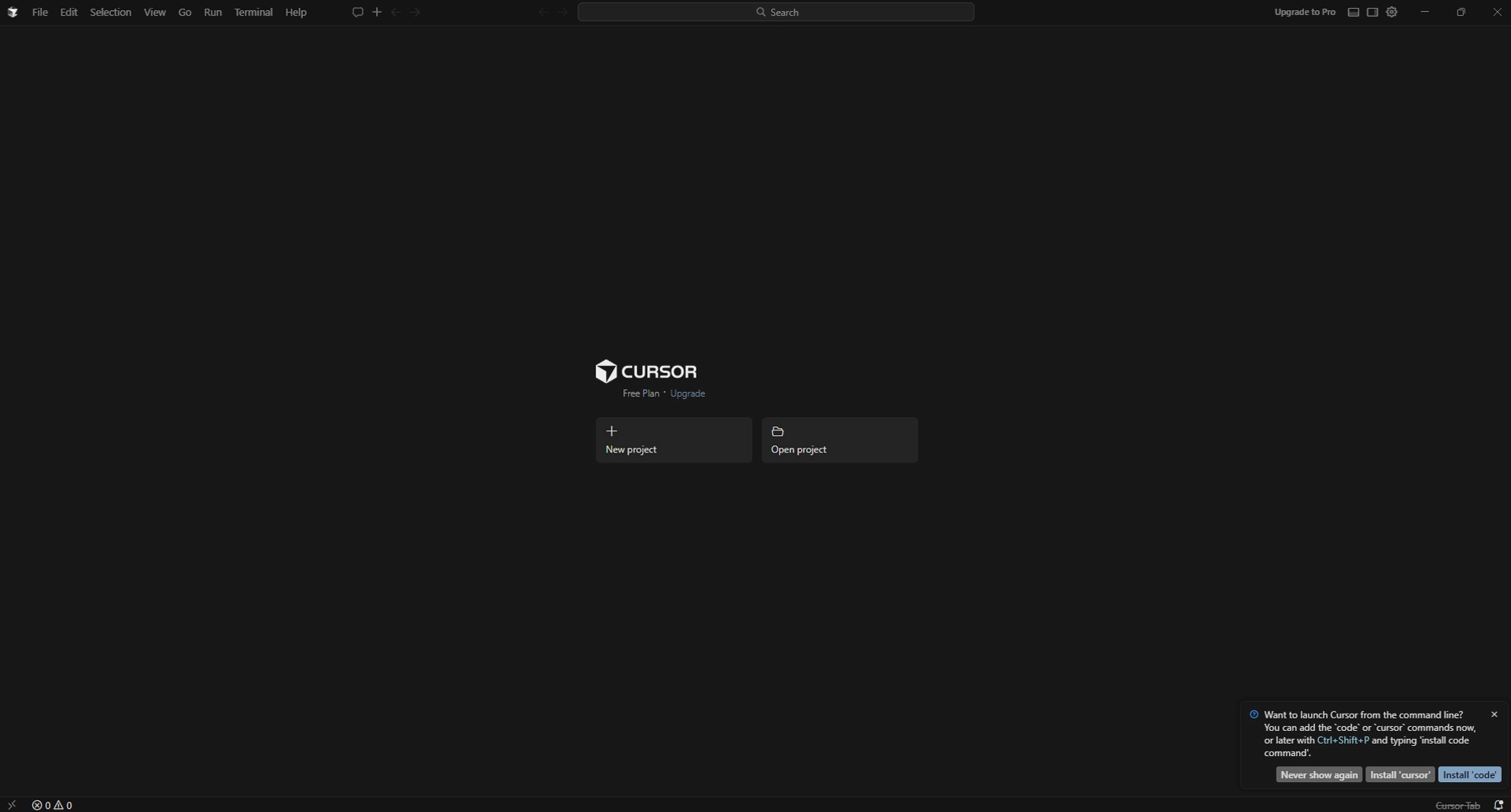
When you first run it, a black screen with English text will appear, which might be confusing. Don't worry, this is perfectly normal!
Step 2: Creating Your Own Workspace (Folder) and Connecting It to Cursor
Just as you need a blank canvas to draw a picture, you need a 'blank folder' to code.
Right-click on an empty space on your computer's Desktop and create a [New Folder]. Name the folder
MyAIWebsite.Open the Cursor program window you left open.
Click and hold the
MyAIWebsitefolder on your desktop, then drag and drop it right into the middle of the black screen of the Cursor program.If you see the text
MyAIWebsiteappear on the left side of the screen, you are perfectly ready!
Step 3: Launching the Magic Shortcut, 'Composer'
Now it is time to turn on the heart and core feature of Cursor, the Composer mode. While standard editors simply autocomplete text, Composer is an intelligent agent that understands the context of your entire project and creates multiple files autonomously at the same time.

Press
Ctrl + I(orCmd + Ifor Mac users) simultaneously on your keyboard.A small chat window named 'Composer' will appear on the screen where you can type your prompt.
Step 4: Instructing the AI to Code the Website in 'Natural Language'
Now, instead of writing code, we are going to write a detailed blueprint for our website in plain English. Based on the exact facts from the 4 visual materials we covered earlier, let's construct the cards.
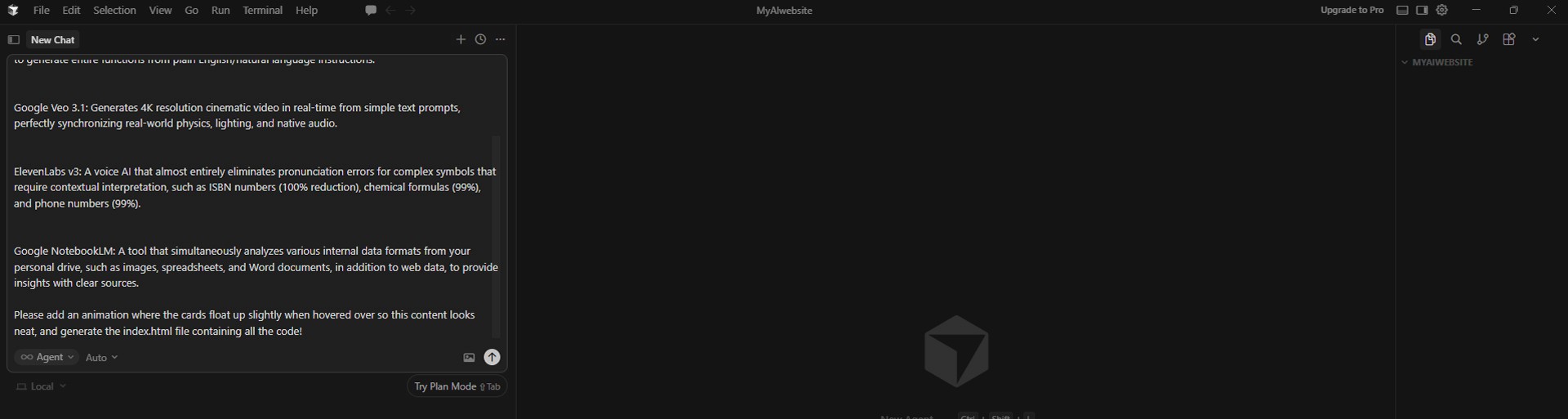
Select and copy (Ctrl+C) the text below with your mouse, paste it directly (Ctrl+V) into the Composer chat window, and hit Enter!
"Hello! I am a complete beginner who knows nothing about coding. Today, using only HTML and Tailwind CSS technologies, please create a sleek, dark-themed responsive website called '2026 Latest AI Trend Showcase'. Make 4 beautiful information cards appear in a grid format in the center of the screen. The title and content for each card should be as follows:
Cursor AI: An intelligent editor that goes beyond simple snippets. It uses AI-powered context awareness to generate entire functions from plain English/natural language instructions.
Google Veo 3.1: Generates 4K resolution cinematic video in real-time from simple text prompts, perfectly synchronizing real-world physics, lighting, and native audio.
ElevenLabs v3: A voice AI that almost entirely eliminates pronunciation errors for complex symbols that require contextual interpretation, such as ISBN numbers (100% reduction), chemical formulas (99%), and phone numbers (99%).
Google NotebookLM: A tool that simultaneously analyzes various internal data formats from your personal drive, such as images, spreadsheets, and Word documents, in addition to web data, to provide insights with clear sources.
Please add an animation where the cards float up slightly when hovered over so this content looks neat, and generate the
index.htmlfile containing all the code!"
Step 5: Appreciate the Coding, Accept, and Complete!
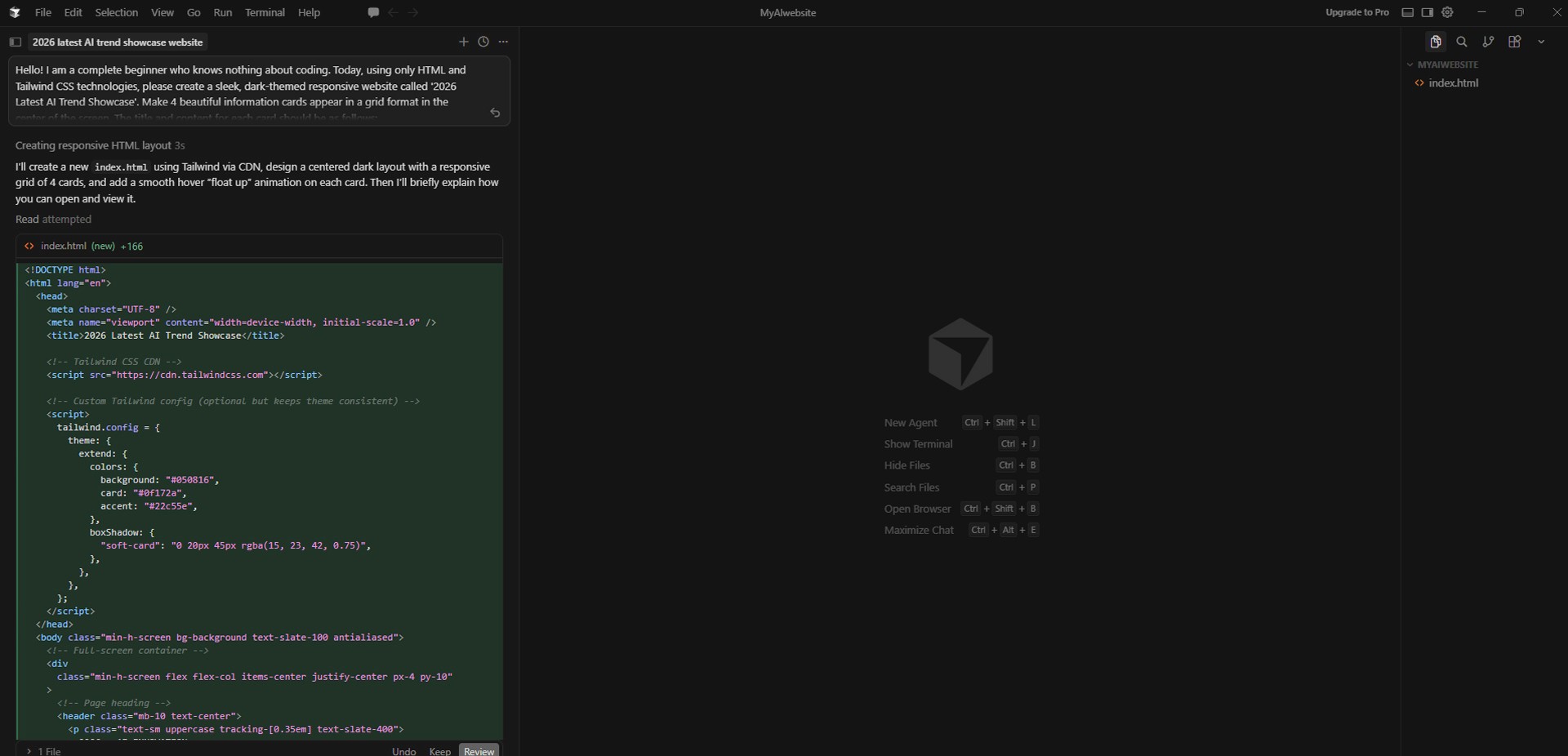
The moment you hit enter, all you have to do is watch the screen. Cursor AI will autonomously create a file called
index.htmlin the left folder and start pouring out hundreds of lines of code at lightning speed. (This is the 'Can create entire functions' capability we saw in the comparison chart!)When the coding stops, click the
Keepbutton that appears in the top right or within the chat window.Check the result: Double-click the
MyAIWebsitefolder on your desktop to open it, and then double-click the newly createdindex.htmlfile.
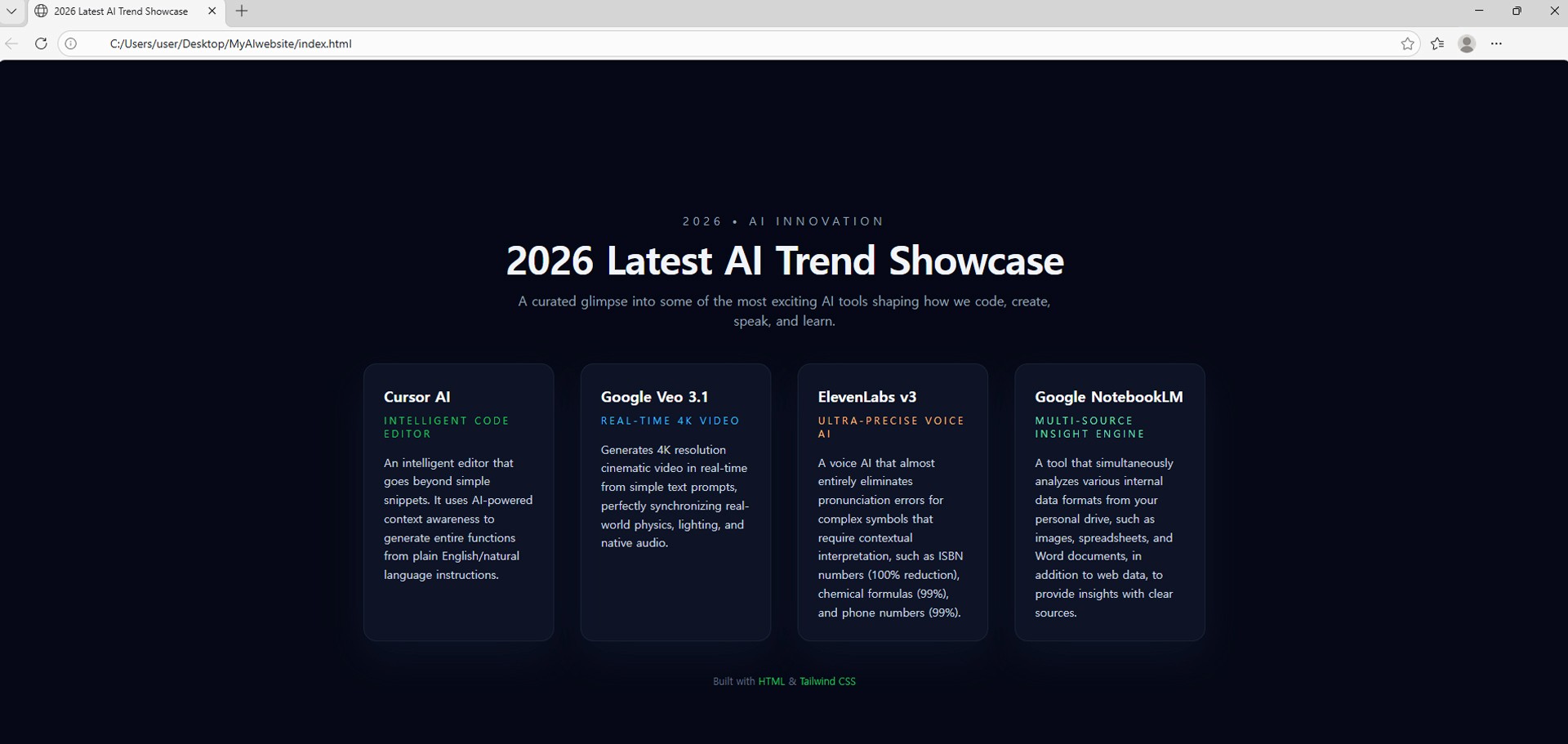
Your internet browser will open, and the stunning website born from your single command will unfold before your eyes!
Step 6: Encountered a Problem? Fix it with 'AI Bug Detection'! (Debugging)
If the screen breaks strangely or the code is wrong, there is absolutely no need to panic. As stated in the comparison chart, Cursor AI supports 'AI-powered bug detection' rather than manual tools.
If a red line appears in the editor or an error occurs, hover your mouse over it.
A blue lightbulb button called
Fix with AIwill appear.Click the button, and the AI will figure out the cause, saying something like "A tag wasn't closed properly," and fix the code instantly.
Conclusion
Great job! With just a single prompt, you have built a sleek website containing the vast technical core information of the 4 major AI tools (Cursor, Veo, ElevenLabs, NotebookLM) we so intensely analyzed.
How do you feel after installing Cursor AI and completing your first project? The real barrier to programming is no longer 'memorizing syntax'. It is entirely about your creative planning ability: "What data will I combine, and what screen will I create to provide value to people?" Don't be afraid, and type your own ideas into the Cursor AI Composer right now!