Create a K-Pop Vocal Theme Song for Your Shorts with Suno AI
Hello creators, welcome back to A2SET’s AI Tutorial.
In a previous tutorial, we looked at how AI tools can help creators make background music for videos. But many creators want something more than a simple instrumental track.
Sometimes, you need a real vocal theme song.
For example, you might want a short intro song for a YouTube Shorts channel, a catchy K-pop style hook for a creator brand, or a bright vocal theme that makes your video feel more memorable.
In this tutorial, we will use Suno AI to create an upbeat K-pop style vocal theme song.
The goal is not to say that AI music will replace professional composers, singers, or producers. Human direction and editing still matter. However, Suno can be a useful tool when you want to test song ideas, create demo tracks, or build a simple vocal theme for short-form content.
For commercial use, always check your current Suno plan and usage rights. Songs created on the free plan are generally for non-commercial use, while commercial usage requires a paid plan under Suno’s current policy.

Image caption: Suno AI can help creators turn lyrics, style prompts, and song structure into a complete vocal track.
What is Suno AI?
Suno AI is a generative music platform that can create songs from text prompts.
Instead of only generating background music, Suno can create a full track with lyrics, vocals, melody, and instrumental arrangement.
This makes it useful for creators who want to test:
YouTube intro songs,
Shorts and Reels music,
brand theme songs,
character theme songs,
podcast openings,
and quick vocal demo tracks.
However, it is important to use it with realistic expectations.
The result can vary depending on the lyrics, genre prompt, model version, and generation settings. Some tracks may sound natural right away, while others may need several tries, editing, or extension.
For commercial publishing, also make sure you are using a plan that allows commercial use.
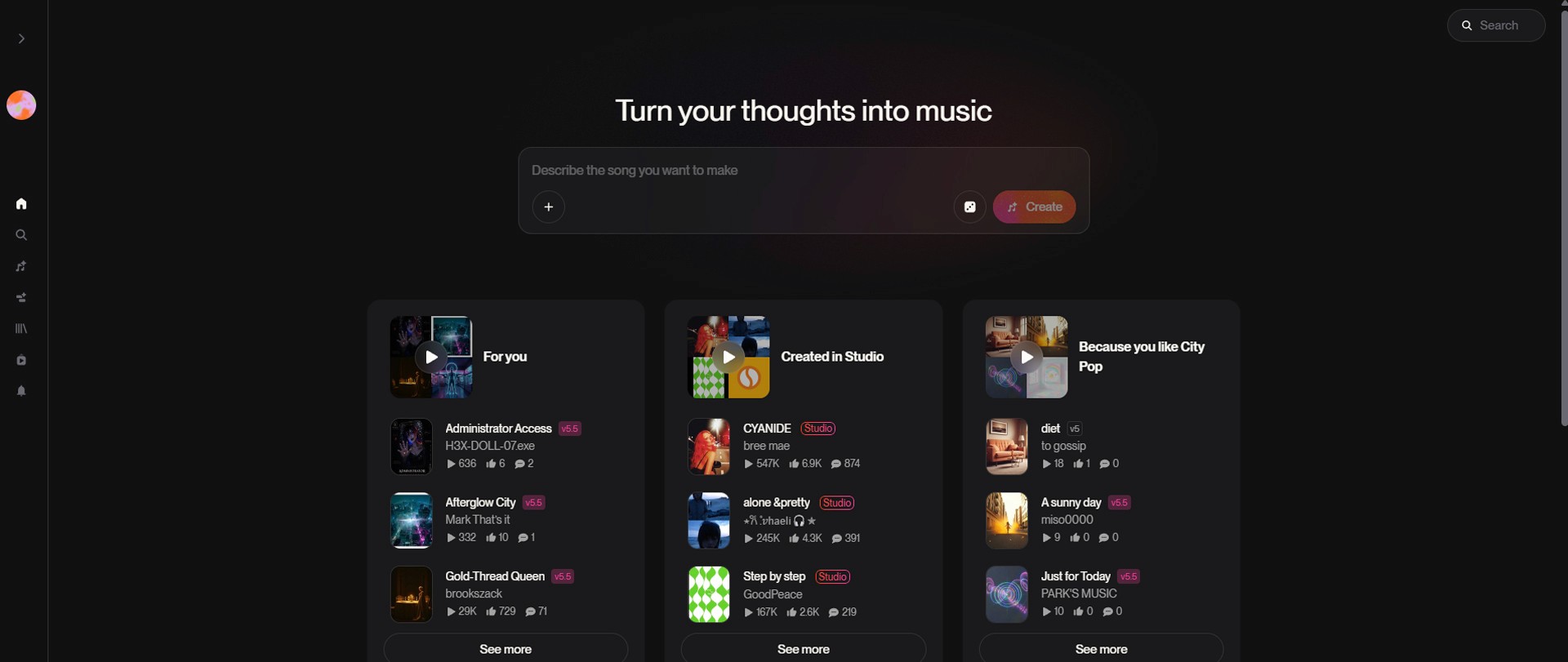
Image caption: Suno’s music creation workflow can generate vocals, lyrics, melody, and instrumental arrangement from text input.
Step 1: Open Create and Activate Advanced Mode
First, go to Suno and log in.
From the left menu, click the music note icon or Create menu.
In the creation panel, you may see mode options such as Simple, Advanced, or other tools depending on the current Suno interface.
For this tutorial, choose Advanced mode.
Advanced mode gives you more control because you can separate lyrics, style, song title, and other settings instead of writing everything in one simple prompt.
Image caption: Advanced mode gives creators more control over lyrics, style, title, and song structure.
If there is a model version dropdown, select the latest suitable model available in your account. The exact model name can change over time, so it is better to check the current option inside Suno rather than relying on an old tutorial screenshot.
You may also see additional options such as voice or audio-related features. For this basic tutorial, we will focus on the standard song creation workflow using lyrics and style prompts.
Step 2: Write Lyrics with Meta Tags
Now move to the Lyrics panel.
You can write your own lyrics, or use Suno’s lyric generation option if it is available in your interface.
For better control, it is helpful to use meta tags inside brackets.
Meta tags are simple section labels such as:
[Intro]
[Verse 1]
[Pre-Chorus]
[Chorus]
[Outro]
These tags help the AI understand the structure of the song.
If you write all lyrics as one long block, the result may feel less organized. The AI may not clearly understand where the verse ends, where the chorus begins, or where the song should build energy.
For a K-pop style Shorts theme song, we want the structure to feel bright, energetic, and easy to remember.
Copy and paste this lyrics template into the Lyrics box.
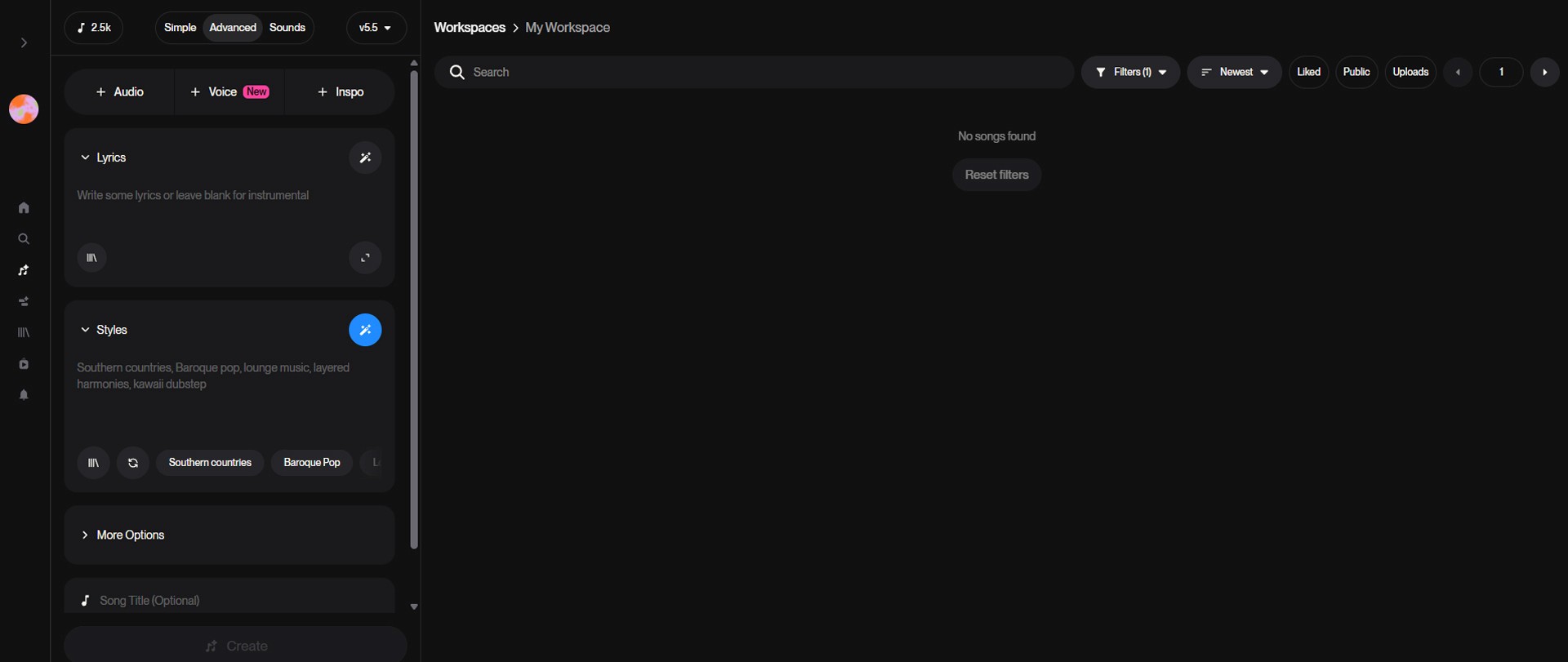
Image caption: Meta tags help divide the song into intro, verse, pre-chorus, chorus, and outro sections.
The most important part here is the chorus.
For short-form content, the chorus should be easy to understand and catchy. If you want to use the song for a channel intro or Shorts hook, the chorus may become the part you reuse most often.
You can also add small vocal directions in parentheses.
For example:
These can help suggest ad-libs, energy changes, or a stronger highlight moment. The result may vary, but this is a useful way to guide the vocal performance.
Step 3: Add Style and Song Title
After the lyrics, move to the Styles input box.
This is where you describe the genre, mood, instruments, vocal tone, and tempo.
For this tutorial, we want a bright K-pop idol-style theme song that works well for YouTube Shorts or creator intros.
Use this style prompt:
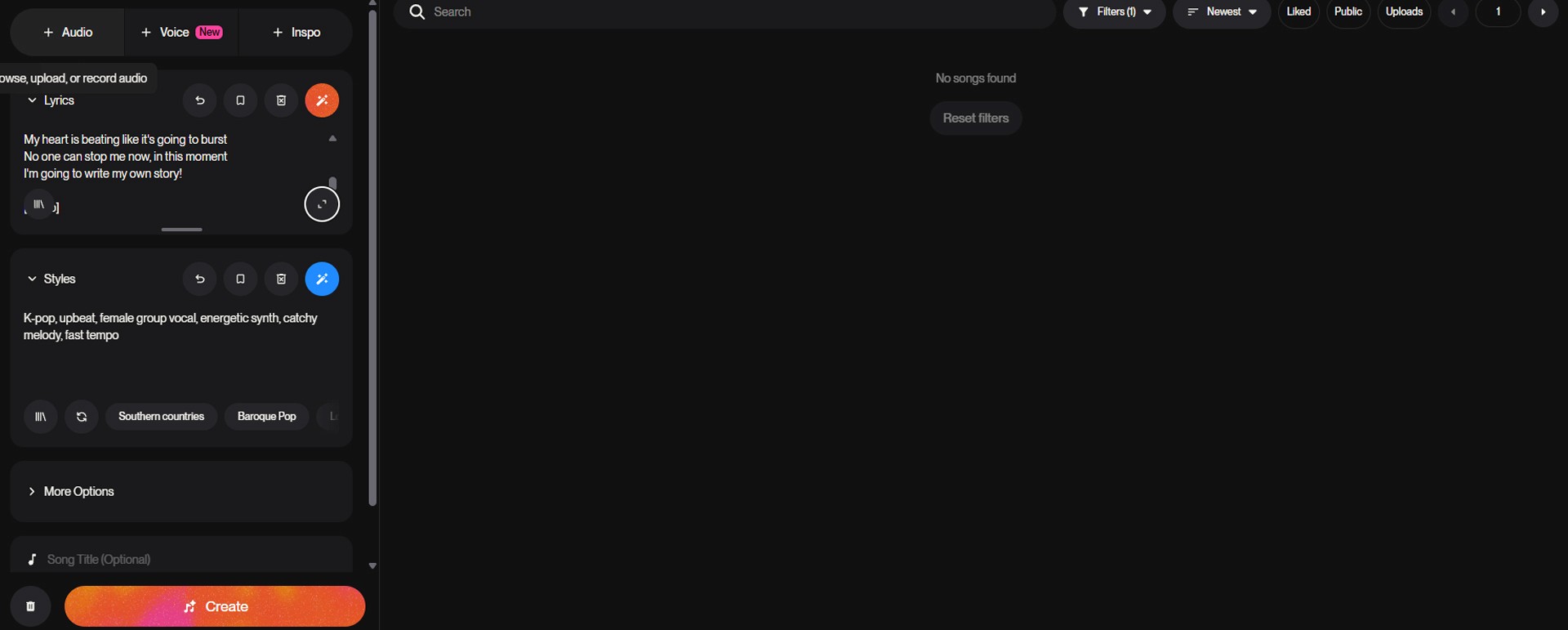
Image caption: The Styles box controls the genre, mood, vocal direction, instruments, and tempo of the generated song.
This prompt is short, but it gives the model clear direction.
K-pop tells the broad genre.
Upbeat sets the mood.
Female group vocal suggests the vocal character.
Energetic synth gives the instrumental color.
Catchy melody tells the model to focus on memorable hooks.
Fast tempo makes it more suitable for Shorts and intro content.
Next, add a song title.
For this example, use:
The title does not need to be complicated. It only needs to help you recognize the track later in your workspace.
Once the lyrics, style, and title are ready, click Create.
Step 4: Listen in My Workspace
After clicking Create, Suno will start generating track options in your workspace.
In many cases, you may receive more than one version. Each version can have a different arrangement, vocal delivery, energy, or melody.

Image caption: Suno’s workspace lets you listen to generated song versions and compare different arrangements.
When the generation is complete, click the thumbnail or play button to listen.
While listening, do not only check whether the song sounds impressive at first. Check whether it fits your actual content.
Ask yourself:
Does the chorus feel catchy?
Does the vocal tone match your channel?
Is the tempo suitable for Shorts?
Does the intro start quickly enough?
Can the hook work within the first few seconds?
Is the mood too bright, too slow, or too intense?
For short-form content, the first few seconds are very important. If the song takes too long to build, it may not work well as a Shorts intro.
If the first result is not right, adjust the style prompt slightly and generate again.
For example, if it feels too soft, add:
If it feels too busy, add:
Step 5: Use Extend if the Song Cuts Off
Sometimes, you may like the generated song, but it ends too early or cuts off before the structure feels complete.
In that case, use the Extend feature if it is available in your current interface.
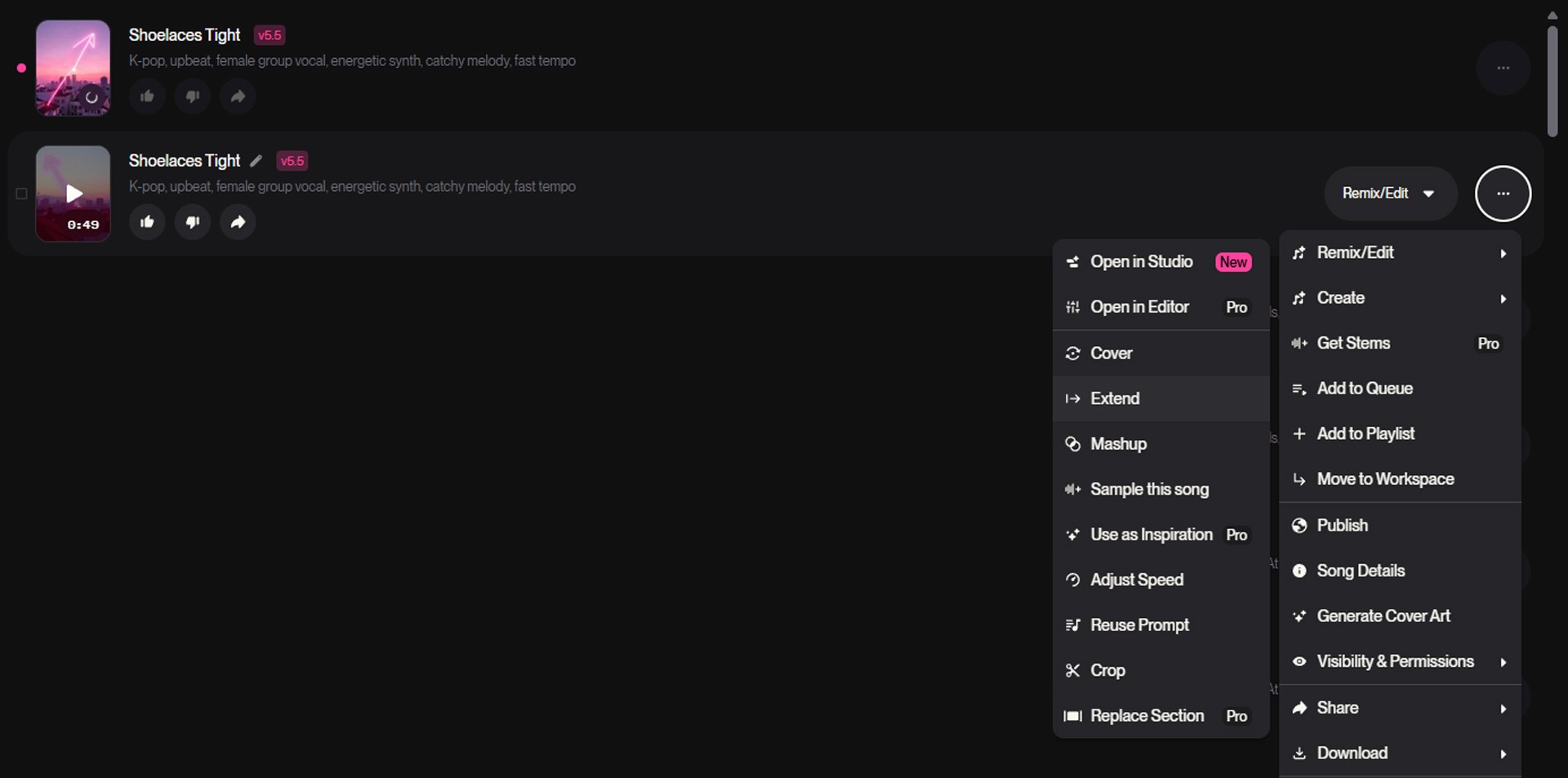
Image caption: The Extend feature can help continue a song from a selected point when the track ends too early.
Click the three dots menu on the track you want to continue, then choose Extend.
When the left panel changes to Extend mode, select or enter the time point where the song should continue.
Then add the next lyrics section.
For example:
The important point is to keep the same song structure and mood.
If the original song was bright and fast, do not suddenly change the style into a slow ballad. Keep the energy consistent so the extended part feels connected.
A2SET Workflow Notes
For this kind of creator theme song, it is better to start simple.
Do not write too many lyrics in the first attempt.
Do not combine too many genres at once.
Do not make the style prompt too long.
Do not expect the first version to be the final version.
A simple workflow is usually better.
Write a short lyric structure.
Choose one clear genre.
Add one clear vocal direction.
Generate two versions.
Pick the better direction.
Then extend or refine from there.
This gives you more control than trying to create a full finished song in one attempt.
Practical Use Cases
A short K-pop style vocal theme song can be used for many creator projects.
For example:
YouTube Shorts intro,
TikTok series opening,
Reels product teaser,
virtual influencer theme,
AI character introduction,
podcast opening,
or brand campaign demo.
If you are using the song publicly or commercially, check the license and commercial usage rights first. This is especially important for monetized YouTube videos, client work, advertising, or digital product promotion.
Responsible Use Notes
AI music is useful, but it should be used responsibly.
Do not intentionally copy an existing artist’s song, melody, lyrics, or vocal style.
Do not use copyrighted lyrics without permission.
Do not claim that an AI-generated track was performed by a real artist.
Do not use a celebrity or real singer’s name to imitate their voice.
Also, avoid writing prompts that ask for a song “in the exact style of” a living artist or a specific copyrighted track.
For a safer workflow, describe general musical qualities instead.
For example, use:
bright K-pop idol energy,
upbeat synth pop,
female group vocal,
catchy chorus,
fast tempo,
clean dance-pop arrangement.
This keeps the direction useful without relying on a specific artist or copyrighted song.
Conclusion
Suno AI can be a useful tool for creators who want to test vocal theme songs without starting from a full music production process.
In this tutorial, we created a K-pop style vocal theme song using Advanced mode, lyrics meta tags, style prompts, a simple song title, workspace review, and the Extend feature.
The result will not be perfect every time, and commercial use depends on your current plan and Suno’s terms. But as a creative workflow, it can help you quickly explore intro music, Shorts hooks, and creator brand themes.
Start with a simple structure.
Use clear meta tags.
Keep the style prompt focused.
Listen carefully to the generated versions.
Then extend or refine the track only after you find a strong direction.
That is how AI music becomes more useful as a real creator workflow.
We will return in the next A2SET tutorial with more practical AI workflows for creators, designers, and small production teams.
Quick FAQ
Can I use Suno songs for YouTube monetization?
Commercial use depends on your Suno plan and the terms that apply when the song is created. Under Suno’s current guidance, free plan songs are for non-commercial use, while paid plans are required for commercial usage.
Can I create a K-pop style song without music knowledge?
Yes. You can use lyrics, meta tags, and style prompts to guide the result. You do not need to know music theory to start testing ideas.
What are meta tags?
Meta tags are section labels such as [Intro], [Verse], [Chorus], and [Outro]. They help the AI understand the structure of the song.
Why does the song sometimes end too early?
AI-generated tracks may end before the structure feels complete. If the Extend feature is available, you can continue the track from a selected point.
Should I mention a real artist in the prompt?
It is safer to avoid using real artist names or asking the AI to imitate a specific singer. Use general style descriptions instead.
What style prompt should I start with?
For this tutorial, start with: K-pop, upbeat, female group vocal, energetic synth, catchy melody, fast tempo.