Create a Brand Advertising Campaign with the OpenAI Codex Creative Production Plugin
Hello creators, welcome back to A2SET’s AI Tutorial.
When most people hear the name OpenAI Codex, they think about coding.
Codex is widely known as a tool for building websites, fixing bugs, and developing applications.
But Codex is expanding beyond software development.
It can also support marketers, designers, operators, analysts, and other teams that need to turn ideas into practical work.
One of the most interesting additions is Plugins.
A Codex plugin is not just a small extension.
It is closer to a reusable workflow package that can combine relevant skills, app integrations, instructions, and tools for a specific type of work.
In this tutorial, we will use the Creative Production plugin.
The Creative Production plugin is designed for marketing and creative teams that want to turn a brief into reviewable visual assets.
It can support workflows such as campaign boards, display ad variations, product lifestyle images, and ecommerce-ready image sets.
This tutorial will not stop after installation.
We will install the plugin, use it inside a new Codex thread, and follow one complete campaign workflow from beginning to end.
Our fictional brand is Luma Dew.
The product is Glow Drop Serum, a lightweight daily serum designed for a fresh, dewy-looking finish.
The final goal is not one product image.
We will create a campaign brief, a campaign board, display ad directions, product lifestyle image concepts, and an ecommerce image set for a complete product launch campaign.
No coding is required for this workflow.
However, Codex should not make every final design or marketing decision for you.
Product information, brand tone, advertising claims, image accuracy, usage rights, and final publishing decisions still need human review.

Image caption: OpenAI Codex is expanding beyond coding into creative production workflows for marketers, designers, and brand teams.
Step 1: Install the Creative Production Plugin
First, open the Codex app.
Open Plugins from the Codex plugin directory.
Search for Creative Production and open the plugin details page.
Select the install button to add the plugin to Codex.
If the plugin needs an external app, Codex may ask you to connect or sign in during installation or the first time you use it.
The Creative Production workflow may use tools such as Figma, Canva, Shutterstock, Picsart, or Fal.
The apps and features available to you may vary depending on your account, region, workspace settings, administrator permissions, and connected app status.
After installation, start a new thread.
Starting a new thread makes it easier to clearly apply the installed plugin to the campaign project.
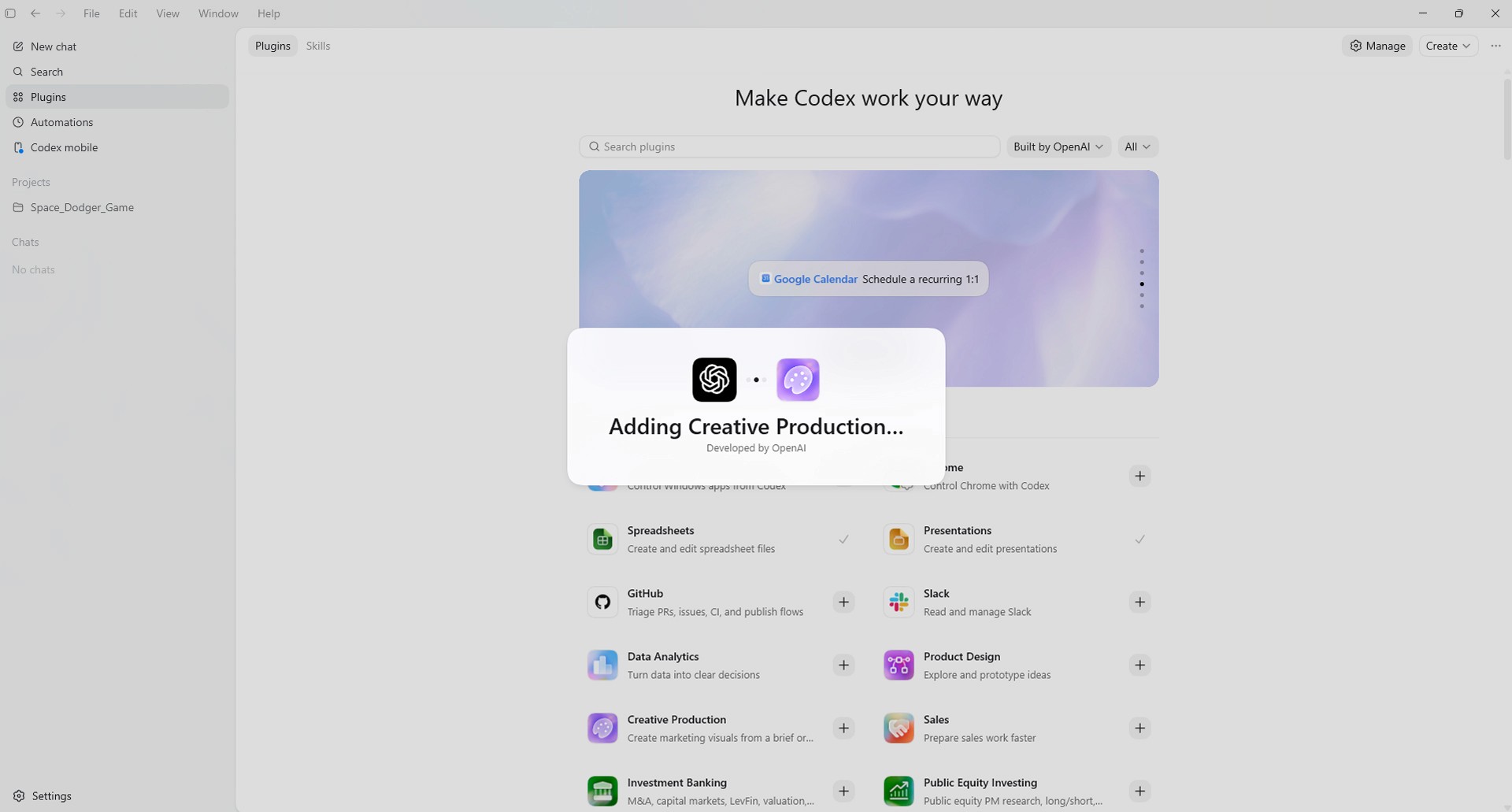
Image caption: Install the Creative Production plugin from the Codex plugin directory, then start a new thread before beginning the campaign workflow.
Step 2: Understand How to Use the Plugin
The Creative Production plugin does not open as a separate design application.
You use it inside the Codex prompt window when you ask Codex to complete a creative production task.
There are two simple ways to use an installed plugin.
The first method is to describe the result you want and let Codex choose the appropriate installed tools.
The second method is to explicitly invoke a specific plugin or bundled skill by typing @ in the prompt window.
For this tutorial, we will make the workflow easy to follow by clearly asking Codex to use the Creative Production plugin.
Use this as the first request in the new thread.
Prompt to use:
Step 3: Prepare the Campaign Project Materials
Now prepare the files and information needed for the campaign.
You can name the project folder:
Luma_Dew_Glow_Drop_Campaign
A real campaign folder may include:
product images
brand logo
brand colors
product description
target audience information
existing advertisements
visual references
prohibited claims
confirmed ingredient information
copywriting guidelines
If you do not have real brand materials, you can follow this tutorial with a fictional brand.
Add the relevant files to the Codex project or current thread.
Then ask the Creative Production plugin to organize the information into a structured campaign brief.
Prompt to use:
This step helps Codex understand the campaign before it begins producing assets.
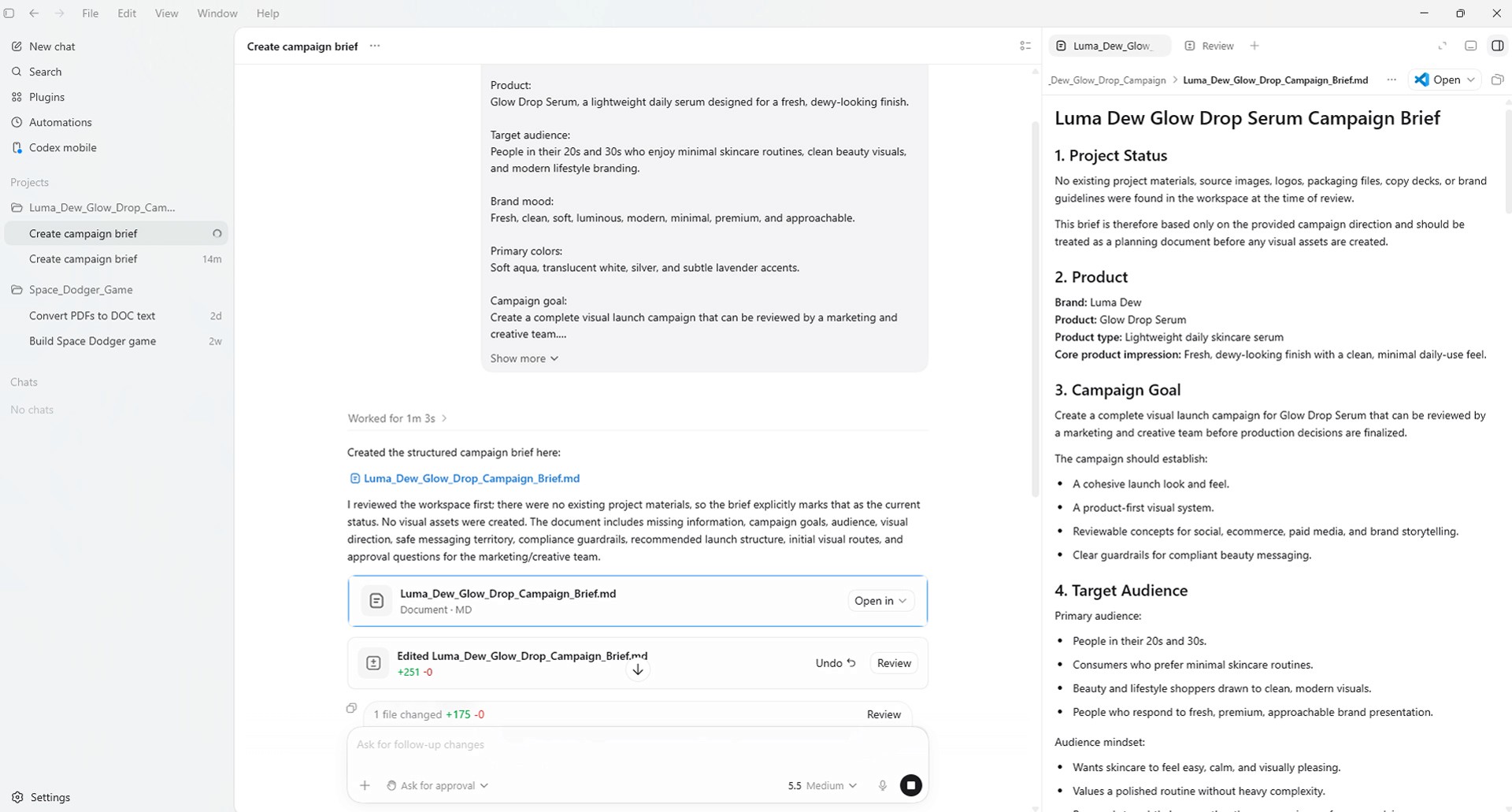
Image caption: Give Codex the available brand materials and ask the Creative Production plugin to organize them into a structured campaign brief.
Step 4: Create the Campaign Strategy and Production Order
Once the campaign brief is organized, ask Codex to create the production plan.
The goal is not to generate every image immediately.
It is better to decide what should be created first, what should be reviewed, and what should happen next.
Prompt to use:
This step helps keep the campaign board, ads, lifestyle images, and ecommerce assets visually consistent.
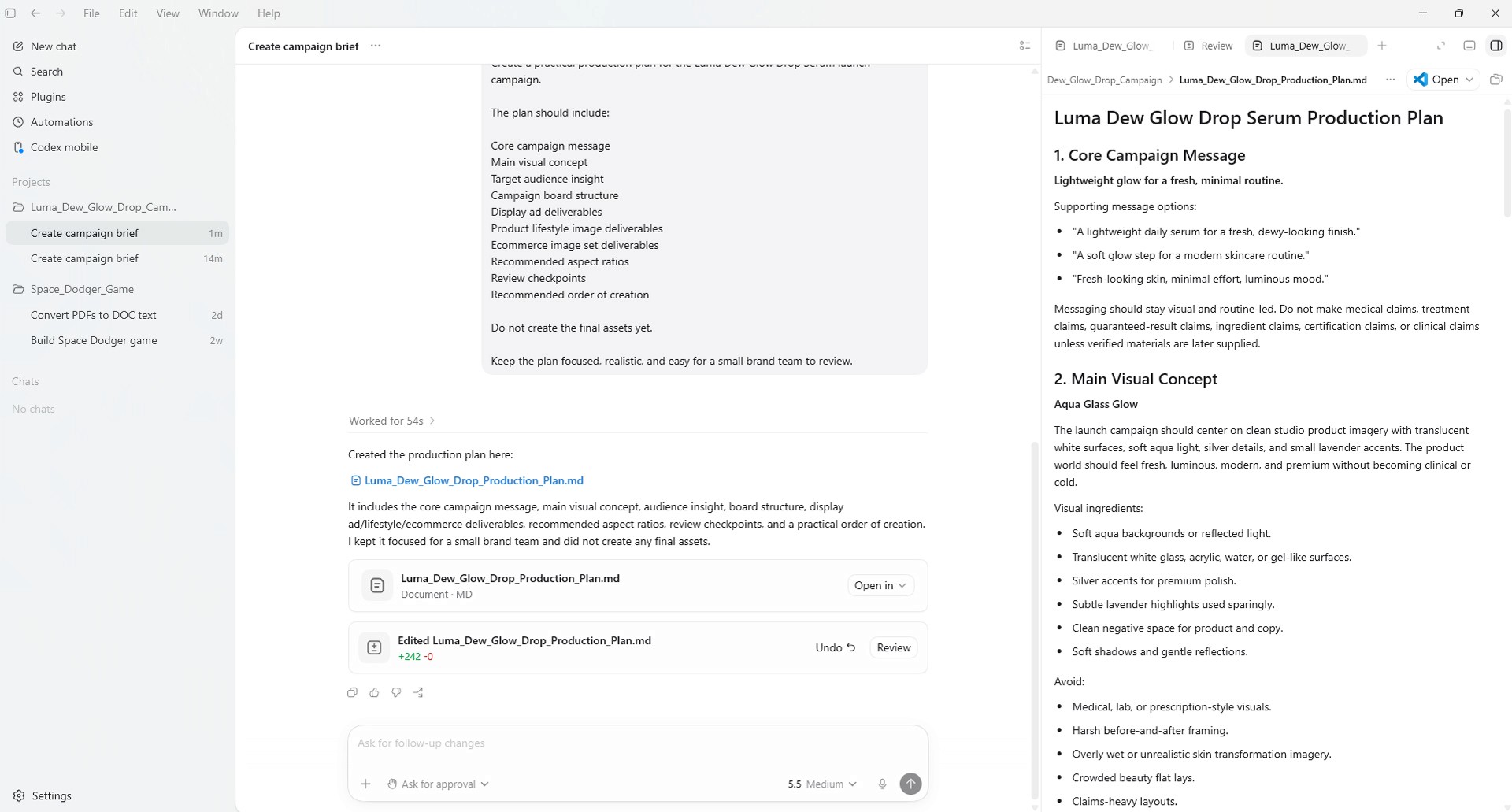
Image caption: A production plan helps keep campaign boards, ads, lifestyle images, and ecommerce assets visually consistent.
Step 5: Create the Campaign Board
Now use the Creative Production plugin to create a campaign board.
A campaign board is not the final advertisement.
It is a visual reference that helps the marketing and creative team review the campaign message, colors, mood, photography direction, and copy tone before producing multiple assets.
Use this prompt.
Prompt to use:
If the required connected apps and permissions are available, Codex may help develop the campaign board into a reviewable visual result.
If the connected apps are not available, it can still create the structure and production direction for the board.
Review the campaign board before moving forward.
Check whether the brand feels too cold, too luxurious, too distant from the target audience, or visually inconsistent.
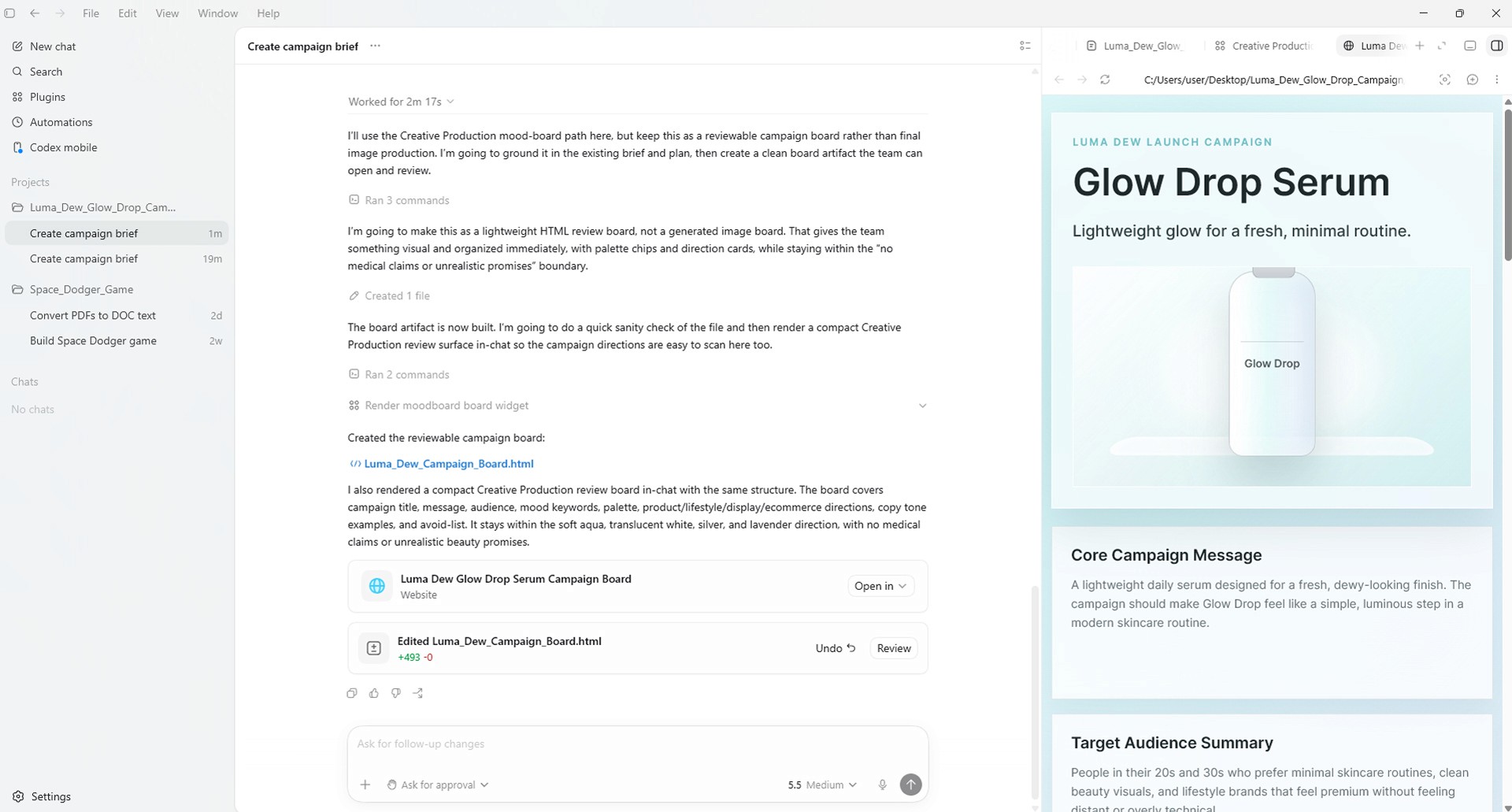
Image caption: A campaign board gives the team one clear visual direction before producing multiple advertising assets.
Step 6: Create Display Ad Directions
Once the campaign board is approved, use the Creative Production plugin to create display ad directions.
Do not begin with too many variations.
Start with three directions that have different marketing purposes.
Prompt to use:
Each ad direction should have a clear purpose.
The product-focused direction supports packaging and brand recognition.
The lifestyle-focused direction helps communicate how the product fits into a routine.
The benefit-focused direction supports short copy and a clear product message.
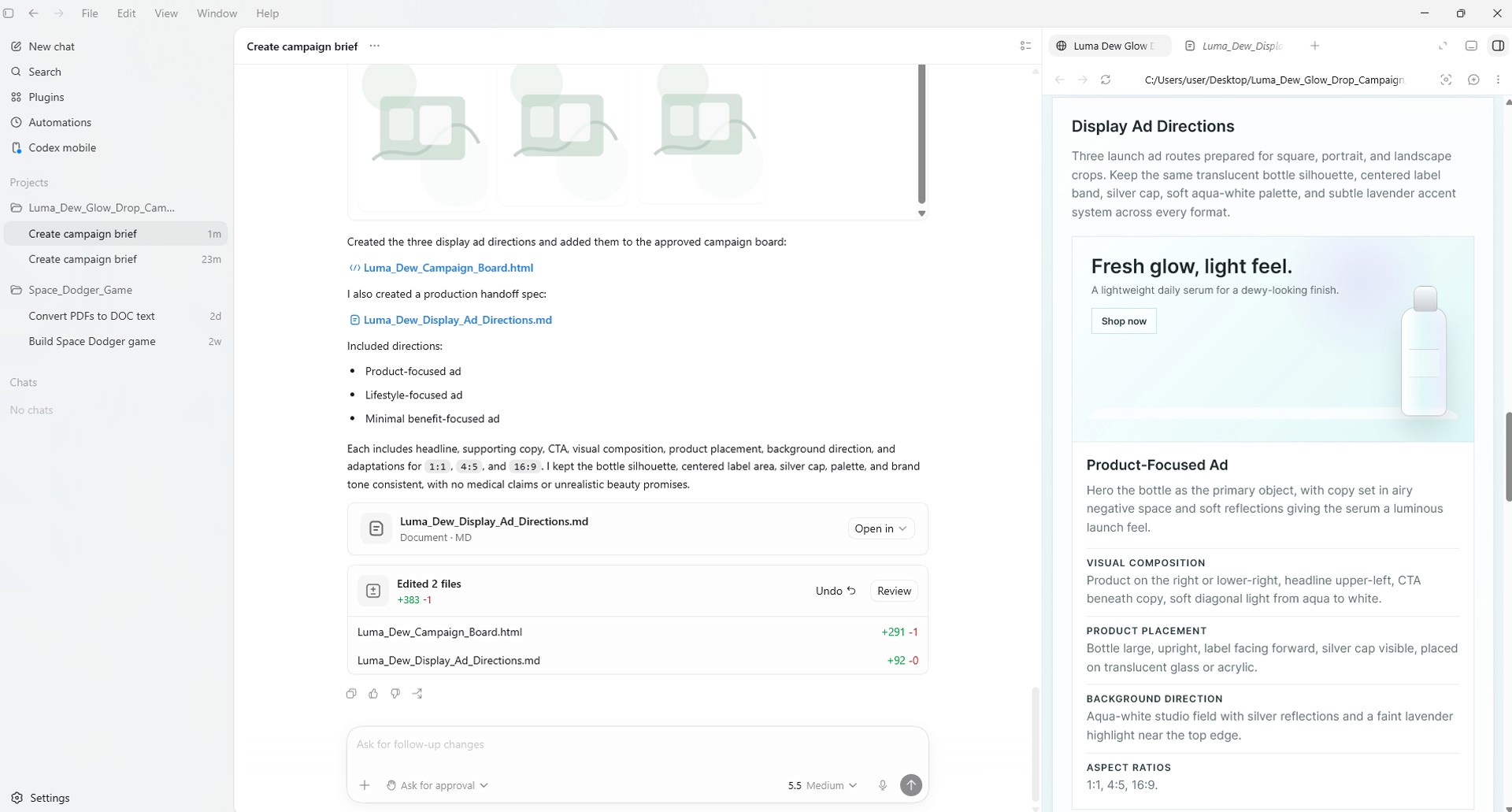
Image caption: Create distinct display ad directions so each variation has a clear marketing purpose.
Step 7: Develop the Strongest Ad Direction
After reviewing the first ad directions, choose the strongest one and refine it.
Avoid vague feedback such as “make it prettier.”
Tell Codex what should remain and what should change.
Prompt to use:
This approach helps preserve the strongest parts of the concept while improving the details.
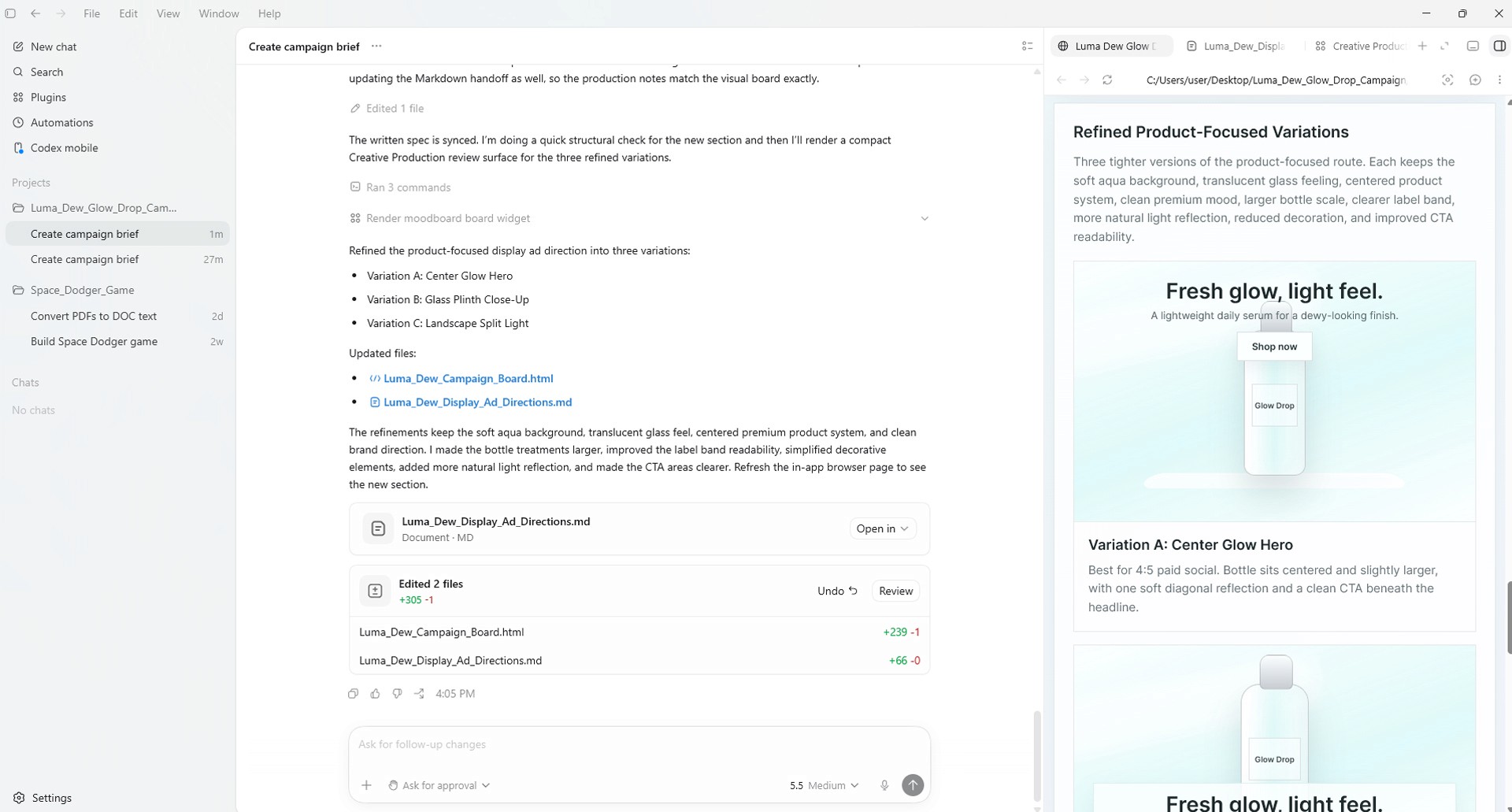
Image caption: Refine one strong ad direction instead of restarting the entire campaign from scratch.
Step 8: Create Product Lifestyle Image Concepts
Now use the Creative Production plugin to create lifestyle image concepts.
Lifestyle images help customers imagine how a product fits into a real daily routine.
For Glow Drop Serum, suitable scenes may include a morning bathroom shelf, a bedroom vanity, a skincare routine, or a travel pouch.
Prompt to use:
If you have a real product image, repeatedly ask Codex to preserve the product shape and label.
AI-generated images can change bottle proportions, logos, or text, so every result needs review.
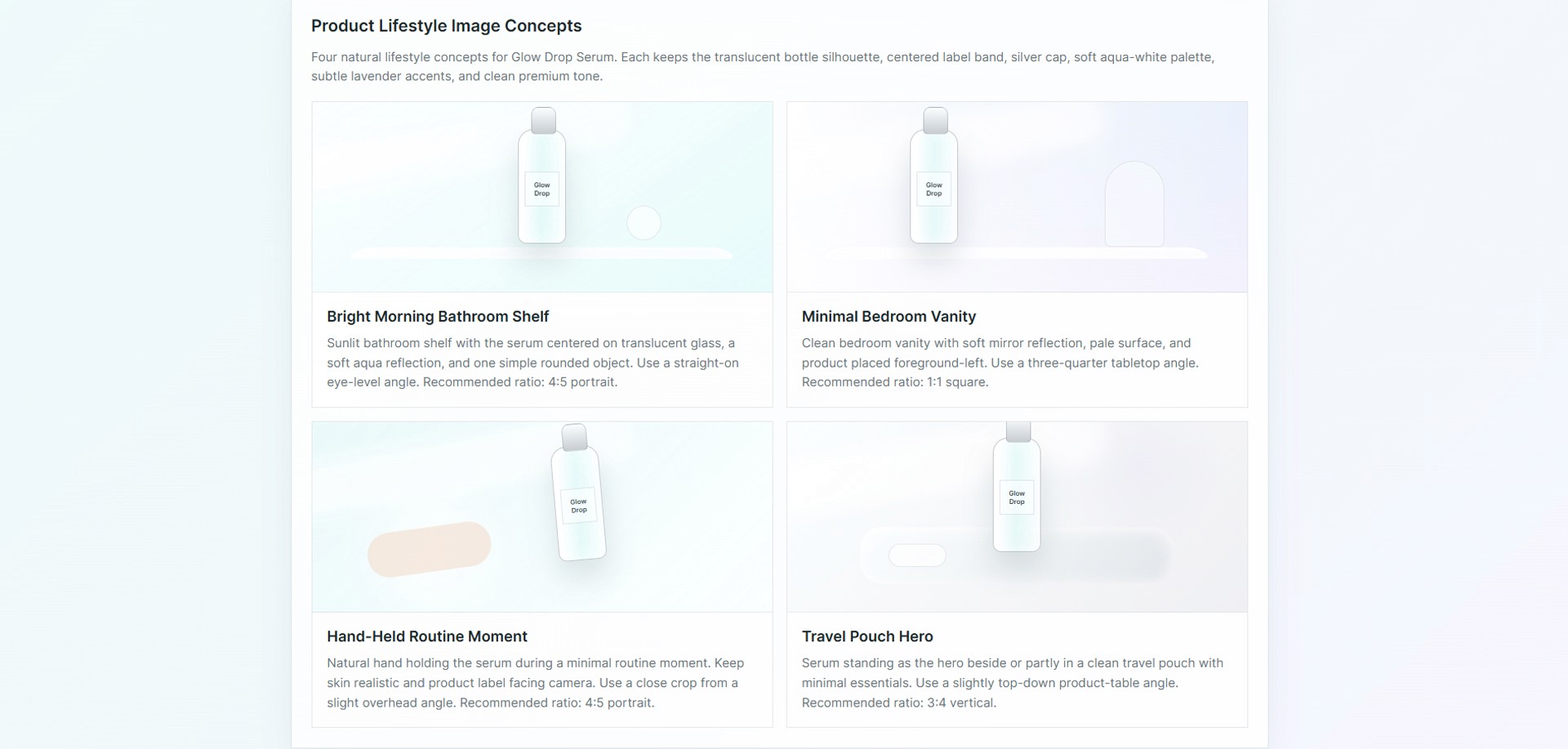
Image caption: Product lifestyle images help customers imagine how the product fits into a real daily routine.
Step 9: Create an Ecommerce Image Set
Next, use the Creative Production plugin to plan an ecommerce-ready image set.
Ecommerce images have a different purpose from advertisements.
Advertisements need to attract attention.
Ecommerce images need to show the product clearly and support a purchase decision.
Prompt to use:
The final instruction is especially important.
AI can naturally invent ingredients, certifications, or clinical results that do not exist.
Only confirmed product information should appear in real ecommerce materials.
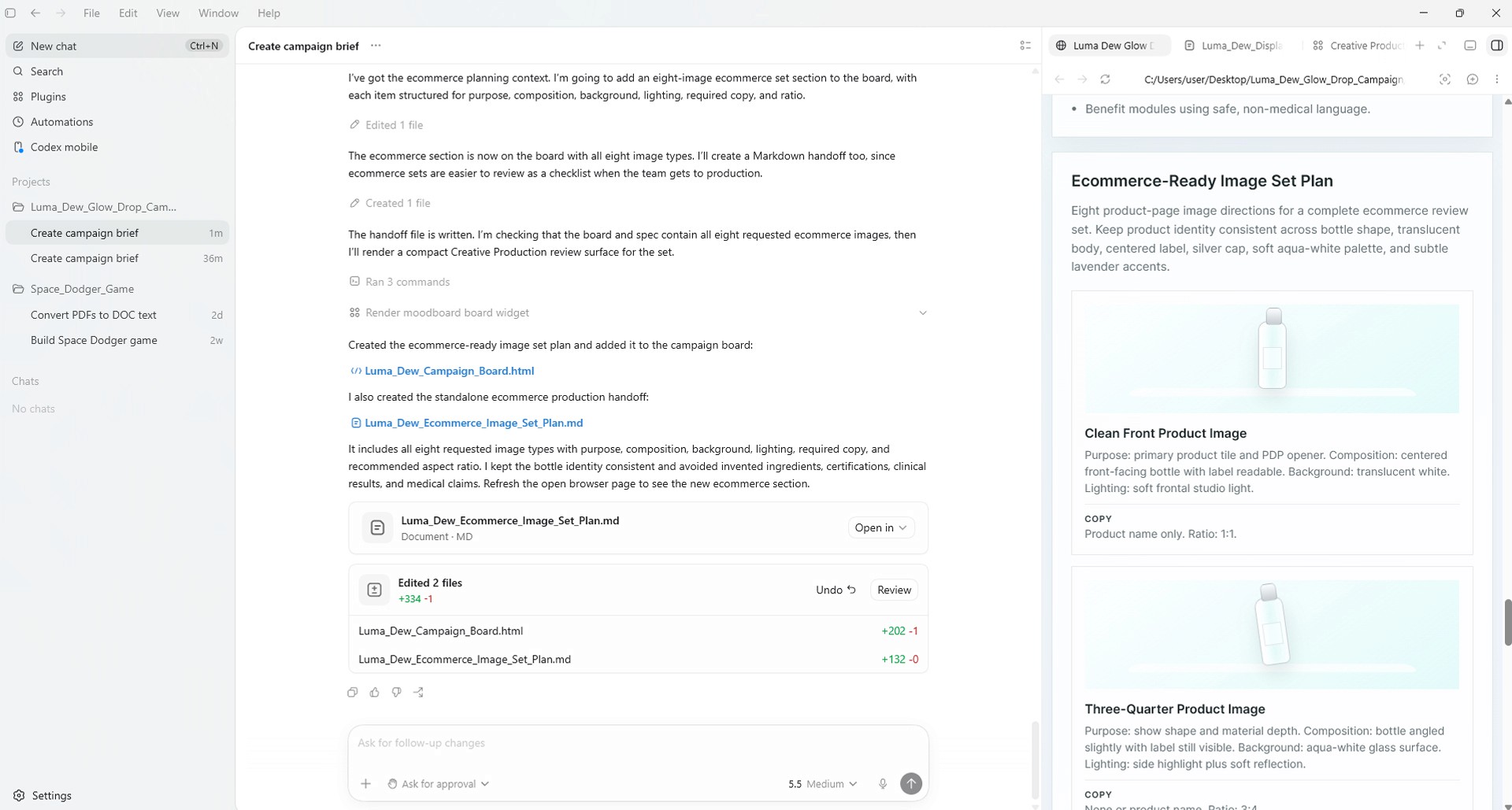
Image caption: Ecommerce image sets should prioritize product clarity, consistency, and accurate purchase information.

Image caption: An example of the final output generated when actual product photos are provided in the folder.
Step 10: Check Connected Apps and Permissions
The Creative Production plugin may use related apps and workflows, but external apps are not always connected automatically.
During the project, Codex may ask you to connect or sign in to visual production tools.
Review the requested permissions and data-sharing conditions before approving access.
If you are using an organization account or team workspace, administrator settings may limit which apps can be used.
You can still continue the project even when a connected app is unavailable.
Ask Codex to create a detailed production specification that can be handed to a designer or recreated in another tool.
Prompt to use:
This gives you a practical handoff document even when a specific app cannot be used.
Step 11: Revise Specific Parts of the Campaign
When the first result is not perfect, you do not need to restart the entire campaign.
Describe the exact area that needs improvement.
Separate the elements that should remain from the elements that should change.
Prompt to use:
Precise feedback helps preserve campaign consistency.
If you ask Codex to redesign everything, the result may move too far away from the approved direction.
Step 12: Review the Final Campaign
Once all assets are ready, use the Creative Production plugin to review the full campaign.
The final review should check more than spelling.
It should also check brand consistency, product accuracy, advertising claims, mobile readability, and handoff readiness.
Prompt to use:
Fix critical issues first.
Incorrect product information, altered labels, unsupported claims, or invented benefits must be corrected before the campaign is used.
Where the Creative Production Plugin Is Actually Used
In this tutorial, the Creative Production plugin supports the following tasks:
reviewing project materials
creating the campaign brief
planning the campaign strategy and production order
creating the campaign board
creating display ad directions
refining the selected ad direction
creating product lifestyle image concepts
creating an ecommerce image set
creating a production specification when connected apps are unavailable
reviewing the final campaign
The plugin is not something you install and then wait for.
You need to use it inside a new thread by describing the creative production task or explicitly invoking it from the prompt window.
You do not have to repeat the plugin name in every request.
However, clearly naming it in a tutorial makes it easier to understand where the plugin is supporting the workflow.
Image caption: The Creative Production plugin supports the campaign workflow from brief and planning to visual assets, revisions, and final review.
Common Issues and Simple Fixes
If the Creative Production plugin does not appear, search the plugin directory again and confirm that plugins are available for your account or workspace.
If the plugin is installed but does not seem active in the current thread, start a new thread and explicitly ask Codex to use it.
If an external app connection request appears, review the requested permissions and data-sharing conditions.
If the connected app is unavailable, ask Codex for a detailed production specification instead of a final design asset.
If Codex tries to create assets too early, say:
Do not create assets yet. Create the plan first.
If all display ad directions look too similar, separate them into clear purposes such as product-focused, lifestyle-focused, and benefit-focused.
If the product bottle keeps changing, add:
Keep the exact bottle shape, label placement, and product identity consistent.
If the campaign feels too cold or overly luxurious, add:
Make the brand feel more approachable and suitable for a daily skincare routine.
If the image becomes too complex, add:
Reduce decorative elements and keep the product as the hero.
If Codex invents ingredients or certifications, add:
Do not invent ingredients, certifications, clinical results, or claims.
When revising results, separate what should remain from what should change.
Responsible Use Notes
The Creative Production plugin can be useful for creating first drafts and reviewable campaign assets.
However, generated results should not be published directly as real advertisements or ecommerce materials without review.
Use only product images, logos, packaging, and brand materials that you have the right to use.
When using stock image services or connected external tools, confirm the license and usage scope for each asset.
For real product advertising, verify the product shape, label, ingredients, certifications, benefits, price, and usage instructions.
Beauty products should avoid medical claims, treatment language, guaranteed results, and exaggerated before-and-after visuals.
AI-generated results can be useful drafts, but the final decision and responsibility remain with the brand owner and production team.
Conclusion
In this tutorial, we installed the OpenAI Codex Creative Production plugin and used it to create a complete brand advertising campaign workflow.
The fictional brand was Luma Dew.
The product was Glow Drop Serum.
The workflow was simple:
install the Creative Production plugin
start a new thread
ask Codex to use the plugin for the project
prepare brand and product materials
create the campaign brief and production order
create the campaign board
create display ad directions
create product lifestyle image concepts
create an ecommerce image set
revise only the necessary parts
review the full campaign before handoff
Codex is no longer only a tool for developers.
With the Creative Production plugin, marketers, designers, and brand operators can turn a brief into practical, reviewable campaign assets.
The important point is that installing the plugin is only the beginning.
You need to use it inside the actual thread, give it a clear goal, review the results, and refine only the parts that need improvement.
When used this way, Codex becomes more than a code generation tool.
It becomes a practical creative production partner.
Quick FAQ
What is the Creative Production Plugin?
The Creative Production plugin is a Codex plugin designed to help marketing and creative teams turn a brief into reviewable assets such as campaign boards, display ad variations, product lifestyle images, and ecommerce-ready image sets.
Where do I use the plugin after installation?
After installation, start a new Codex thread and ask Codex to use the Creative Production plugin for the task. You can also explicitly invoke a plugin or bundled skill from the prompt window.
Do I need to mention the plugin in every prompt?
No. Codex can choose installed tools based on the task. However, explicitly naming the plugin makes the workflow easier to understand, especially when you are learning how it works.
Do I need coding skills?
No coding is required for this workflow. You still need to review the results, confirm product information, and check advertising claims.
Do I need to connect external apps?
You may need to connect external apps if you want Codex to create or manage assets inside those tools. If the apps are unavailable, you can ask Codex to create a detailed production specification for another tool or designer.
Which tools can the Creative Production workflow use?
The Creative Production plugin is introduced with workflows that can use tools such as Figma, Canva, Shutterstock, Picsart, and Fal. Actual availability depends on your account, workspace, permissions, and connected apps.
Can I use the generated results directly in a real advertisement?
It depends on the result and the rights involved. Always review product accuracy, image rights, stock asset licenses, advertising copy, benefit claims, and commercial use conditions before publishing.