Mastering Kling AI Motion Control
Hello creators, welcome back to A2SET’s AI Tutorial.
Have you ever created a strong AI character image, then struggled to make that character walk, point, dance, or perform a specific action in a video?
This is one of the most common problems in AI video generation.
Text prompts can describe movement, but they do not always control motion clearly. One generation may create a smooth walking scene, while the next result may change the character’s face, outfit, body shape, or gesture.
That is where Kling AI Motion Control becomes useful.
Instead of asking the model to guess the movement only from text, Motion Control lets you use a real motion reference video. The AI can then use that reference to guide how your character moves.
In this tutorial, we will look at how Kling AI Motion Control works, what inputs you need, and how to get more stable results when animating AI characters.
This workflow does not mean every result will be perfect. AI video can still create issues with hands, face details, clothing, camera movement, or body proportions. However, using a motion reference gives the model much clearer direction than a text-only prompt.
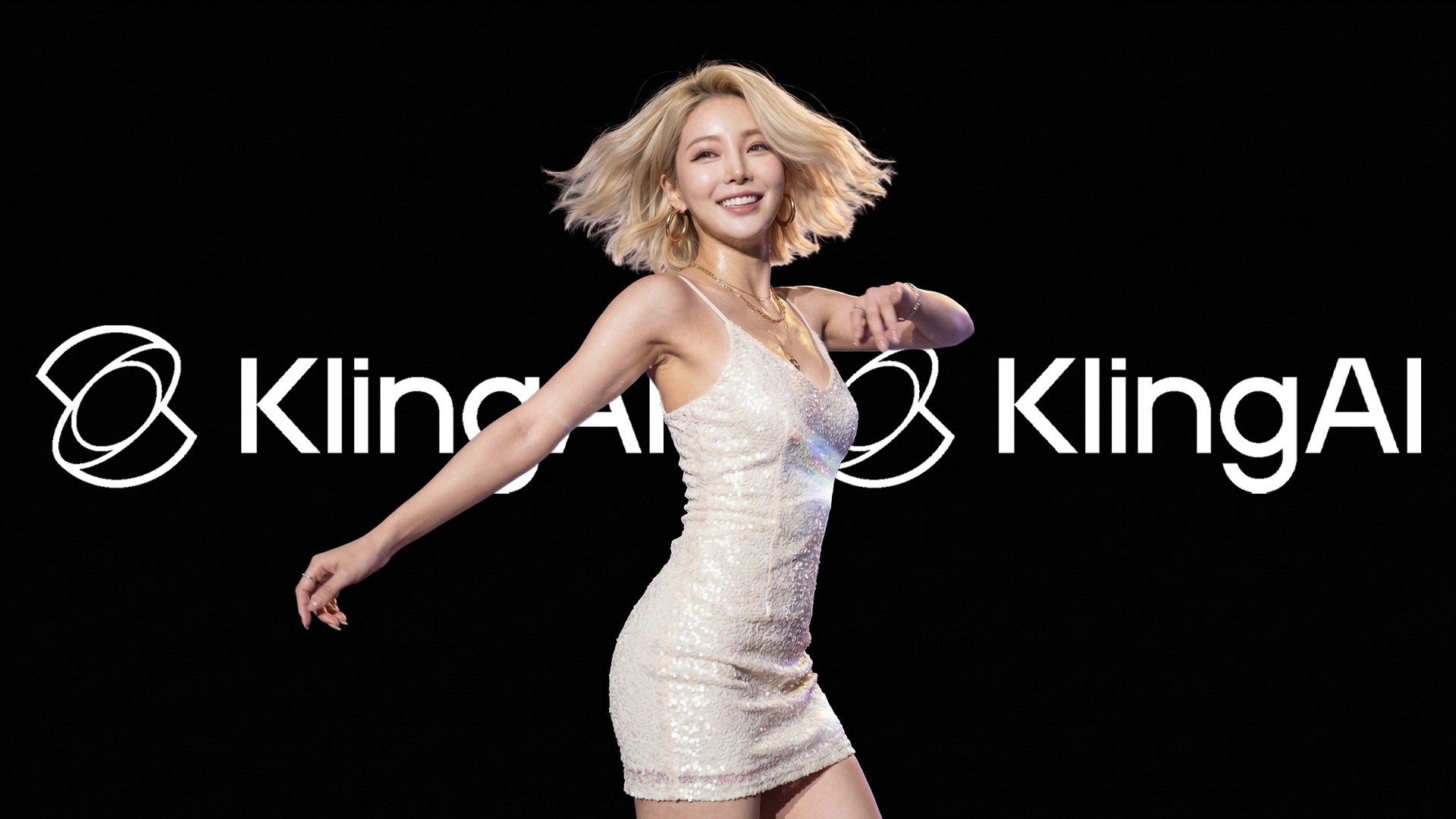
Image caption: Kling AI Motion Control helps guide AI character movement by using a real motion reference video and a character image.
Motion Library Reference
Before creating your own motion-controlled video, it helps to understand the idea of a motion library.
A motion library is a collection of reference actions that can guide character movement.
For example, a reference video may show a person walking, dancing, turning, playing an instrument, performing martial arts, or making a slow hand gesture.
Instead of describing that movement only with words, you provide the actual motion as a video input.
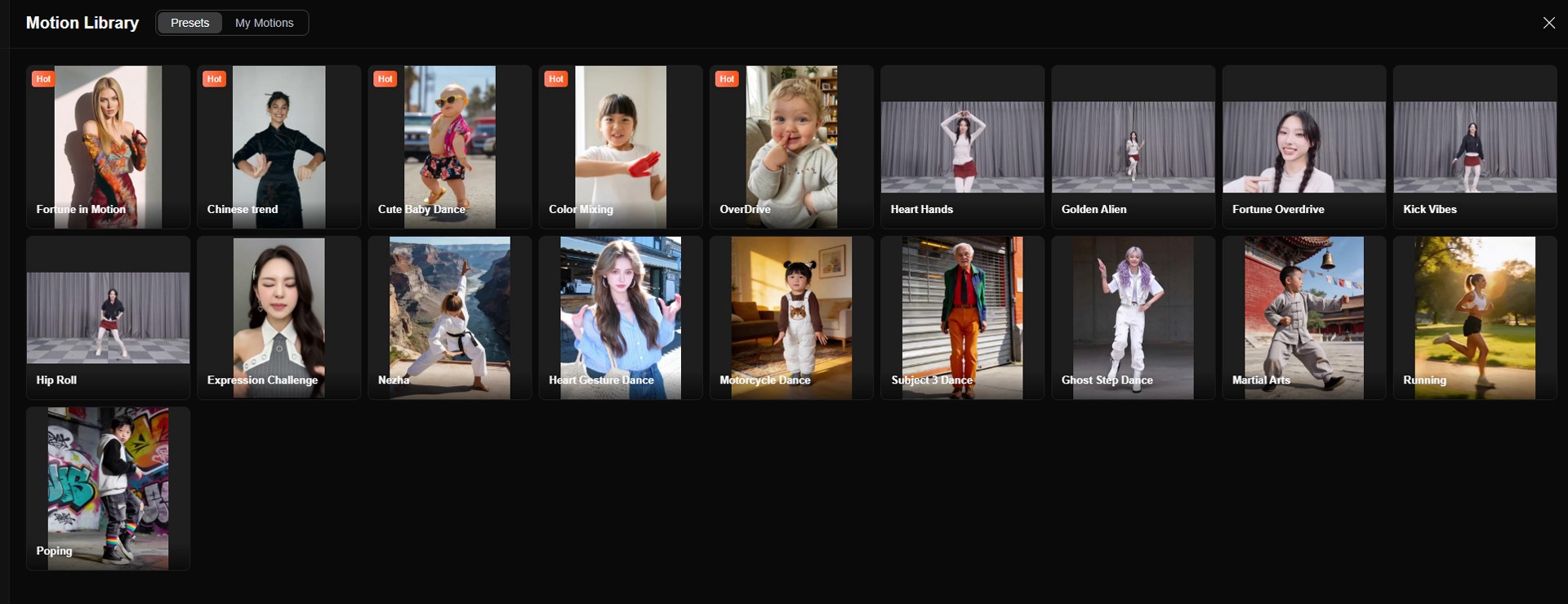
Image caption: A motion library or motion reference video gives the AI a clearer example of the movement you want to transfer.
Data Source: Kling AI Motion Library
This is useful because movement is difficult to describe precisely with text alone.
A prompt like “make the character dance naturally” is too broad.
But if you upload a video showing the exact dance motion, the AI has a stronger reference for body movement, timing, rhythm, and gesture direction.
What Motion Control Does
At its core, Motion Control combines a character image with a motion reference video.
The character image defines who appears in the final video.
The motion reference video defines how that character should move.
The generation settings help control the final model, consistency, output, and optional prompt direction.
This workflow can be useful for creators who want to produce character-based videos with more repeatable movement.
For example, you can use it for social media characters, virtual influencers, brand mascots, dance videos, action poses, gesture-based videos, or short story scenes.
The key idea is simple.
You do not only tell the AI what movement you want.
You show the AI the movement.
The Three Main Inputs
To start using Motion Control, you usually need three things: a motion reference video, a character reference image, and video generation settings.
Input A: The Motion Reference Video
This is the movement source.
Upload a video of a real person performing the action you want to apply to your character.
The motion reference provides the timing, pose flow, body dynamics, and gesture structure.
For best results, the subject in the video should be clearly visible. The movement should not be hidden by objects, heavy shadows, camera shake, or other people.
If the hands are important, make sure the hands are visible.
If the full body movement is important, use a full-body reference video.
If the action is subtle, use a clean video where the movement is easy to read.
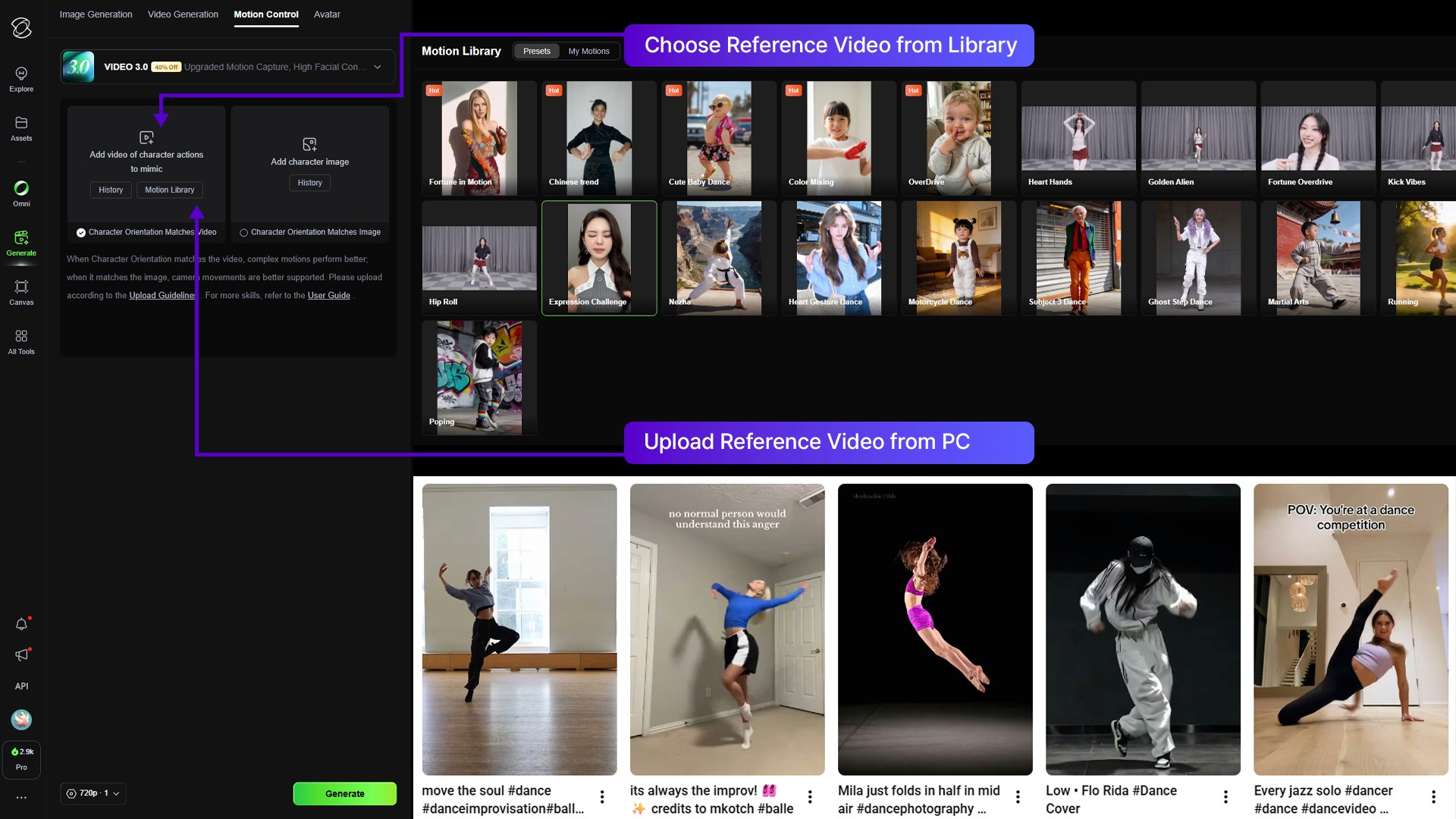
Image caption: The motion reference video should show the action clearly so the AI can follow the body movement, timing, and gestures.
Input B: The Character Reference Image
This is the visual identity source.
Upload the character image you want to animate.
This can be an AI-generated character, a virtual influencer, a mascot, a stylized portrait, or an original character you own.
For best results, use a clear image where the character’s body, outfit, and face are easy to understand.
If you want full-body motion, use a full-body or at least half-body character image.
If the image only shows a close-up face, the AI may have less information for full-body movement.
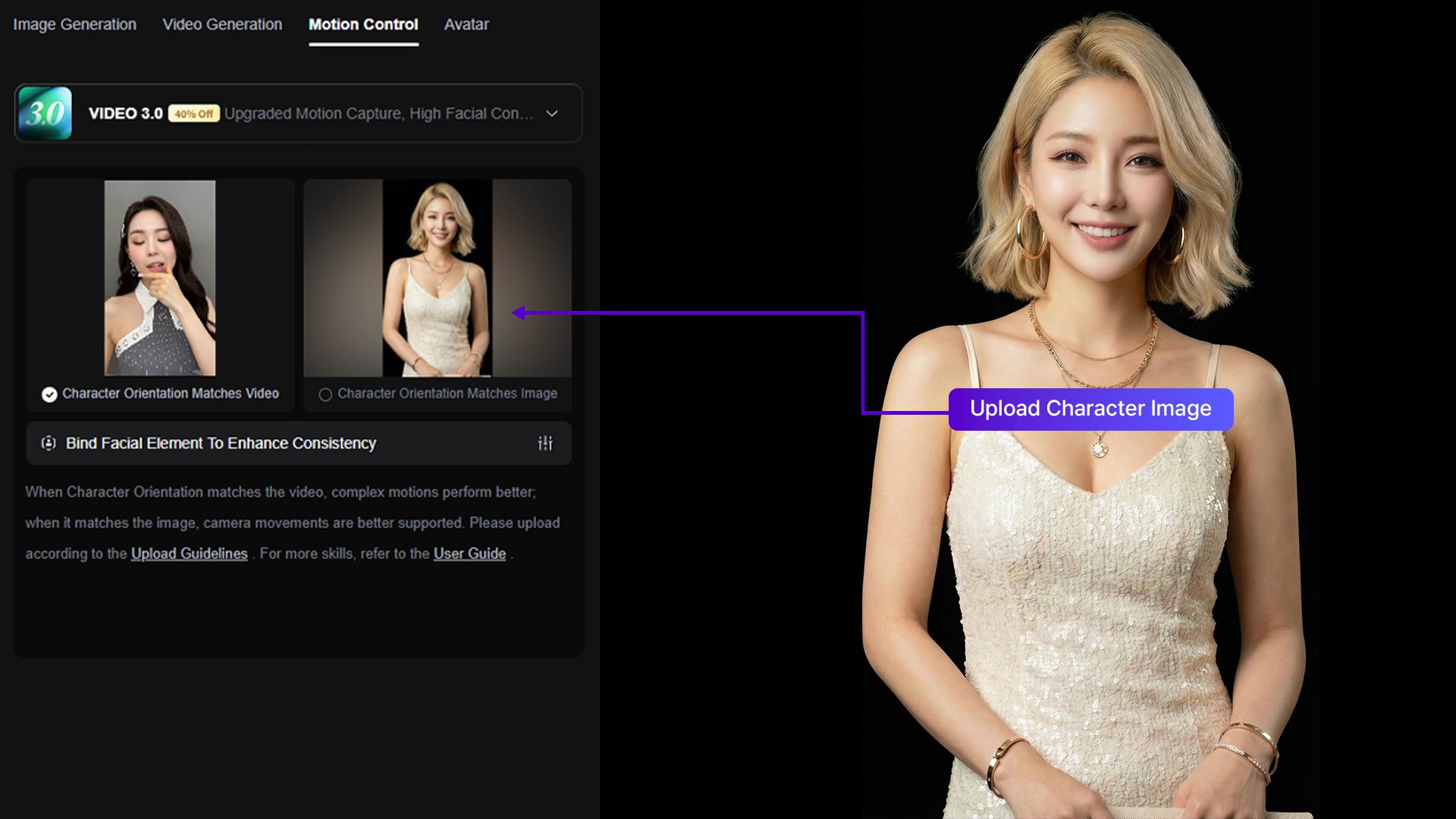
Image caption: The character reference image defines the subject’s face, outfit, style, and visual identity for the final animation.
Input C: Video Generation Settings
The final part is the generation settings.
This is where you choose the video model, character source, consistency options, prompt guidance, output quality, and number of results.
Depending on the current Kling interface, the settings may include model version, match mode, duration, resolution, prompt input, and generation count.
Use these settings carefully.
If you are testing for the first time, start with a short video and simple prompt.
Once you understand how the motion transfer behaves, you can try longer clips, higher quality settings, or more detailed prompts.
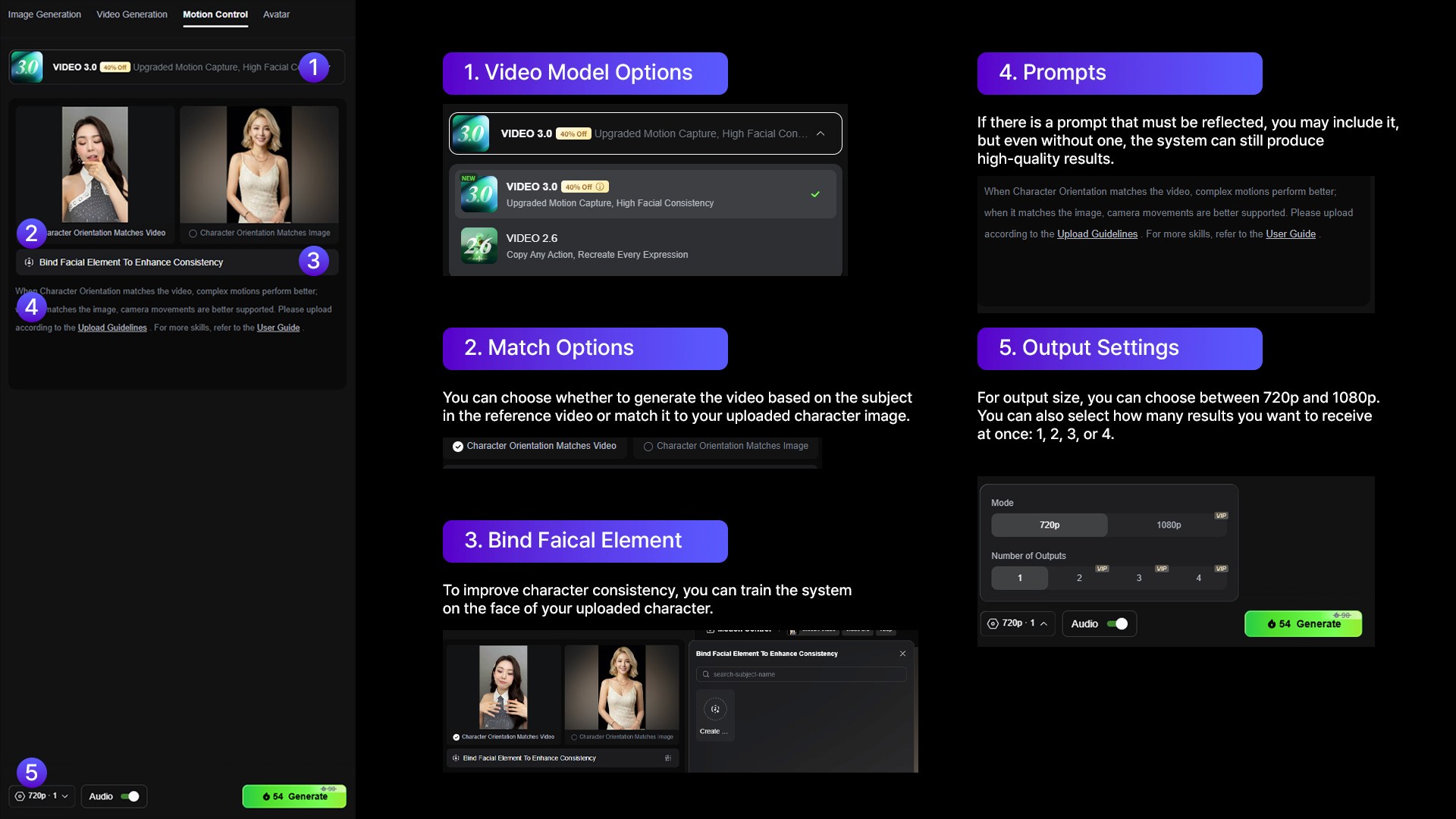
Image caption: Video generation settings help control the model, consistency options, output quality, and optional prompt direction.
How to Set Up the First Test
Start with a simple test.
Choose a motion reference video with one clear subject.
Then choose a character image that matches the framing of the motion.
If the motion video is full-body, use a full-body character image.
If the motion video is upper-body, an upper-body character image can work better.
If the motion video is a close-up facial performance, use a close-up character image.
This matching step is important.
If the reference video and character image are too different in framing, the final result may look less stable.
After uploading both inputs, add a short prompt if needed.
For example:
A stylish animated character performing the same movement as the reference video, natural motion, stable identity, clean background, smooth camera.
Keep the prompt simple at first.
The motion reference is already doing the main movement work, so the text prompt should support the result rather than overload it.
Generated Example
After setting up the motion reference, character image, and generation settings, click Generate.
When the result is ready, watch the full video from beginning to end.
Do not only check whether the movement looks impressive.
Check whether the character remains recognizable, whether the outfit stays consistent, whether the movement follows the reference, and whether the final video feels usable.

Image caption: Review the generated result for motion quality, character consistency, hand movement, outfit stability, and overall usability.
If the result is close but not quite right, adjust one thing at a time.
Change the motion reference if the movement is unclear.
Change the character image if the body or outfit is difficult to read.
Adjust match settings if the result follows the wrong source too strongly.
Simplify the prompt if the model seems confused.
Small controlled changes are better than changing everything at once.
Match Video vs. Match Image
Some Motion Control workflows include options that let you decide whether the output should follow the motion video more strongly or preserve the character image more strongly.
The exact wording may vary depending on the current interface, but the idea is usually similar.
Match Video means the AI may follow the reference motion more closely.
Match Image means the AI may prioritize the original character image and visual identity more strongly.
There is no single best option for every project.
If your movement is the most important part, try stronger video matching.
If your character identity is the most important part, try stronger image matching.
The best setting depends on the project.
For a dance video, motion accuracy may matter more.
For a brand mascot, identity consistency may matter more.
For a virtual influencer, you may need a careful balance between both.
Pro Tips for Better Results
Keep the motion reference clear.
The AI can only follow what it can understand. If the reference video has hidden limbs, fast blur, poor lighting, or too many people, the result may become unstable.
Use matching framing.
A full-body motion reference works best with a full-body character image. A close-up motion reference works better with a close-up character image.
Avoid extreme movement in the first test.
Start with simple gestures, walking, pointing, or light dance movement before testing complex choreography or fast action.
Use prompts to guide the scene, not replace the motion.
The motion reference should handle the action. The prompt should guide style, background, mood, and stability.
Review hands carefully.
Hands are often one of the most difficult parts of AI video. If the motion depends on detailed finger movement, use a very clear reference video and expect to run more than one generation.
Common Issues and Simple Fixes
If the character face changes too much, use a clearer character image and add: Keep the same face, hairstyle, outfit, and body proportions throughout the entire video.
If the motion does not follow the reference well, use a cleaner motion video with one visible subject and less background distraction.
If the hands look unstable, choose a motion reference where the hands are clearly visible and not moving too fast.
If the outfit changes during the video, use a simpler outfit or add: Keep the same clothing color, shape, and style in every frame.
If the background becomes distracting, use a simpler prompt such as: clean studio background, stable camera, natural lighting.
If the camera movement is too strong, add: Keep the camera stable and focus on the character’s motion.
Why Creators Use Motion Control
Motion Control is useful because it gives creators more direct movement guidance.
Instead of relying only on prompt descriptions, you can use real motion as a reference.
This can help with:
AI dance videos,
virtual influencer content,
brand mascot animation,
social media character videos,
gesture-based product videos,
storytelling scenes,
short-form ad concepts,
and character performance tests.
It is especially useful when the movement itself is the main creative point.
For example, if you want a character to perform a specific dance, point at a product, wave to the camera, or copy a gesture, a motion reference is usually more useful than a text description alone.
Responsible Use Notes
When using motion reference videos, make sure you have the right to use the video.
Do not use private footage, copyrighted performances, dance choreography, celebrity content, or another creator’s video without permission.
Also make sure you have the right to use the character image.
Avoid using real people, celebrities, private individuals, or existing characters without proper rights.
If you use Motion Control for commercial content, check Kling AI’s current terms, watermark policy, plan limits, and commercial usage rules before publishing.
It is also helpful to keep a production record.
Save the motion reference source, character image, prompt, settings, generated versions, and final usage notes.
This makes your workflow easier to review later if the video is used for a brand, client, or public campaign.
Conclusion
Kling AI Motion Control is useful because it gives creators a more direct way to guide character movement.
Instead of relying only on a text prompt, you can upload a motion reference video and a character image, then let the system generate a character animation based on both inputs.
The workflow is simple.
Prepare a clear motion reference video.
Prepare a clean character image.
Upload both into Motion Control.
Adjust the generation settings.
Generate the first test.
Review motion, identity, hands, outfit, and camera stability.
Then refine one issue at a time.
This does not guarantee perfect animation in every result.
But it can make AI character animation feel much more directed and less random.
That is why Motion Control can be a valuable workflow for creators working on AI characters, virtual influencers, social media videos, and short-form content.
We will return in the next A2SET tutorial with more practical AI workflows for creators, designers, and small production teams.
Quick FAQ
What is Kling AI Motion Control?
Kling AI Motion Control is a workflow that uses a motion reference video and a character image to generate a more controlled character animation.
What do I need to use Motion Control?
You need a motion reference video, a character image, and the right generation settings inside the Motion Control workflow.
What kind of motion reference works best?
A clear video with one visible subject, good lighting, and unobstructed movement usually works best.
What kind of character image works best?
Use a clear character image that matches the framing of the motion reference. For full-body motion, use a full-body character image if possible.
Does Motion Control keep the character perfectly consistent?
Not always. It can improve direction and consistency, but AI video may still change small details. Always review the final result carefully.
Can I use this for dance videos?
Yes. Motion Control can be useful for dance, gesture, walking, performance, and action-based character videos.
Can I use any reference video I find online?
No. Use only motion reference videos that you own, created yourself, or have permission to use.