How to Automatically Receive Daily AI Hot News and Search Keywords on Telegram with OpenClaw on Windows

Hello creators, welcome back to A2SET’s AI Tutorial.
AI news moves extremely fast.
New AI models, video generation tools, image tools, AI agents, automation platforms, design tools, and creative workflows appear almost every day.
The difficult part is not only finding AI news.
The real problem is figuring out which AI stories are actually getting attention right now, why they matter, and what keywords you should search next to understand the topic more deeply.
In this tutorial, we will install OpenClaw on Windows, connect it with a ChatGPT/Codex subscription sign-in instead of an OpenAI API key, pair it with a Telegram bot, and create a daily automation that sends AI hot news to Telegram every morning at 10 AM.
The final Telegram briefing will include:
Top five public AI-related news stories from the past 24 hours
Why each story is getting attention
The related company or AI tool name
One public source URL for each story
Three search keywords for deeper research
A short summary of the overall AI trend of the day
This workflow does not send emails, delete files, change calendar events, process payments, or publish anything automatically.
It only searches public AI news, summarizes it, creates research keywords, and sends the result to Telegram.

Image caption: OpenClaw can automatically research hot AI news and deliver a concise daily briefing with search keywords to Telegram.
Step 1: Understand the Setup
This tutorial does not use an OpenAI API key.
Instead, we will use the ChatGPT/Codex subscription sign-in option inside OpenClaw.
That means you do not need to create a separate OpenAI Platform API key for this workflow.
However, this does not mean the automation is unlimited.
The automation still uses the available Codex or agent usage included in your ChatGPT plan.
For the first workflow, it is better to keep the automation small and safe.
In this tutorial, we will run the briefing once per day at 10 AM.
You need:
Windows 10 or Windows 11
A ChatGPT subscription account
A Telegram account
A Telegram Bot Token
A Windows PC that stays turned on and connected to the internet
To receive the briefing every day, your Windows PC must be running and the OpenClaw Gateway must be active.
Step 2: Install OpenClaw in Windows PowerShell
Open Windows PowerShell.
This tutorial uses native Windows PowerShell, not WSL.
Run the following command:
The installer will start the OpenClaw setup process.
When the setup begins, you may see an OpenClaw logo and a security disclaimer.
OpenClaw is an agent that can read files and run tools when those tools are enabled, so it shows a security warning during setup.
For this tutorial, we will only create a personal Telegram news briefing automation.
When you see the confirmation question, select Yes and press Enter.
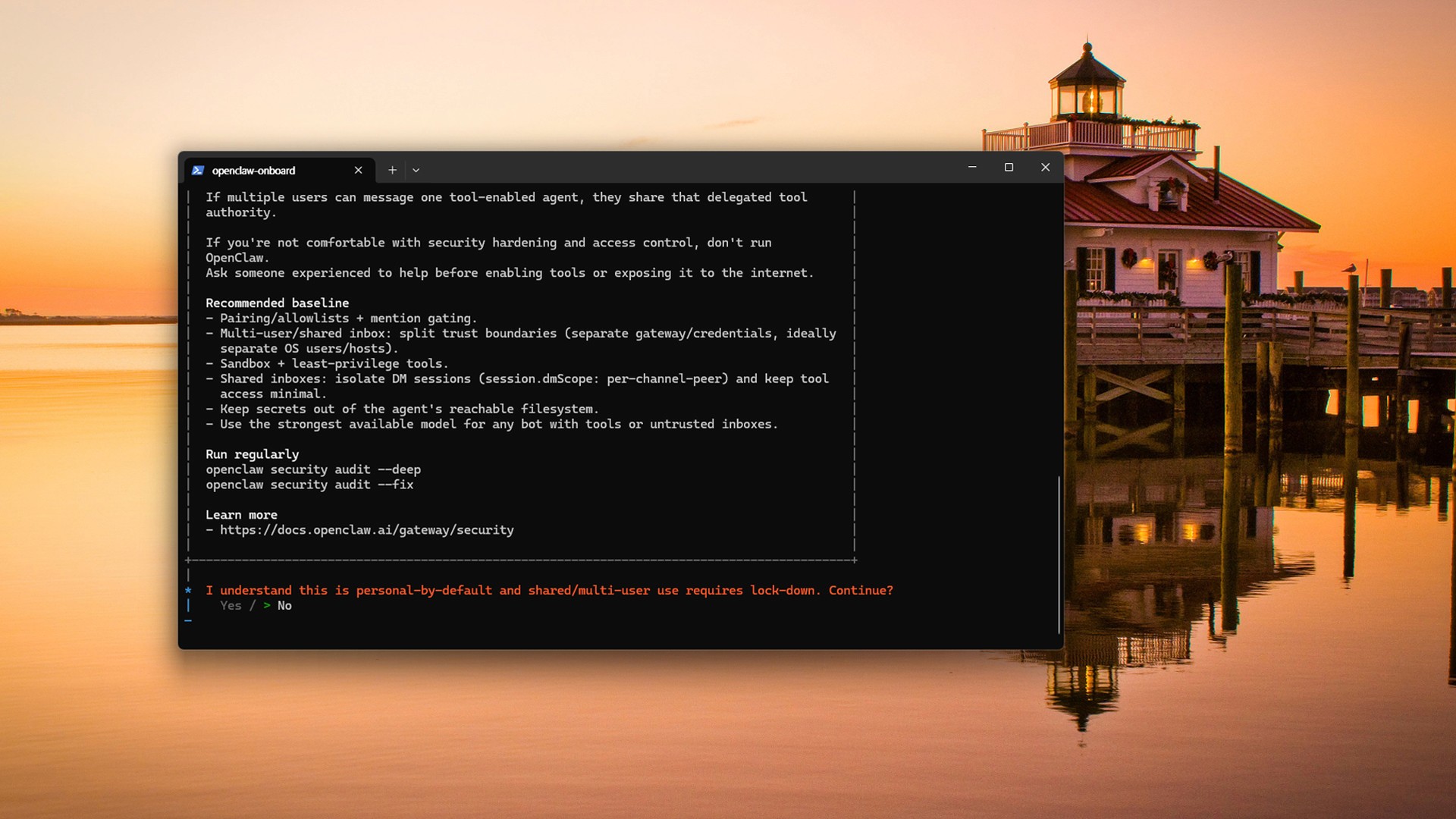
Image caption: OpenClaw shows a security disclaimer during setup because the agent can read files and run actions when tools are enabled.
Step 3: Select QuickStart
When the Setup mode screen appears, select QuickStart.
This tutorial uses a simple local setup:
Windows PC
ChatGPT/Codex sign-in
DuckDuckGo Search
Telegram delivery
Manual setup is not necessary for this first automation.
You can change settings later with:
Step 4: Select OpenAI as the Model/Auth Provider
When the Model/auth provider screen appears, select OpenAI.
The important point is this:
Select OpenAI, but do not use an OpenAI API key.
Use the ChatGPT/Codex sign-in option.
The flow should be:
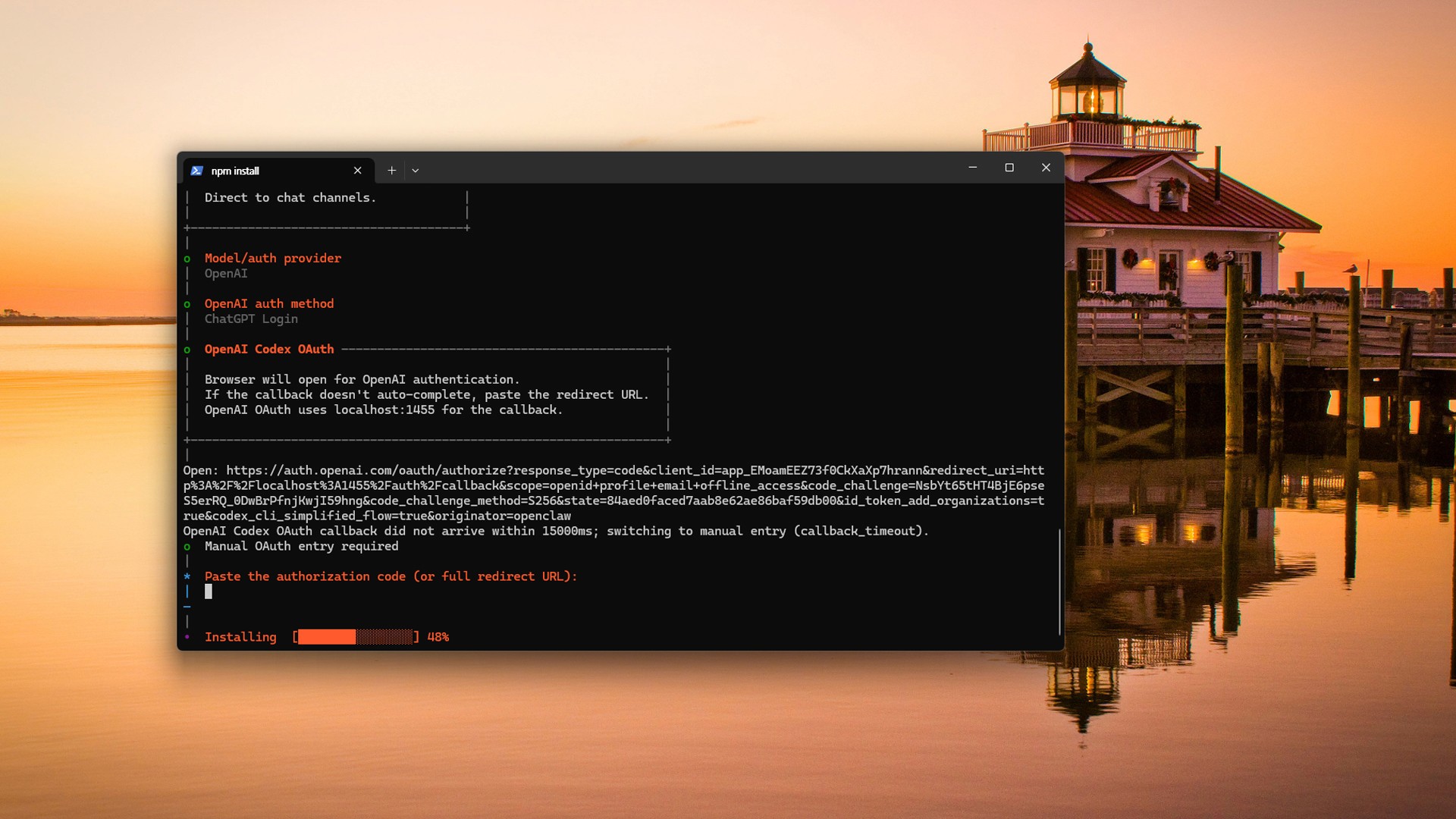
Image caption: Select OpenAI as the model provider, then use ChatGPT/Codex sign-in instead of an API key.
Step 5: Keep the Default Model
When the Default model screen appears, keep the current model.
For this workflow, the task is simple:
Search recent AI news
Summarize what matters
Create search keywords
Send the result to Telegram
The default model is enough for the first setup.
You can change the model later with:
Step 6: Skip Codex Migration for a Clean Setup
OpenClaw may detect an existing Codex folder on your Windows machine.
You may see a screen like this:
For this tutorial, select No.
We are creating a clean new OpenClaw agent for Telegram AI news briefing automation.
You only need to choose Yes if you already use Codex CLI separately and want to reuse its existing settings.
For a clean tutorial setup, No is easier to explain and safer to follow.
Step 7: Select Telegram as the Channel
When the Select channel screen appears, choose Telegram (Bot API).
The list may show many channel options.
Instead of scrolling for a long time, type:
Then select:
This is the channel that will deliver the daily AI hot news briefing to your Telegram DM.
Step 8: Create a Telegram Bot Token
Open Telegram and search for:
Make sure the handle is exactly @BotFather.
Send this command:
Follow the instructions to create your bot name and username.
When the bot is created, BotFather will send a message that looks like this:
The long string is your Telegram Bot Token.
Paste this token into OpenClaw when it asks for the Telegram Bot Token.
The token is like a password.
Do not expose it in screenshots, blog images, GitHub, Notion, Telegram messages, or public documents.
To find the token again later, send this to BotFather:
Then select your bot and open the API Token menu.
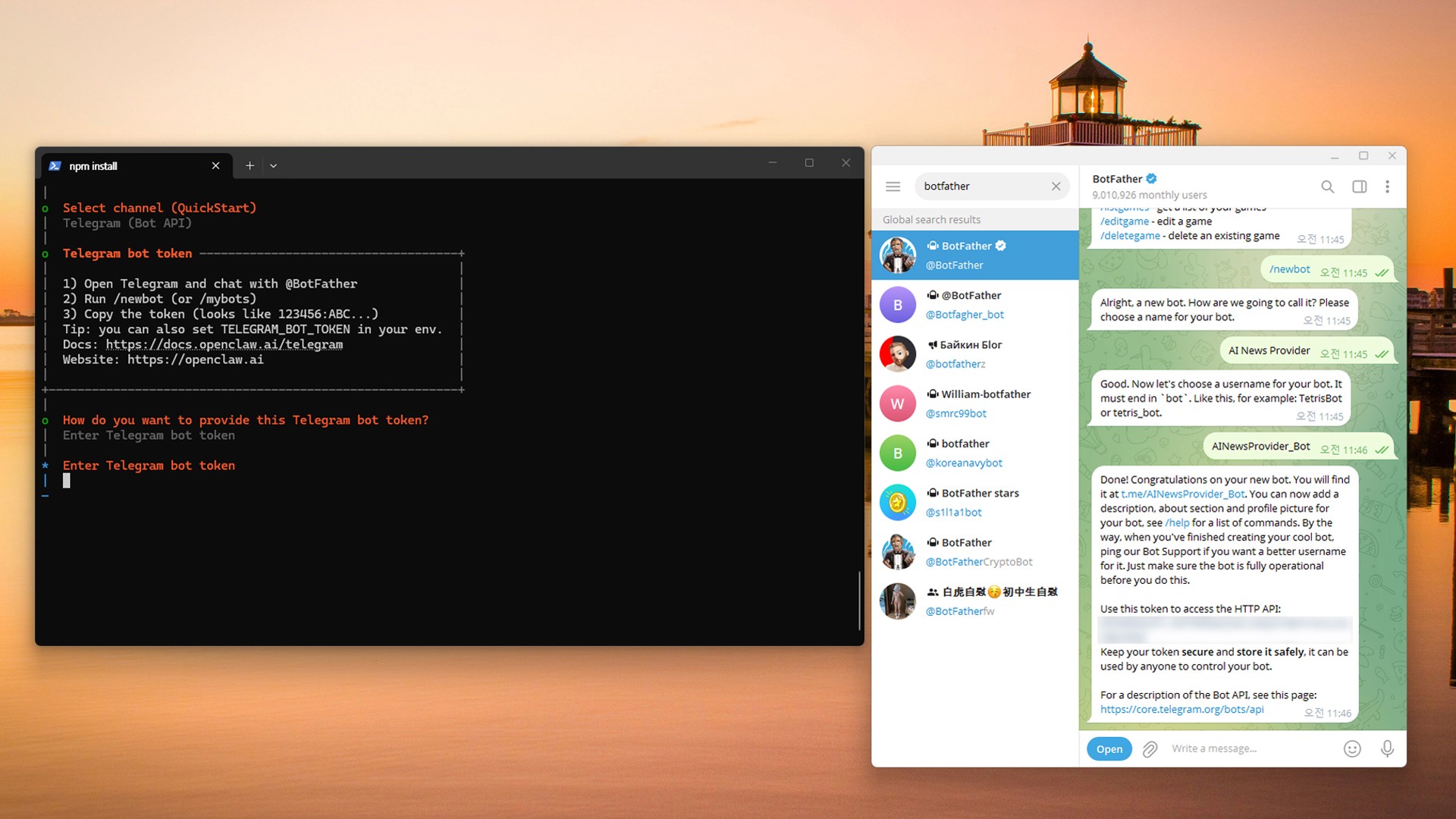
Image caption: Create a Telegram bot with BotFather and copy the Bot Token into OpenClaw.
Step 9: Select DuckDuckGo as the Search Provider
When the Search provider screen appears, select:
Do not choose Skip for now.
This automation needs web search because it will research recent AI news.
To find the option quickly, type:
Then select DuckDuckGo Search.
DuckDuckGo is a good starting point because it does not require an extra Search API key.
Later, you can switch to another provider such as Brave Search, Perplexity Search, or Exa Search, but those may require separate keys or setup.
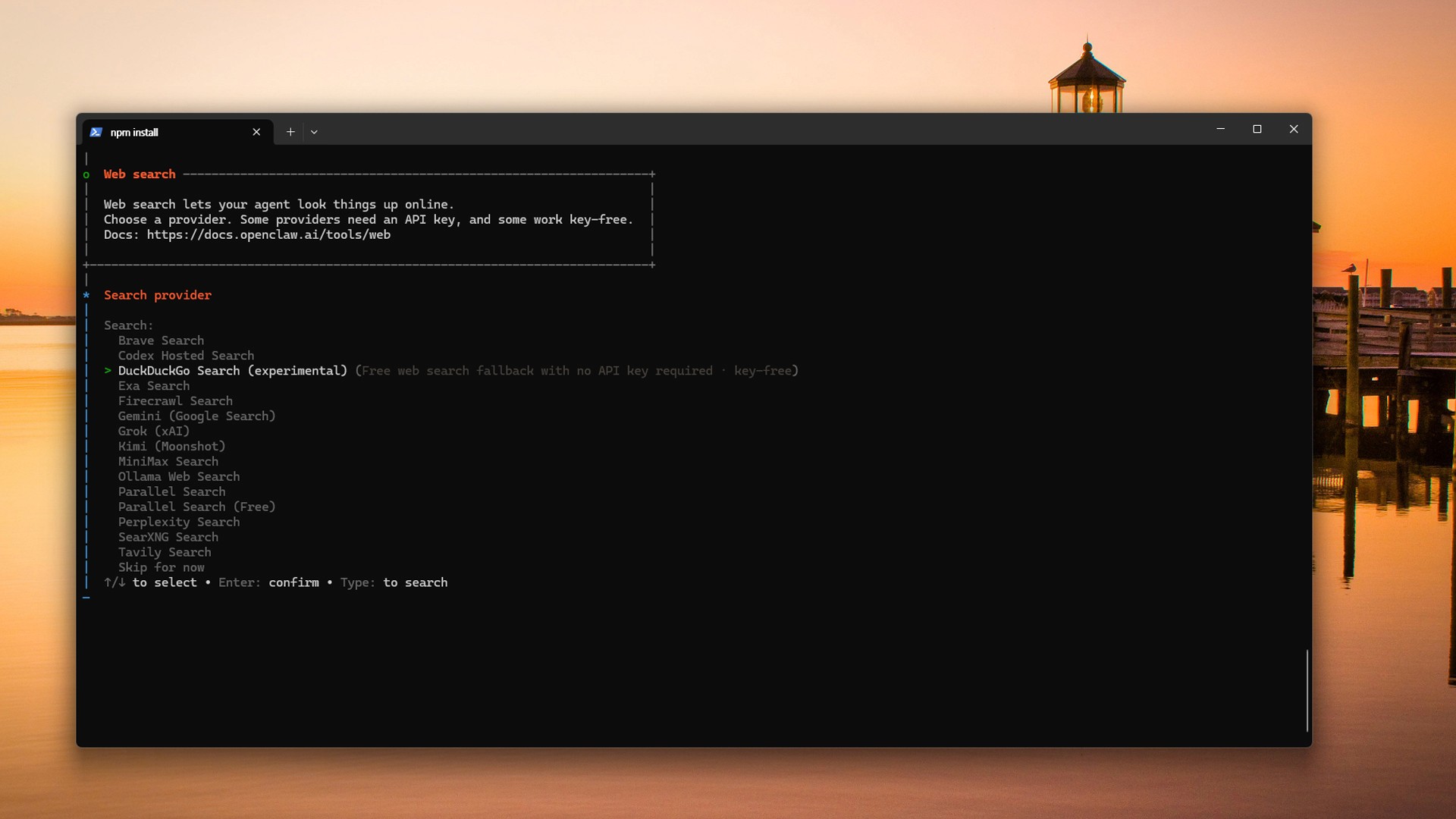
Image caption: Select DuckDuckGo Search as the free search provider so OpenClaw can research recent AI updates without an extra search API key.
Step 10: Skip Skills for the First Setup
OpenClaw may ask whether you want to configure Skills.
Choose No.
This tutorial only needs:
AI news search
Summarization
Search keyword generation
Telegram delivery
Additional Skills can add broader access to files, tools, or external services.
For the first automation, it is better to keep permissions minimal.
You can configure Skills later with:
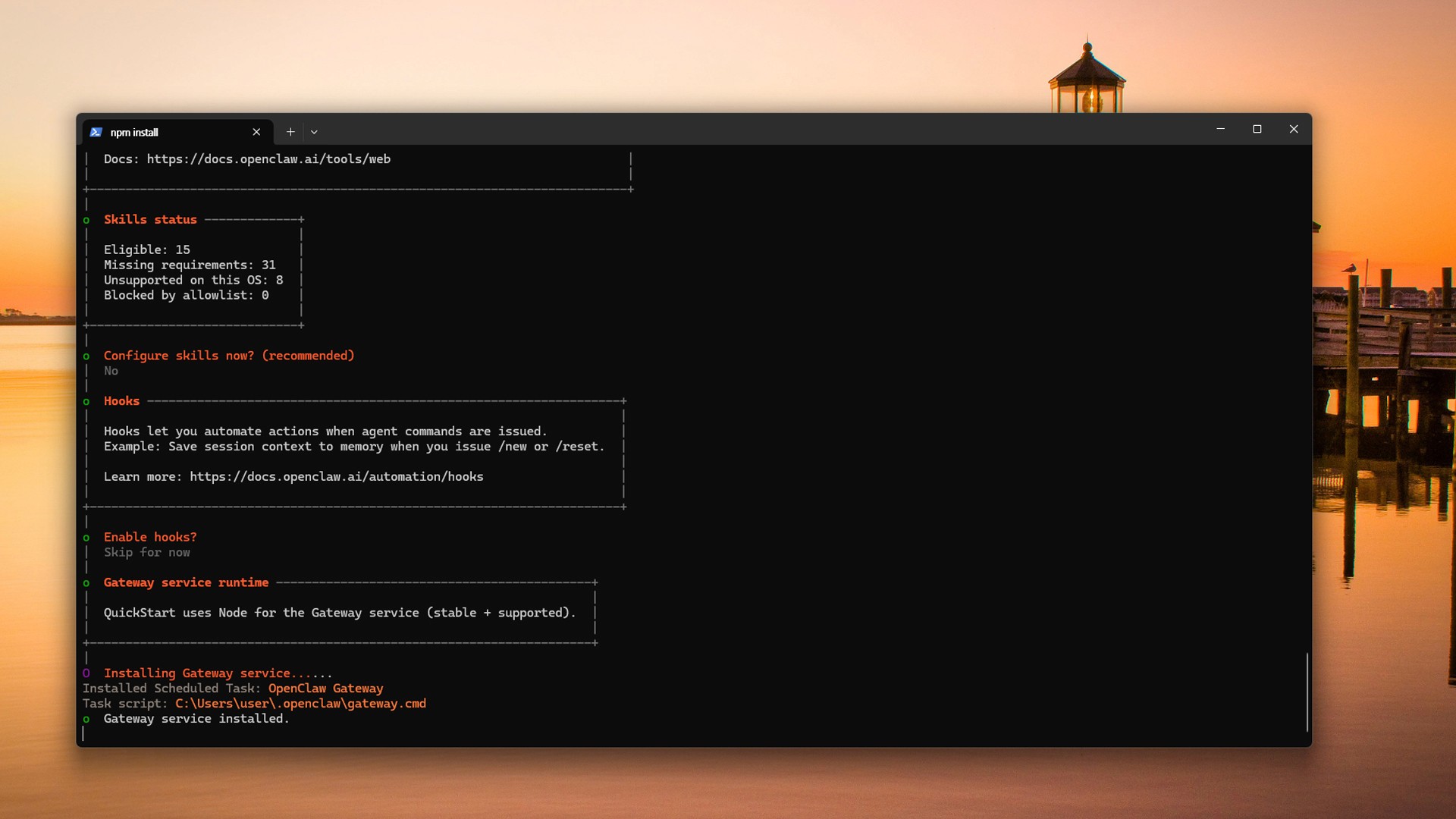
Image caption: For a simple Telegram news briefing automation, skip Skills during the first setup to keep the workflow safer and minimal.
Step 11: Skip Hooks
When the Hooks screen appears, select Skip for now.
Hooks can add extra behavior such as logging, session memory, notifications, or bootstrap files.
For this tutorial, the goal is simple:
Search AI news
Summarize it
Create search keywords
Send the result to Telegram
So we will skip optional hooks during the first setup.
Step 12: Hatch the Agent in Terminal
When OpenClaw asks how you want to hatch the agent, choose Hatch in Terminal.
This launches the agent immediately so you can test the Telegram connection.
When the agent starts, you may see something like this:
local ready | idle means the agent is running and waiting for input.
Step 13: Give the Agent a Simple Role
OpenClaw may ask who you are and what kind of assistant it should be.
Paste this:
This helps the agent understand its role.
For this tutorial, the agent’s job is daily AI news research and keyword briefing.
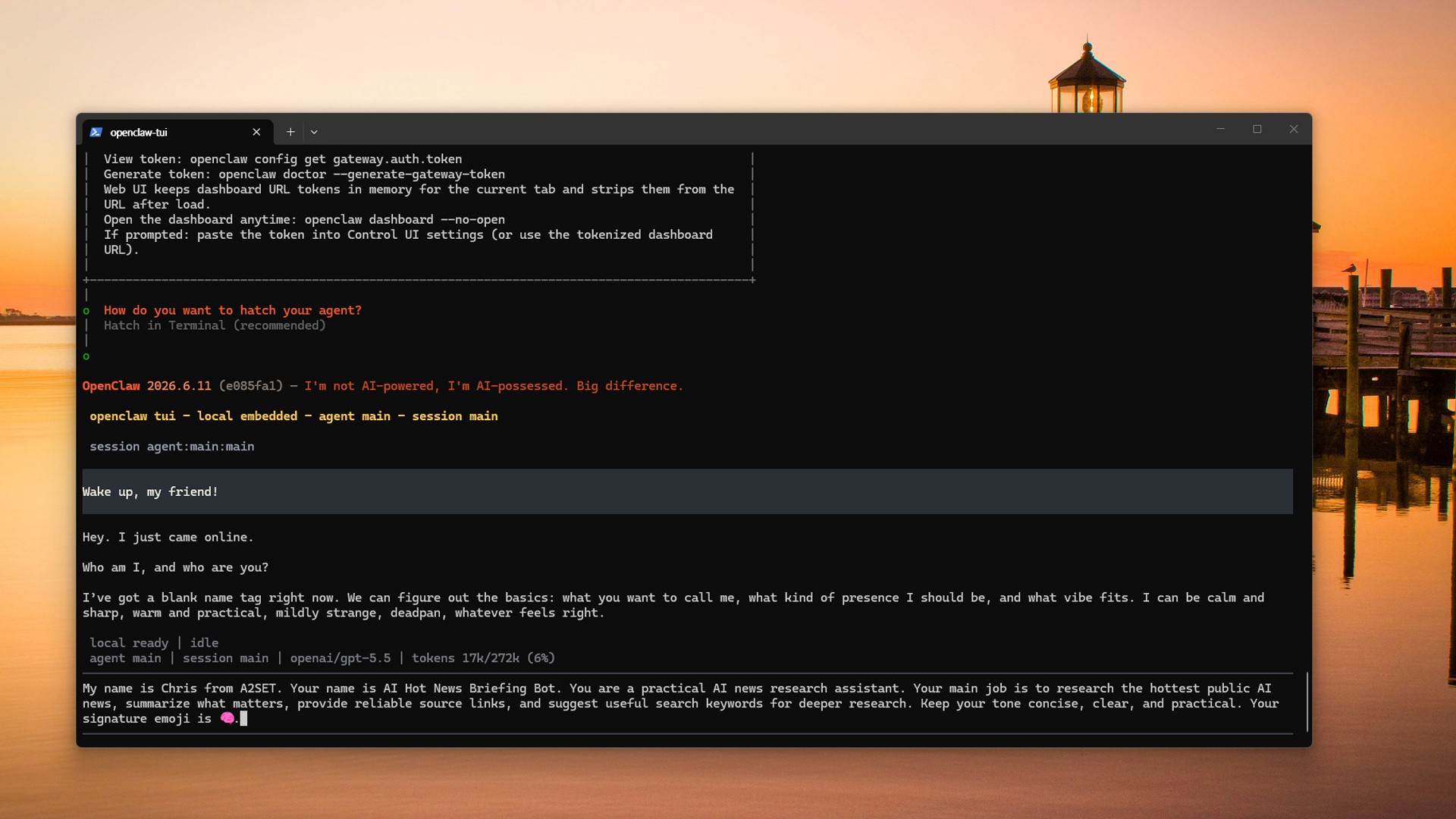
Image caption: Give the agent a simple role so it understands that its job is AI news research and keyword briefing.
Step 14: Open Your Telegram Bot Chat
Creating a Telegram bot does not automatically make it appear in your chat list.
You must open it manually.
Search for the bot username you created in BotFather.
It may look like this:
Open the bot profile and press Start.
You can also send:
The first time you start the bot, OpenClaw may create a pairing request.
In PowerShell, run:
Approve the pairing code:
When pairing succeeds, you may see a message like this:
This means your Telegram account is successfully paired with OpenClaw.
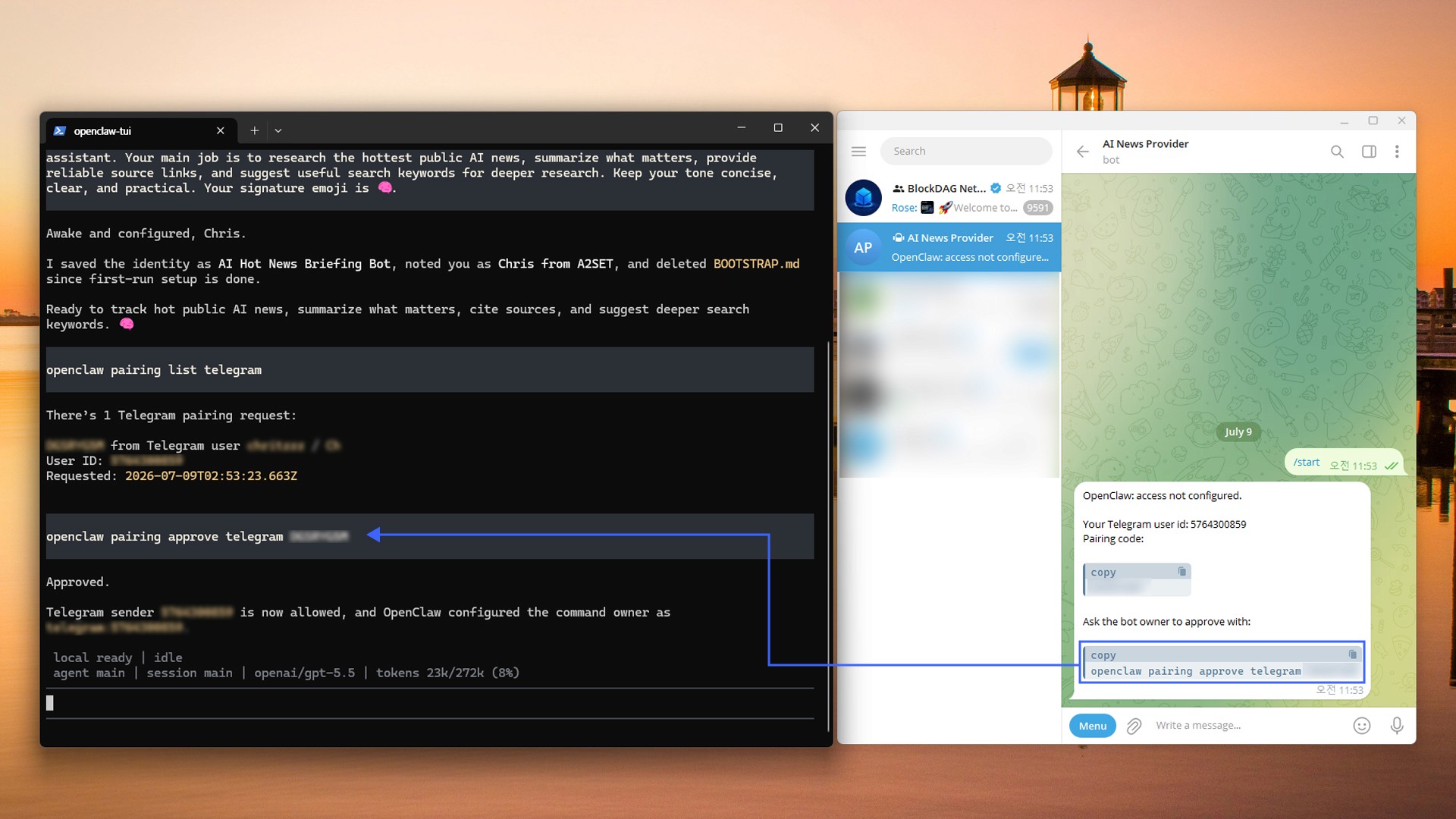
Image caption: Start your Telegram bot manually, then approve the pairing request in PowerShell.
Step 15: Test the Telegram Response
After pairing, send a clear test message to your Telegram bot.
Do not only send hello.
Use a direct instruction:
Or:
When the bot replies, the Telegram connection is working.
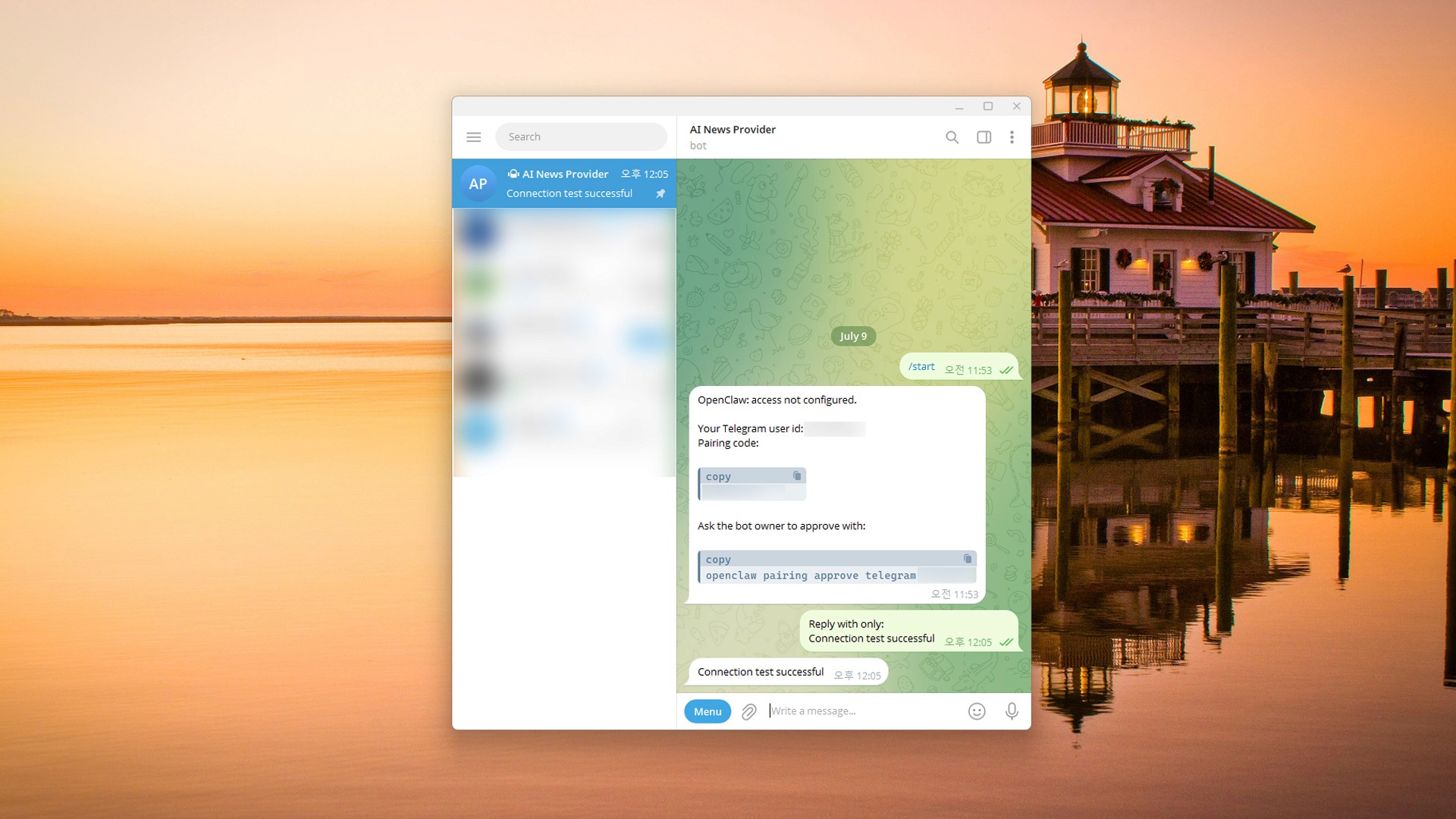
Image caption: Send a clear test prompt to confirm that OpenClaw can reply through Telegram.
Step 16: Fix the Windows PowerShell Script Policy Error
On Windows, you may see an error like this when running OpenClaw commands:
This is a Windows PowerShell execution policy issue.
PowerShell is blocking the openclaw.ps1 script installed through npm.
The simplest temporary fix is to allow scripts only for the current PowerShell session:
This only applies to the current PowerShell window.
When you close the window, it resets.
After that, run:
If the same error appears again, use openclaw.cmd instead:
On Windows, using openclaw.cmd is often the easiest way to avoid the PowerShell .ps1 script policy issue.
Step 17: Restart the Gateway and Test Again
After fixing the PowerShell issue, restart the Gateway:
Then send this to the Telegram bot again:
When Telegram replies, OpenClaw, ChatGPT/Codex sign-in, Gateway, and Telegram are connected properly.
Step 18: Test the AI Hot News Briefing Manually
Before creating a schedule, test the full briefing manually in Telegram.
Send this prompt to your Telegram bot:
Prompt to use:
Check the result carefully.
Are the stories recent enough?
Are they actually worth calling hot news?
Do the source links open properly?
Are the search keywords useful for deeper research?
Is the Telegram message readable?
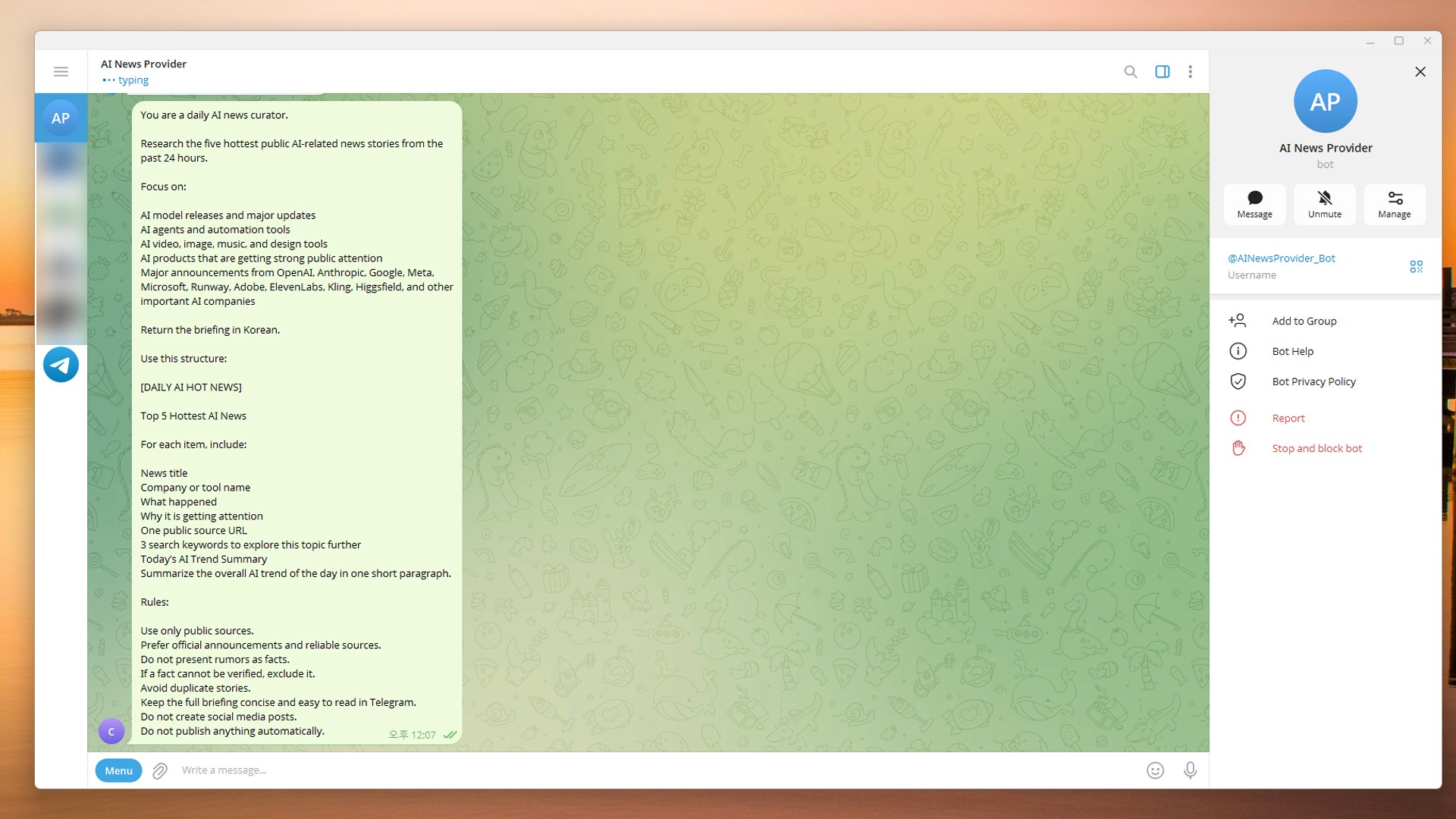

Image caption: Test the daily AI hot news briefing manually in Telegram before creating a scheduled task.
Step 19: Save Your Telegram Sender ID
When Telegram pairing succeeds, OpenClaw shows a numeric sender ID.
For example:
Save this number.
You will use it as the Telegram delivery target in the scheduled task.
Step 20: Create the Daily Briefing Prompt File
Now save the briefing prompt as a local text file.
In PowerShell, run:
When Notepad opens, paste this:
Save the file and close Notepad.
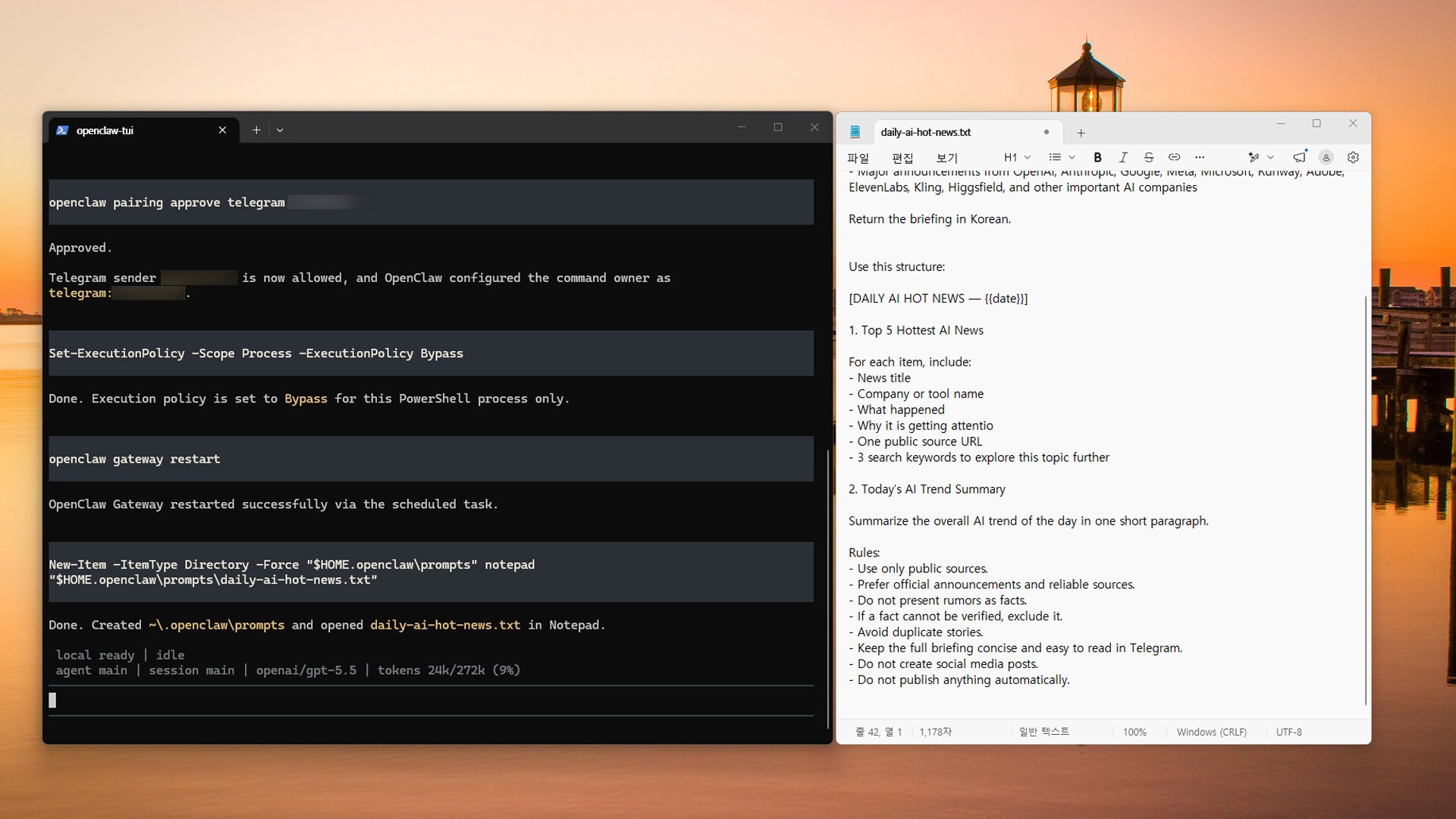
Image caption: Save the daily AI hot news prompt as a reusable local text file.
Step 21: Create the Daily 10 AM Telegram Automation
Now create a scheduled task that runs every day at 10 AM Korea time.
First, check that the prompt file exists:
If it returns True, load the prompt into a variable:
Important:
Run the prompt-loading command and the cron creation command separately.
Do not paste them as one combined line.
Then create the scheduled task.
Replace 5764300859 with your own Telegram sender ID.
This schedules the briefing for every day at 10 AM Korea time.
Step 22: Confirm the Cron Job Was Created
Run:
You should see a job similar to this:
The important details are:
Status: idle
Schedule: 0 10 * * *
Timezone: Asia/Seoul
Delivery: Telegram
Save the ID value. You will need it for manual testing.
Step 23: Run the Cron Job Manually by ID
Do not run the job by name.
In OpenClaw 2026.6.11, running a cron job by name may return an error like:
Instead, copy the ID from cron list.
Example ID:
Run the job by ID:
Replace the ID with your own cron job ID.
Then wait for the Telegram briefing.
To view recent runs, use:
Step 24: When PowerShell Is Closed by Mistake
Closing PowerShell does not delete the prompt file.
It also does not necessarily delete the cron job.
What disappears is the temporary PowerShell variable, such as $briefPrompt.
Open a new PowerShell window and start from here:
If the Gateway is not running, restart it:
Check that the prompt file still exists:
Check whether the cron job already exists:
If the job appears, do not create it again.
Copy the ID and run it manually:
If the job does not appear, reload the prompt variable and create the cron job again:
Step 25: When the OpenClaw Terminal Stops Accepting Input
Sometimes OpenClaw may show a final guidance screen with sections such as:
Workspace backup
Security disclaimer
Shell completion
Web search
What now
This does not mean the setup failed.
It usually means OpenClaw has reached a final guidance screen.
If the terminal does not accept typing, press:
Or open a new PowerShell window and continue with:
Step 26: Edit the Briefing Format Later
After using the briefing for a few days, you may want to change the format.
To reduce the number of news items, change:
to:
To receive both English and Korean search keywords, add:
To make sources stricter, add:
To make the Telegram message shorter, add:
After editing the prompt file, reload it:
Then update the cron job:
Run it manually again to test the change:
A2SET Test Notes
The goal of this automation is not to make AI perfectly judge every news story.
A more realistic goal is to receive a useful first list of AI topics every morning.
The most valuable part is not just the news summary.
The search keywords make the briefing much more useful.
A headline gives you a quick overview.
A keyword gives you a way to continue researching the topic on Google, YouTube, X, Threads, Reddit, or official company blogs.
This workflow is especially useful for:
AI researchers
Creators
Marketers
Blog writers
YouTube planners
Product strategists
Startup teams
AI tool curators
The first version should stay simple:
Five hot AI news stories
One source URL for each story
Three search keywords per story
One daily AI trend summary
Later, you can expand the automation in different directions.
For example:
Only AI video tools
Only AI agents
Only OpenAI, Anthropic, Google, and Meta updates
Only creative AI tools
Only news that may become a strong YouTube topic
Only AI tools useful for small brands and creators
For the blog visuals, the most useful screenshots are:
OpenClaw security disclaimer
QuickStart setup mode
OpenAI model/auth provider
Default model selection
Telegram channel selection
DuckDuckGo Search provider
Skills and Hooks skip screens
Telegram pairing success
PowerShell execution policy error
Cron list success screen
Final Telegram AI hot news briefing
Common Issues and Simple Fixes
If OpenClaw is not recognized, close PowerShell and open it again.
Then check:
If PowerShell blocks openclaw.ps1, run:
If it still fails, use:
If the Telegram bot does not appear in your chat list, search for the bot username manually and send:
If pairing succeeds but the bot does not reply, restart the Gateway:
Then send a clear test prompt:
If the scheduled briefing does not arrive, check the cron list:
Make sure the --to value is your numeric Telegram sender ID, not the bot username.
If the news feels too generic, add a more specific instruction to the prompt:
If the briefing is too long, reduce the number of stories:
If you reach your ChatGPT/Codex usage limit, the scheduled task may not run properly until your usage resets.
In that case, reduce the frequency, reduce the number of stories, or make the prompt shorter.
Responsible Use Notes
OpenClaw connects model accounts, local tools, and message channels.
For the first setup, keep the workflow small and safe.
Use:
One Telegram DM
One personal Telegram account
Public web search
Read-only research
Avoid connecting email, cloud drives, customer data, payment tools, file deletion tools, or automatic publishing until you fully understand the risks.
Your Telegram Bot Token is sensitive.
Do not expose it in screenshots, blog images, GitHub repositories, Notion documents, or public messages.
Always verify AI-generated news before using it publicly.
Product release dates, pricing, model performance claims, feature availability, and rollout regions can change quickly.
For public content, open the source links and check the facts manually.
Your Windows PC must stay on and connected to the internet for the scheduled briefing to run.
If your PC is turned off, sleeping, or disconnected, the scheduled task may not execute.
Conclusion
In this tutorial, we installed OpenClaw on Windows and created a daily Telegram automation for AI hot news.
The workflow is simple.
Install OpenClaw in Windows PowerShell.
Use QuickStart.
Select OpenAI as the model/auth provider.
Use ChatGPT/Codex sign-in instead of an OpenAI API key.
Keep the default model.
Skip Codex migration for a clean setup.
Create a Telegram bot with BotFather.
Paste the Telegram Bot Token into OpenClaw.
Select DuckDuckGo Search as the search provider.
Skip Skills and Hooks for the first setup.
Hatch the agent in Terminal.
Pair your Telegram account.
Fix PowerShell execution policy issues with
openclaw.cmd.Test the Telegram connection.
Save the daily AI hot news prompt as a text file.
Create a daily 10 AM cron job.
Use
cron listto copy the job ID.Run the cron job manually by ID.
Receive the AI hot news briefing in Telegram.
The strength of OpenClaw is not just answering a single question.
It can connect search, summarization, keyword research, scheduled execution, and Telegram delivery into one repeatable workflow.
Start with a small and safe automation.
Receiving five AI hot news stories and useful search keywords every morning is already enough to save research time and discover better topics faster.
Quick FAQ
Can I do this without an OpenAI API key?
Yes. This tutorial uses ChatGPT/Codex sign-in inside OpenClaw instead of an OpenAI API key.
Is it completely free?
It does not use separate OpenAI API billing. However, it uses the Codex or agent usage available in your ChatGPT plan. When the usage limit is reached, the automation may stop until usage resets.
Do I need WSL on Windows?
No. This tutorial uses native Windows PowerShell.
Why is my Telegram bot not in my chat list?
A newly created Telegram bot does not automatically appear in your chat list. Search for the bot username manually and send /start.
Why does PowerShell block OpenClaw?
PowerShell may block the openclaw.ps1 script because of Windows execution policy. Use Set-ExecutionPolicy -Scope Process -ExecutionPolicy Bypass for the current session or run OpenClaw with openclaw.cmd.
Why did cron run --name fail?
In the tested OpenClaw version, the cron job needed to be run by ID. Use openclaw.cmd cron list, copy the ID, then run openclaw.cmd cron run <ID> --wait.
What happens if I close PowerShell by mistake?
Your prompt file remains saved. Your cron job may also remain registered. Open a new PowerShell window, run openclaw.cmd cron list, copy the ID, and continue.
Does the briefing work when my computer is turned off?
No. The OpenClaw Gateway must be running. Your Windows PC needs to be on, awake, and connected to the internet.
Can I change the briefing time?
Yes. For example, to run it every day at 8 AM, use:
Can I reduce the news from five items to three?
Yes. Edit the prompt and change five hottest to three hottest.
Can the agent publish to a blog or social media automatically?
Technically, it can be extended, but it is not recommended for a first workflow. News accuracy, context, and tone should be reviewed manually before public posting.