Create a Clean Planning Document Template with Claude Skills

Hello creators, welcome back to A2SET’s AI Tutorial.
Sometimes the idea itself is not the hard part.
The hard part is turning that idea into a clean planning document.
You may already know the rough direction in your head, but once you start writing, you need to organize the project title, goal, target audience, concept, execution plan, content direction, KPI, and next actions from scratch every time.
In this tutorial, we will use Claude Skills to create a simple template that automatically turns a rough idea into a clean one-page planning document.
The idea is simple.
Instead of explaining your planning format to Claude every time, you save your own planning rules as a Skill.
After that, you can enter a short idea, and Claude will organize it in the same clear structure every time.

Image caption: Claude Skills can help turn a rough idea into a clean, structured planning document.
Step 1: Open the Claude Skills Page
First, open Claude and go to Customize from the left-side menu.
Then select Skills.
On the Skills page, you can see your available Personal skills.
At the top of the Skills panel, there is a search icon and a + button.
To create a new Skill, click the + button.
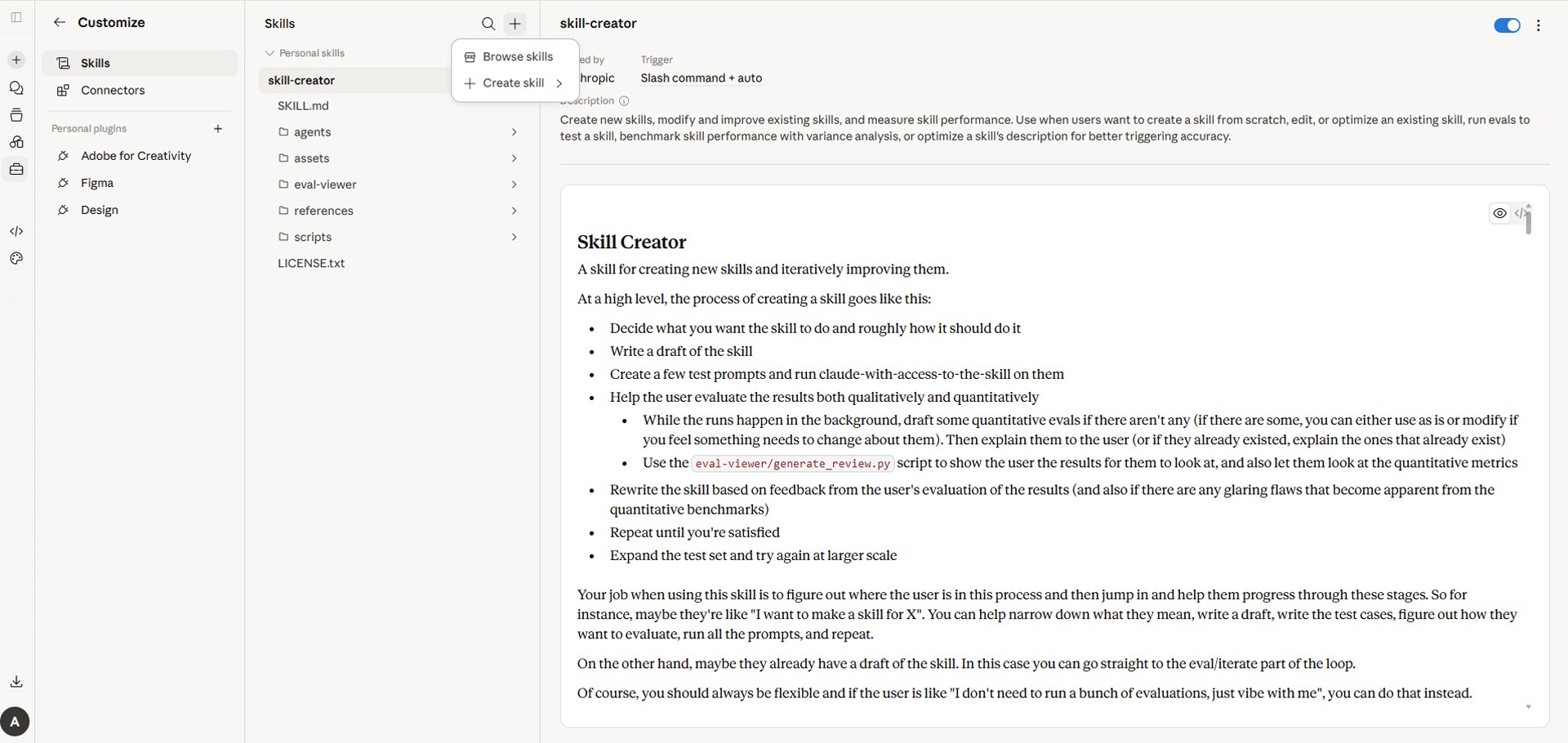
Image caption: Open Customize, go to Skills, then click the plus button at the top to create a new skill.
Step 2: Choose Create Skill
When you click the + button, a menu will appear.
You should see options such as:
Browse skills
Create skill
Upload a skill
For this tutorial, choose Create skill.
When you hover over or open Create skill, you will see three options:
Create with Claude
Write skill instructions
Upload a skill
If this is your first time creating a Skill, Create with Claude is the easiest option.
Claude will help you define what the Skill should do and how it should work.
If you already know exactly what instructions you want to write, choose Write skill instructions.
If you already have a prepared Skill file, you can use Upload a skill.
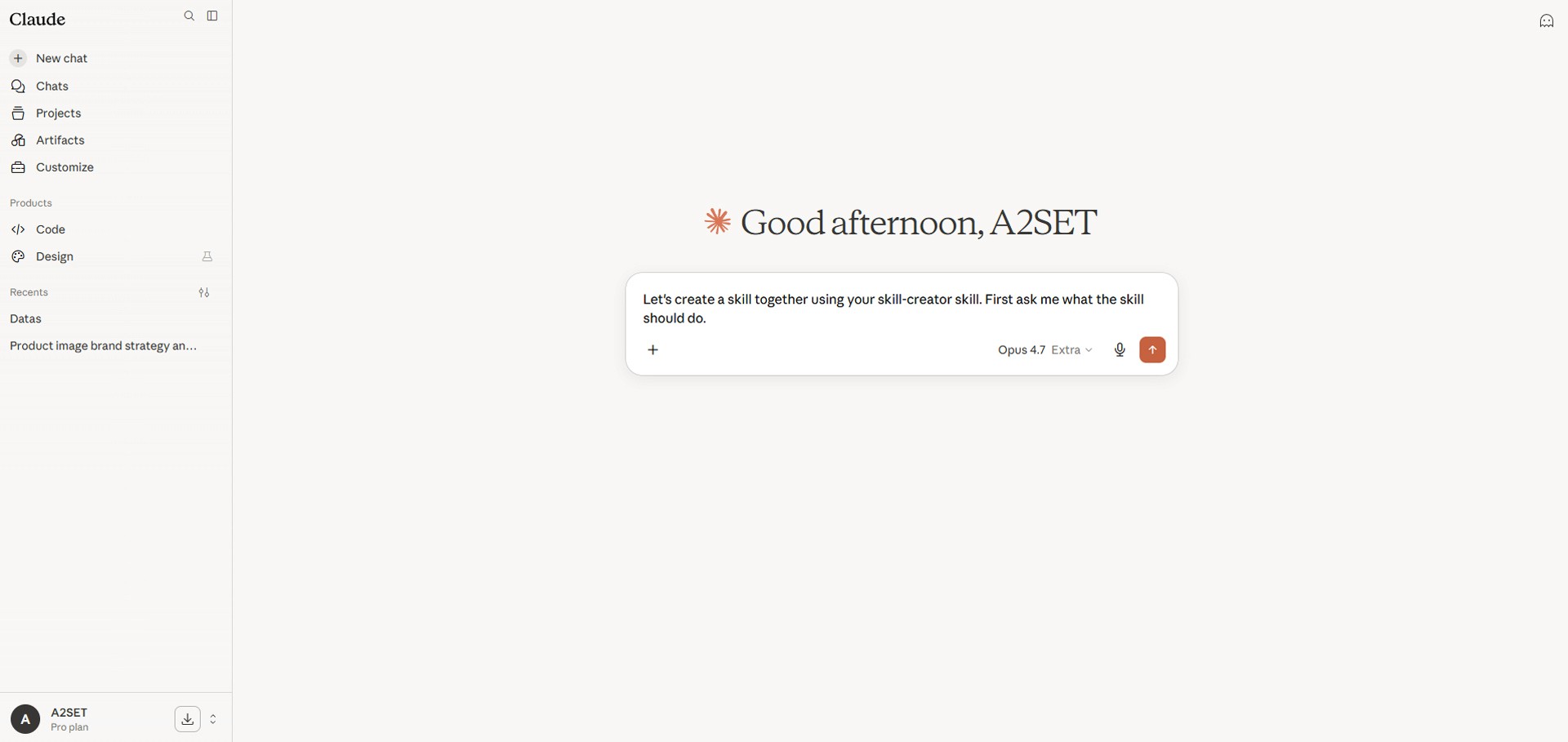
Image caption: Use Create with Claude if you want Claude to help build the skill step by step.
Step 3: Tell Claude What Skill You Want to Create
In this tutorial, we will create a Skill that turns a rough project idea into a clean planning document.
Select Create with Claude and use the prompt below.
Prompt to use:
Claude will use this request to help build the Skill.
It may ask follow-up questions about the tone, document type, output length, or the kinds of projects you want to use it for.

Image caption: Tell Claude what the skill should do and what structure every planning document should follow.
Step 4: Write the Skill Instructions Manually
If you choose Write skill instructions instead of Create with Claude, you can paste a simple instruction file like this.
This is enough to start.
The goal is not to make the Skill overly complex.
The goal is to make Claude organize ideas in the same clean format every time.
Step 5: Test the Skill with a Rough Idea
After creating the Skill, test it with a short idea.
You do not need to write a long brief.
Use a simple prompt like this.
Prompt to use:
Claude should turn the rough idea into a structured one-page plan.
The result may look like this.
Project Title
30-Second Confidence Refresh CampaignOne-Line Summary
A short-form SNS campaign showing how the product helps users quickly refresh their look before stepping out.Goal
Build pre-launch awareness and make the product feel practical, natural, and easy to use.Target Audience
People in their 30s and 40s who want a quick styling solution before work, meetings, dates, or photos.Key Insight
People do not always need a dramatic transformation. Sometimes they just want to feel more prepared before going out.Main Concept
A small styling moment that changes the mood of the day.
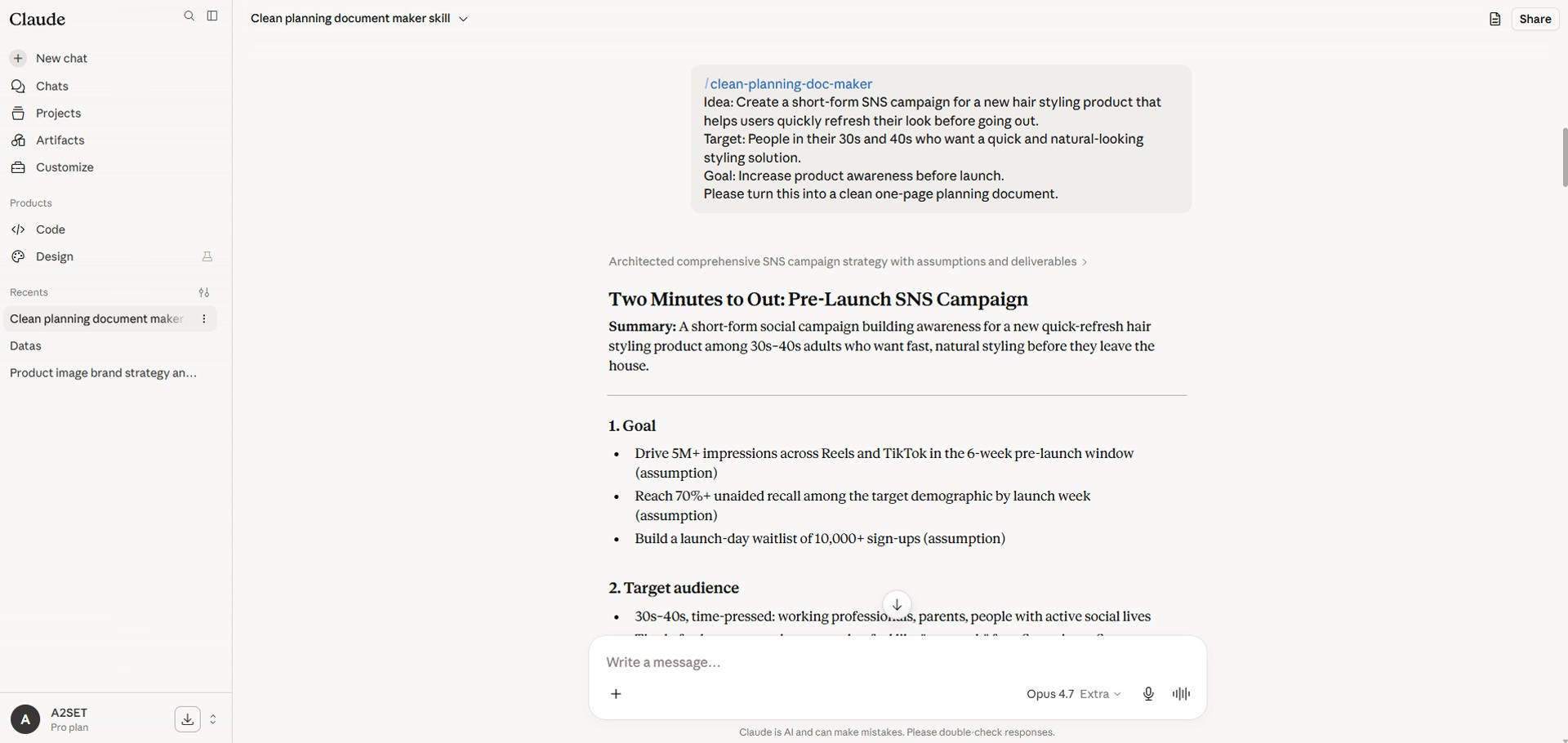
Image caption: The Skill turns a rough idea into a structured planning document that is easier to review visually.
Step 6: Make the Planning Document More Visual
If the output feels too text-heavy, ask Claude to turn it into a visual layout.
Prompt to use:
This makes the planning document easier to move into PowerPoint, Notion, Google Slides, or a PDF handout.
A simple layout can work like this.
Top section: project title and one-line summary
Middle section: three cards for goal, target audience, and key insight
Bottom section: execution flow, KPI, and next actions
This is also easy to show visually in a tutorial.
The Before image can show a rough idea.
The After image can show a clean one-page planning document.
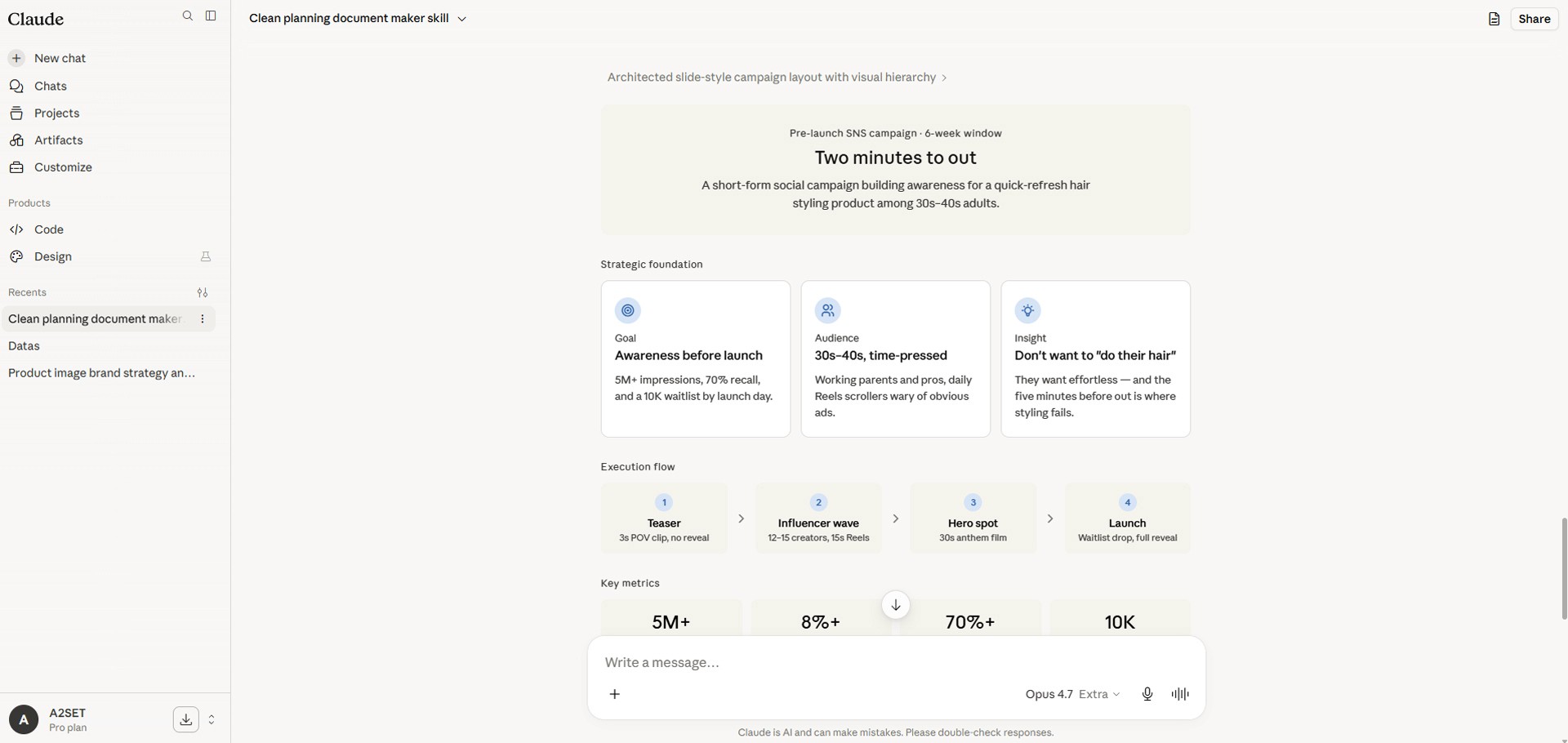
Image caption: A visual planning layout makes the result easier to turn into a slide, PDF, or Notion page.
Step 7: Expand It into a Short Presentation Structure
Once the one-page plan looks good, you can use the same Skill to expand it into a short deck.
Prompt to use:
Now one rough idea becomes both a one-page plan and a short 7-slide proposal structure.
This is useful for internal meetings, quick campaign proposals, SNS planning, and early-stage product ideas.
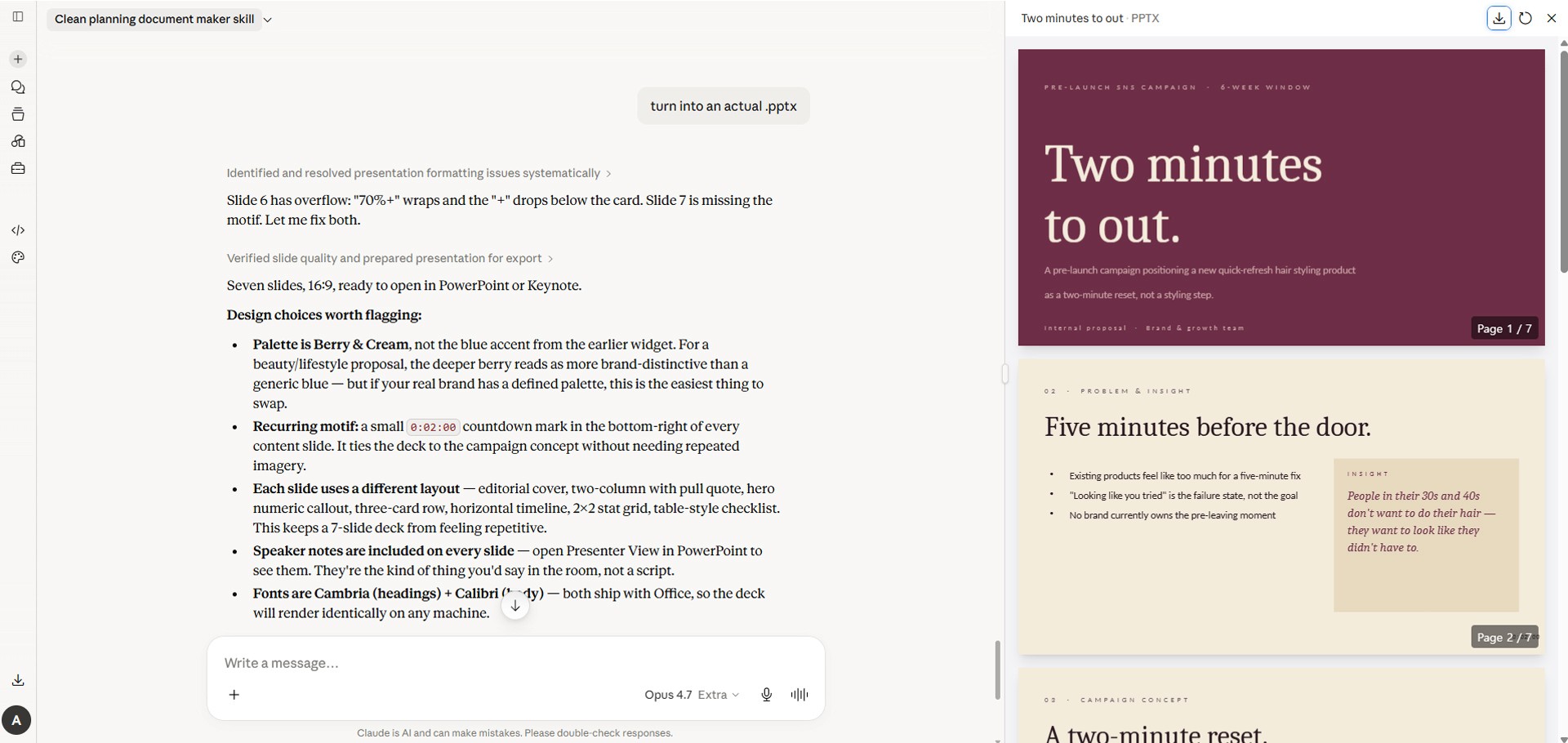
Image caption: The same Skill can turn a one-page plan into a short presentation structure.
A2SET Test Notes
The most important part of this workflow is keeping the Skill simple.
If you try to make the Skill handle every possible planning situation from the beginning, the output may become too heavy.
A better approach is to create one repeatable planning format first.
In this tutorial, we created a one-page planning document format and expanded it into a short presentation only when needed.
For the blog visuals, three screenshots are enough.
First, show the Skills page with the + button and the Create skill menu.
Second, show the Create with Claude option.
Third, show the result where a rough idea becomes a clean one-page planning document.
Image caption: A simple repeatable Skill is more useful than an overly complex planning system.
Common Issues and Simple Fixes
If the result is too long, say:
Make it shorter and more visual.
If the content feels too abstract, say:
Make it more execution-focused.
If the concept feels too plain, say:
Add a stronger creative concept.
If you want it to look more like a slide, say:
Convert this into a slide-style layout.
If the idea is too vague, say:
Ask me 5 questions before creating the plan.
Conclusion
In this tutorial, we created a clean planning document template with Claude Skills.
The workflow is simple.
Open Customize in Claude.
Go to Skills.
Click the + button.
Choose Create skill.
If you are new to Skills, choose Create with Claude.
Save your planning document rules as a Skill.
Enter a rough idea.
Claude organizes it into a clean one-page planning document.
If needed, expand it into a short 7-slide presentation structure.
This is more useful than writing a one-time prompt.
Once the Skill is created, you can reuse the same structure again and again for future planning documents.
It helps create more consistent, clean, and reviewable proposals with less effort.
We will return in the next A2SET tutorial with more practical AI workflows for creators, marketers, and small brand teams.
Quick FAQ
What are Claude Skills?
Claude Skills are reusable task instructions that help Claude perform specific types of work more consistently. They can be useful for writing, analysis, planning, formatting, and document organization.
Where can I create a Skill?
Go to Customize, then open Skills. Click the + button at the top and choose Create skill.
Which option should I choose first?
If you are creating a Skill for the first time, choose Create with Claude. Claude will help you define and build the Skill step by step.
What if I want to write the instructions myself?
Choose Write skill instructions. You can use the example in Step 4 as a starting point.
What can I use this Skill for?
You can use it for SNS campaign plans, product launch ideas, brand content plans, short-form video plans, blog content ideas, and quick internal proposals.
Do I have to create a Skill?
No. You can use the same instructions as a normal prompt. However, if you want to reuse the same planning structure many times, saving it as a Skill is more convenient.